How the email agent classifies mail & autonomy levels L0–L3
What the email agent does with every incoming message, and how much it is allowed to do on its own.
Linbis reads every email that reaches your connected mailboxes, decides what kind of message it is, extracts the data, and — depending on how much autonomy you have granted — either proposes an action for you to approve or applies it on its own. This page explains the moving parts.
Classification
The agent assigns each email one classification. These are the same labels you see as chips in Emails and as the proposed Action in the Work Queue: Booking request, Booking confirmation, Quote request, Quote response, Arrival notice, Customs hold, Vendor bill, Payment notice, Pre-alert, Pickup request, Document request, Status update, and more. Mail the agent cannot place shows Unclassified; mail not yet processed shows Needs classification.
Classification drives everything downstream: which folder the email lands in, what data gets extracted (a vendor bill yields amounts and references; a booking request yields a route and cargo), and which action Copilot proposes ("+ Create booking", "+ Create quote", "+ Create BILL").
Autonomy levels L0–L3
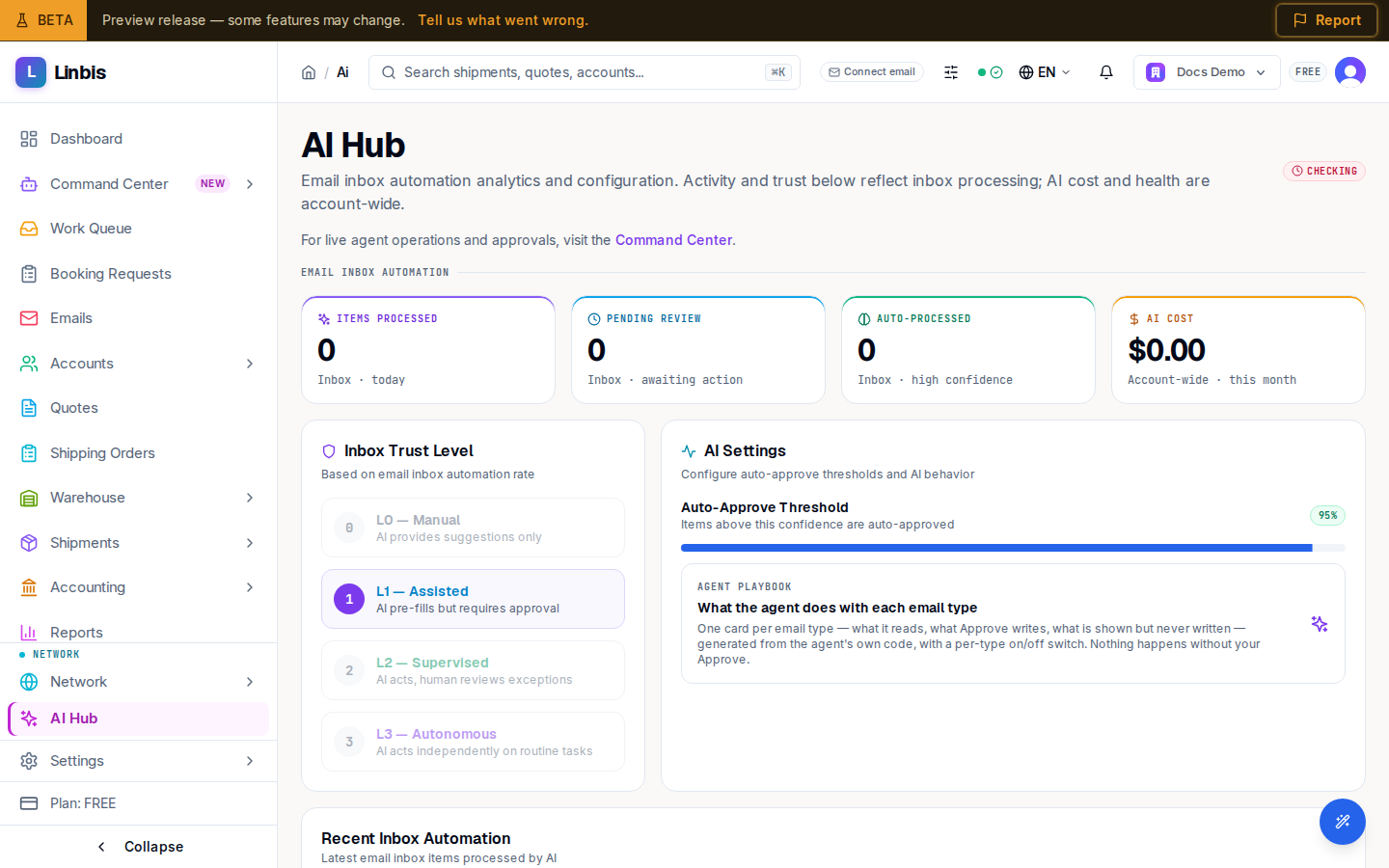
Autonomy is how much the agent may do without you. Four levels, configured under Settings → Autonomy Settings:
| Level | Name | What it permits |
|---|---|---|
| L0 | Observe Only | The agent monitors and classifies, takes no actions |
| L1 | Suggest + Approve | The agent proposes actions; every one needs your approval |
| L2 | Auto Low-Risk + Notify | Low-risk actions run automatically, you are notified |
| L3 | Bounded Autonomy | Non-financial operations run automatically within set bounds |
Two dials interact here:
- Max Autonomy Level — a global cap. It is a ceiling, never a grant.
- Per-Action-Category Levels — the actual grants, one per action category (classify email, create shipment from email, record payment, send customer invoice, and so on). The effective level is always the lower of the cap and the category grant.
Certain things force human review no matter the level: destructive actions, dangerous-goods shipments, sanctions matches, and any action over the money caps (Auto-Execute Max Value and Invoice Auto-Send Max). Hard override toggles also force approval for new customers or new lanes.
Trust: how an agent earns higher levels
Autonomy is earned, not assumed. The trust engine tracks each agent's interactions and accuracy: promotion to L2 requires a track record of at least 50 interactions at 90%+ accuracy; L3 requires 200+ interactions at 95%+ accuracy. Accuracy drops demote the agent. You can review trust, escalations, and the audit trail under Settings → Autonomy.
Confidence thresholds: a second, separate gate
Independent of autonomy, every processed item carries a confidence score. The Settings → AI tab sets the auto-approval bar — a Global Threshold (default 92%) with Confidence Thresholds by Type. Items above their threshold are auto-processed (undoable during the Undo Window); items below wait for you in the Work Queue. Financial documents are strict by default: the Vendor Bill type is "Manual Only" until you decide otherwise.
In short: autonomy decides whether the agent may act; confidence decides whether this specific item was read reliably enough to act on.
The Agent Playbook
AI Hub → Agent Playbook turns each email type on or off. Off means the agent still classifies the email so you can see it, but reads no details and takes no action. High-impact types are marked "Never auto-applies" — the agent will never execute those without you, regardless of autonomy.
Where you feel it day to day
- Proposals wait for you in the Work Queue — approve or reject them.
- Every email, classified and actionable, lives in Emails (the Freight Desk), where the rail explains "How I classified this" and what it extracted.
- Auto-applied items are marked Auto Approved in the queue's history, so nothing is invisible.