Network screen reference
The forwarder network in one map — profile, directory, connections, partners, messages, shared shipments, rate requests, load board, marketplace, and invitations.
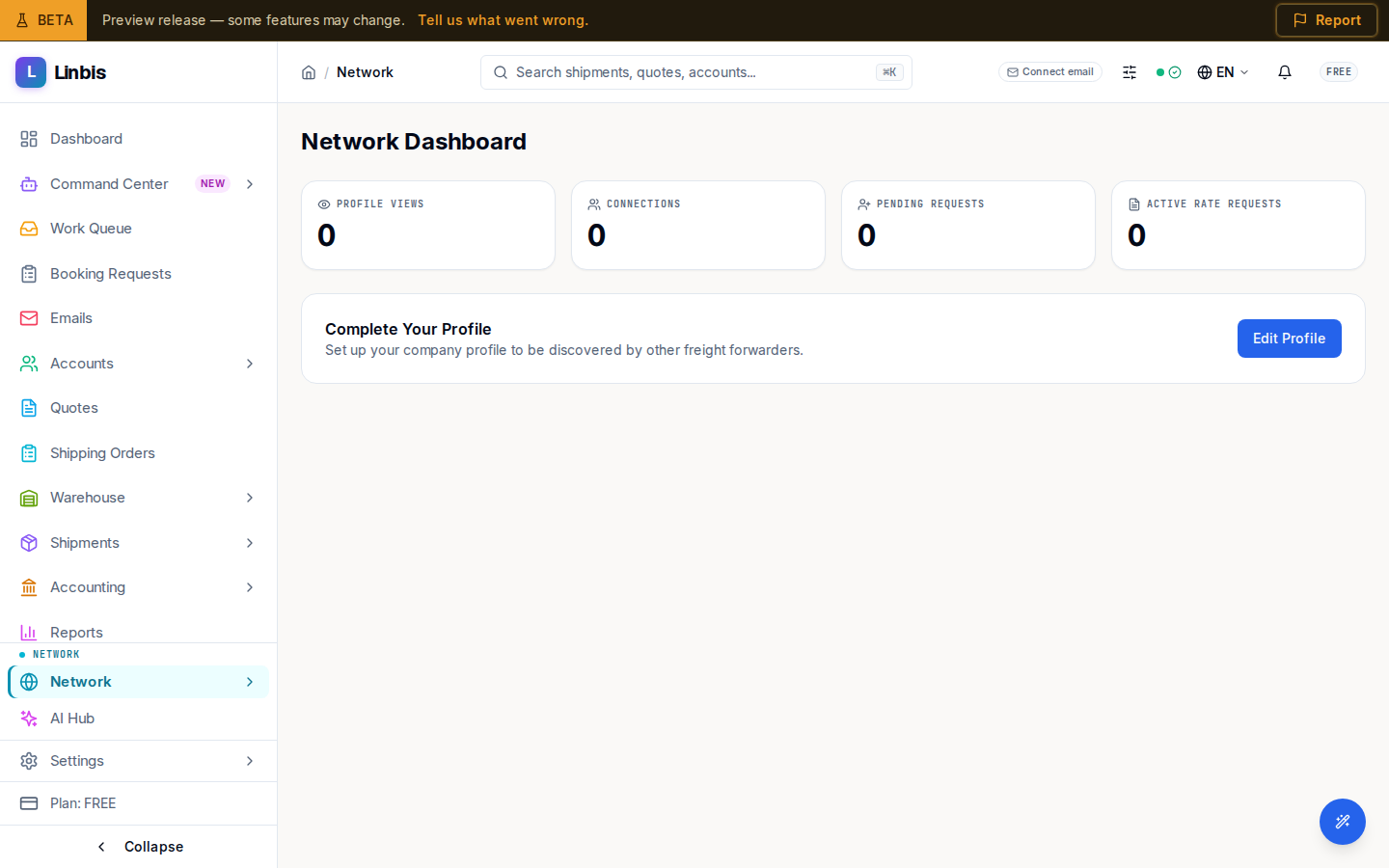
Network connects your company with other freight forwarders on Linbis: publish a profile, find and connect with partners, message them, share shipments, trade rates and loads. The sidebar group holds ten pages — here is what each one does.
My Profile
Company Profile — "Manage your network profile to attract partners and agents." The badge shows Published or Draft; the Publish / Unpublish button controls whether the directory lists you.
Network Directory
"Find and connect with freight forwarders worldwide." Result cards show company, location, connection count, profile views, and freight-mode badges. Connect opens the request dialog: pick a Relationship Type (Overseas Agent, Co-Loader, Customs Broker, Carrier, Trucker, Warehouse Provider, NVOCC, Insurance Broker, Other), add an optional message, Send Request.
Network Connections
"Manage your network connections and partnership requests." Tabs All, Pending, Accepted. Incoming requests carry an Incoming badge with Accept / Reject; outgoing ones show Awaiting Response; accepted connections offer Disconnect.
My Partners
"Your agents, truckers, customs brokers, and other partners — auto-detected from shipment history." Filter by Partner Type; each partner card offers View Account, Email, Call, Message, Request Rate, and — for partners on Linbis — Network Profile, or Invite to Network for those not yet on it. Refine Types tunes the auto-classification.
Messages
The network inbox: conversations with connected partners. Start one from a connection's profile or the directory ("No conversations" → Browse Directory).
Shared Shipments
"Shipments shared with you by network partners." Each card shows the sharer, shipment number, mode and status, ETD → ETA, exactly which fields they shared, and when the share expires.
Rate Requests
Lane pricing between partners. Tabs All, Sent, Received; New Rate Request starts one. Statuses: PENDING, QUOTED, ACCEPTED, CANCELLED, EXPIRED.
Load Board
"Find and post available loads across the network." Tabs Browse Loads and My Posts; filter by country, Equipment Type, pickup dates; sort by Newest First, Pickup Date, Highest Budget, or Trust Score. Post Load publishes yours; Respond answers an OPEN load. Cards flag Hazmat and Oversize, budget, and the poster's trust score.
Marketplace
"Browse capacity alerts, trade lane requests, and rate bulletins from your network." Tabs All, Capacity, Trade Lanes, Rates; post with Post Capacity or Post Rates.
Invitations
Invite Agents — bring a partner onto the network by email: Email address, optional Company name, and the Invite type (Direct Connection or Rate Request), then Send Invite. The Sent Invites table tracks each one: SENT, OPENED, CLAIMED, EXPIRED, or BOUNCED.
Related
- Accounts screen reference
- Invite a customer to the portal — customers get the portal; forwarder partners get the network.