Reports
Generate and export a report
Run any operational report — set the filters, generate, and take it out as CSV, Excel, or PDF.
Every report in Linbis follows the same rhythm: pick it from the catalog, set the filters, Generate Report, then hand it off — print it or export it as a file.
Steps
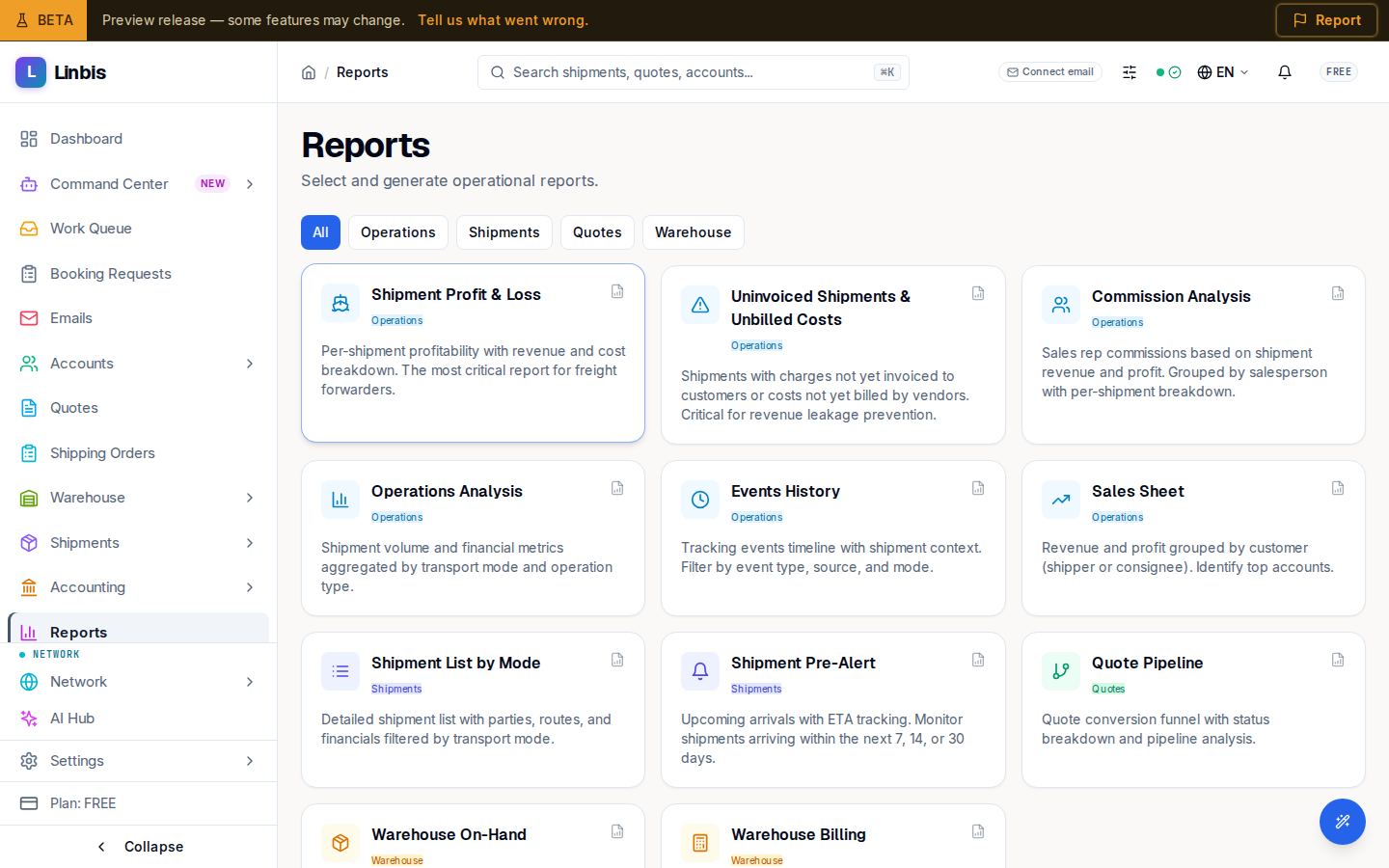
- Open Reports in the sidebar. Narrow the catalog with the category buttons (All, Operations, Shipments, Quotes, Warehouse) and select a report card — for example Shipment Profit & Loss.
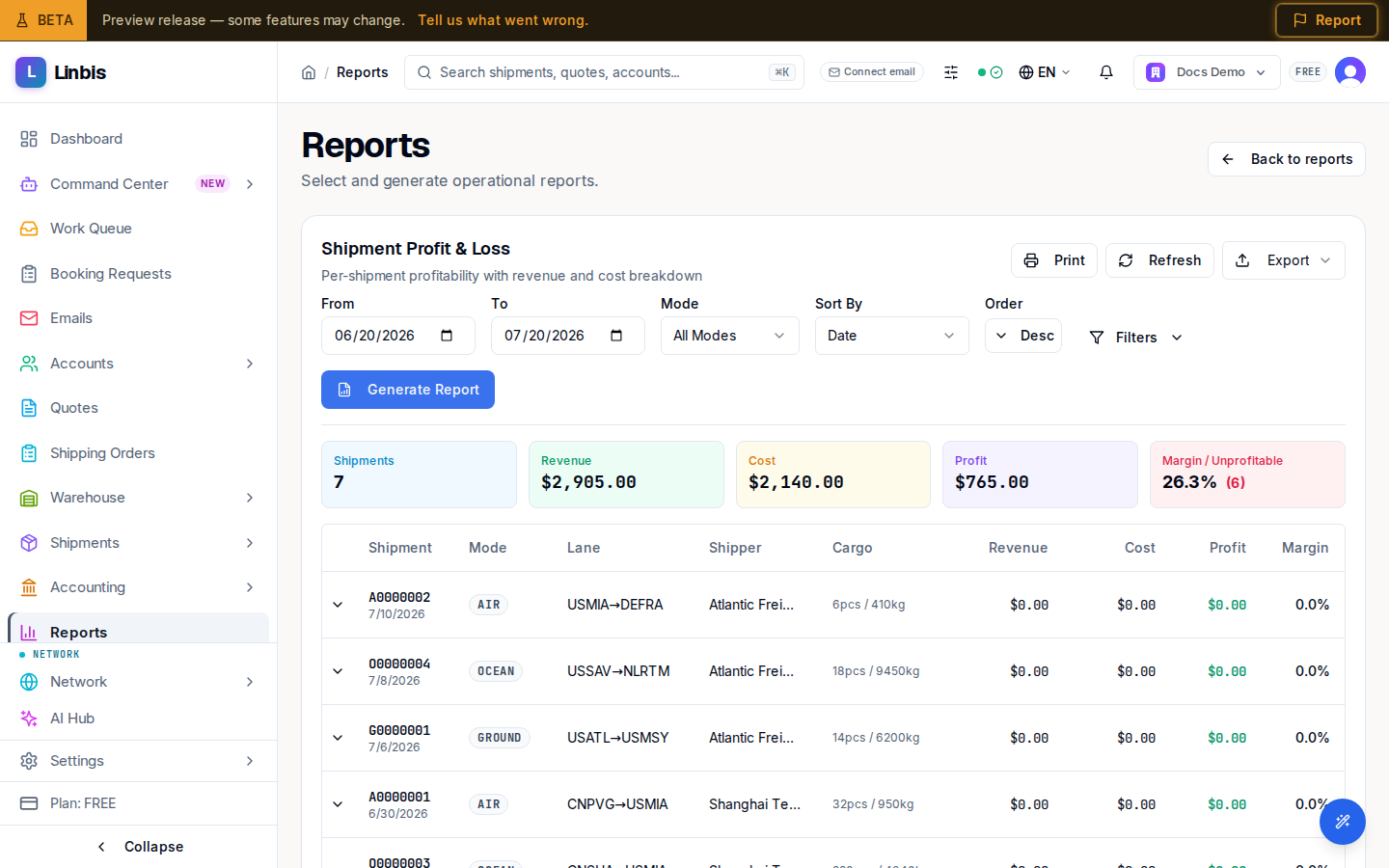
- Set the filters: From and To dates, Mode (All Modes, Air, Ocean, Ground, Multimodal), and sorting. Need more precision? Open Filters and pick a Shipper, Consignee, Agent, Sales Rep, Origin, or Destination.
- Select Generate Report. The summary cards and the result table appear; expandable rows (where offered) reveal the detail — on P&L, the per-charge Charge Breakdown.
- Take it out:
- Export → CSV or Excel — downloads the file.
- Export → PDF — opens the browser print dialog; choose "Save as PDF".
- Print — same dialog, straight to paper.
- Changed the data meanwhile? Refresh re-runs the report with the same filters.
Result
A file (or printout) of exactly what the filters selected. If the export fails, the app toasts "Export failed:" with the reason — regenerate and try again.
Tips
- "No shipments found for the selected date range and filters." usually means the date range is too narrow or an advanced filter is still active from a previous run.
- For recurring month-end packs, generate with the same From/To convention each time — the reports are deterministic for a given filter set.