Settings reference
Every Settings tab — company profile, AI thresholds, display and language, integrations, status flow, and custom ports.
Settings manages your profile and your organization. Organization-level tabs are visible to administrators (owners and admins); other roles see "Only administrators can view and modify organization settings."
Tabs
| Tab | What it holds |
|---|---|
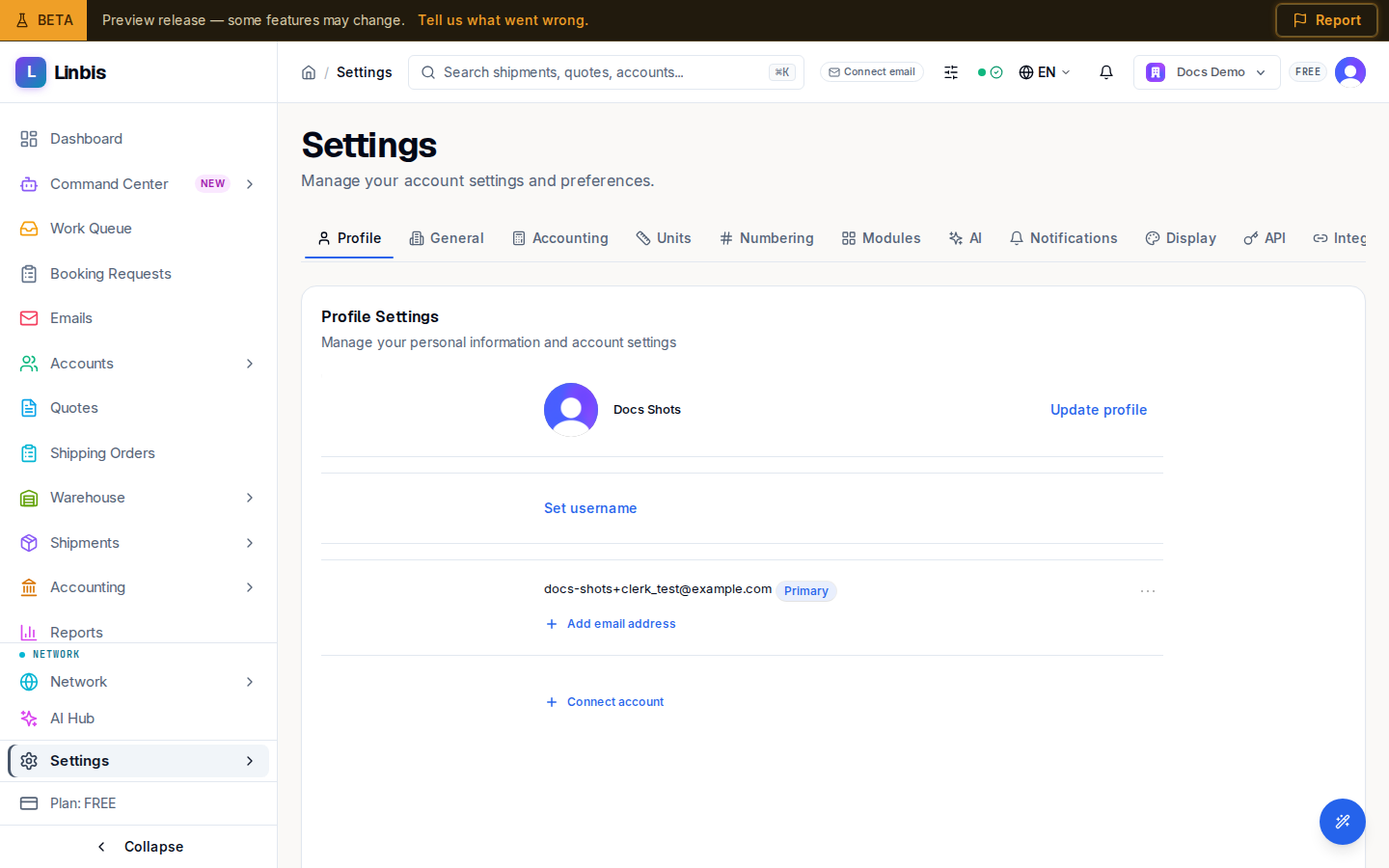
| Profile | Your personal profile |
| General | Company Information (name, legal name, Tax ID / EIN, address, phone, email, website), company logo, General Information (TSA Number, FMC Number), Bank Information, Invoice Settings, Commodity Billing toggles, Terms & Conditions, Team Management, and the Accounting Mode (QBO Only, Linbis GL, GL + QBO) |
| Accounting | Accounting configuration incl. the company currency |
| Units | Measurement units |
| Numbering | Document numbering sequences (prefix, padding, suffix) |
| Modules | Module visibility |
| AI | Auto-processing thresholds (below) |
| Notifications | Notification preferences |
| Display | Theme (Light / Dark / System), localization — language, currency, date, timezone — Compact Mode, Show Animations |
| API | API keys |
| Integrations | Email connections (Gmail, Outlook, IMAP) and carrier/QuickBooks integrations |
| All Settings | The advanced list |
| Catalog / Billing | Product catalog and subscription |
The tab rail also links out to standalone screens, each with its own page: Payments, Payment Terms, Workflow Templates, and Email Rules. Team and access management live at Team Members and Roles & Permissions, and the AI autonomy screens have their own routes — Autonomy Settings, Exception Inbox, and Trust & audit — behind the concept explained on the email-agent page.
AI tab
Controls when AI-processed items skip the Work Queue:
- AI Auto-Processing — the master toggle.
- Global Threshold — the default confidence bar (default 92%).
- Confidence Thresholds by Type — per-type overrides (Booking Confirmation, Pre-Alert, Arrival Notice, Status Update, Delivery Notice, Vendor Bill, Rate Quote). Financial documents require manual review by default — Vendor Bill sits at "Manual Only".
- Notify on Auto-Process and the Undo Window (minutes) — auto-processed items can be undone within the window (1 to 30 minutes).
- AI Performance — accuracy rate, auto-processed count, corrections made, time saved.
Configuration tabs
Several tabs hold organization-wide configuration. Most save each field as you change it (no Save button); Numbering and Catalog save from their dialogs.
- Accounting — Default Currency and a locked Functional Currency ("Cannot be changed after posting journal entries"), Exchange Rates source (Manual, European Central Bank (ECB), or Open Exchange Rates), Pricing & Markup (Default Markup %, Minimum Margin %), a link to bank accounts, and the Carrier ranking preference (Lowest cost, Fastest transit, or Best value).
- Units — Global Defaults for Weight (kg/lb), Dimension (cm/in), and Volume (m³/ft³), plus per-module overrides by shipment mode, house, warehouse, quote, and more. "Changes affect new forms only."
- Numbering — per-document sequences (Shipment, Quote, Invoice, Bill, Warehouse Receipt, and others) with a Prefix, Suffix, Zero Padding, and Current Number, with a live "Next number preview." "Changes affect future documents only."
- Modules — Module Visibility toggles for the sidebar, CRM Configuration, and Automation (carrier tracking, poll interval, and a Dry Run Mode that logs actions without executing them).
- Catalog — the Product Catalog: Add Product (code, name, HS code, price, and default measurements), edit, and deactivate.
- All Settings (Advanced) — every tenant setting in one searchable table; feature flags toggle inline, while typed settings are read-only here and point to their dedicated tab.
- API — a preview only. It is not functional yet — see API & Webhooks for what it does and does not do.
- Notifications — email and push toggles; its Configure button opens the full multi-channel Notification Settings.
Status Flow
Settings → Status Flow customizes the status pipeline your team sees on shipments, receipts, and releases. For shipments you scope by Mode (Air, Ocean, Ground, Multimodal, Rail, Barge) and Operation Type (Import, Export, Domestic, Cross Trade). You can rename system stages, add your own (code, label, canonical status, visibility in the bar), reorder by drag, toggle Auto-advance, and mark stages visible to customers. Each stage maps to one of the canonical statuses so reporting stays comparable.
Custom Ports
Settings → Custom Ports creates ports private to your organization — a terminal or inland point not in the global UN/LOCODE catalog. Fields: Name, Country, Type (Ocean, Air, Inland, Rail, Multimodal), City. Only your organization sees them; automations use the global catalog only.
Language
Linbis ships in English and Spanish (plus more display languages). Switch with the globe selector in the header or under Settings → Display; the choice is saved to your user profile.