All Shipments
The unfiltered shipments list — search, direction tabs, Cards and Table views, bulk actions, and the row menu.
Shipments → All Shipments is the unfiltered list: every air, ocean, and ground move, master or house, in one place. The sidebar's Air Freight, Ocean Freight, and Ground entries open this same list scoped to one mode.
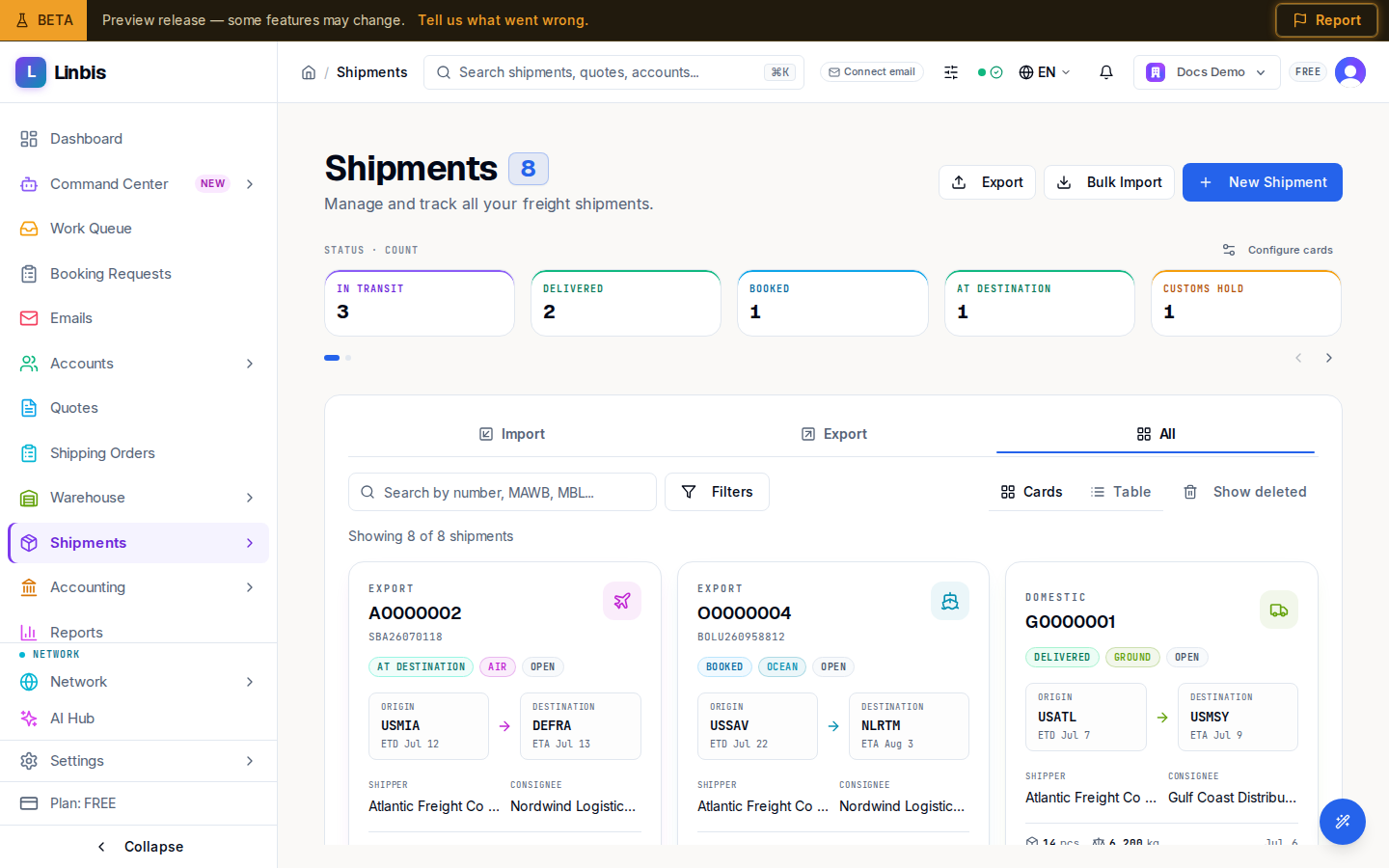
The toolbar
Header actions: Export, Bulk Import (the Import Data Wizard), and New Shipment. Search: "Search by number, MAWB, MBL...". Direction tabs: Import, Export, All. Views: Cards, Table. The Filters button opens the advanced filter modal; owners and admins also get a Show deleted toggle.
Key columns
Shipment # (with a mode icon), MAWB / MBL (the master reference — MAWB air, MBL ocean, PRO ground), Mode, Type (Master or House, plus Consol or Direct), Status, Origin / Destination, Shipper / Consignee, ETD / ETA, Pcs / Weight (kg), and Cost / Profit. Column presets: Default, Operations, Docs, Financial, Compact — see the full column table for the rest.
Acting on rows
Selecting rows in Table view opens the bulk bar: Export Selected, Assign to Master (houses only), Mark as In Transit, Mark as Delivered, Generate Tracking Links, Delete. The row menu offers View Details, Edit, Duplicate, Documents, Delete; clicking a row opens a side panel preview.
Related
- Shipments screen reference — status pipeline, detail tabs, charges grid
- Consolidate house shipments under a master
- Master, house & chargeable weight