Emails
Reply to a customer from the shipment file
Send an email without leaving the shipment.
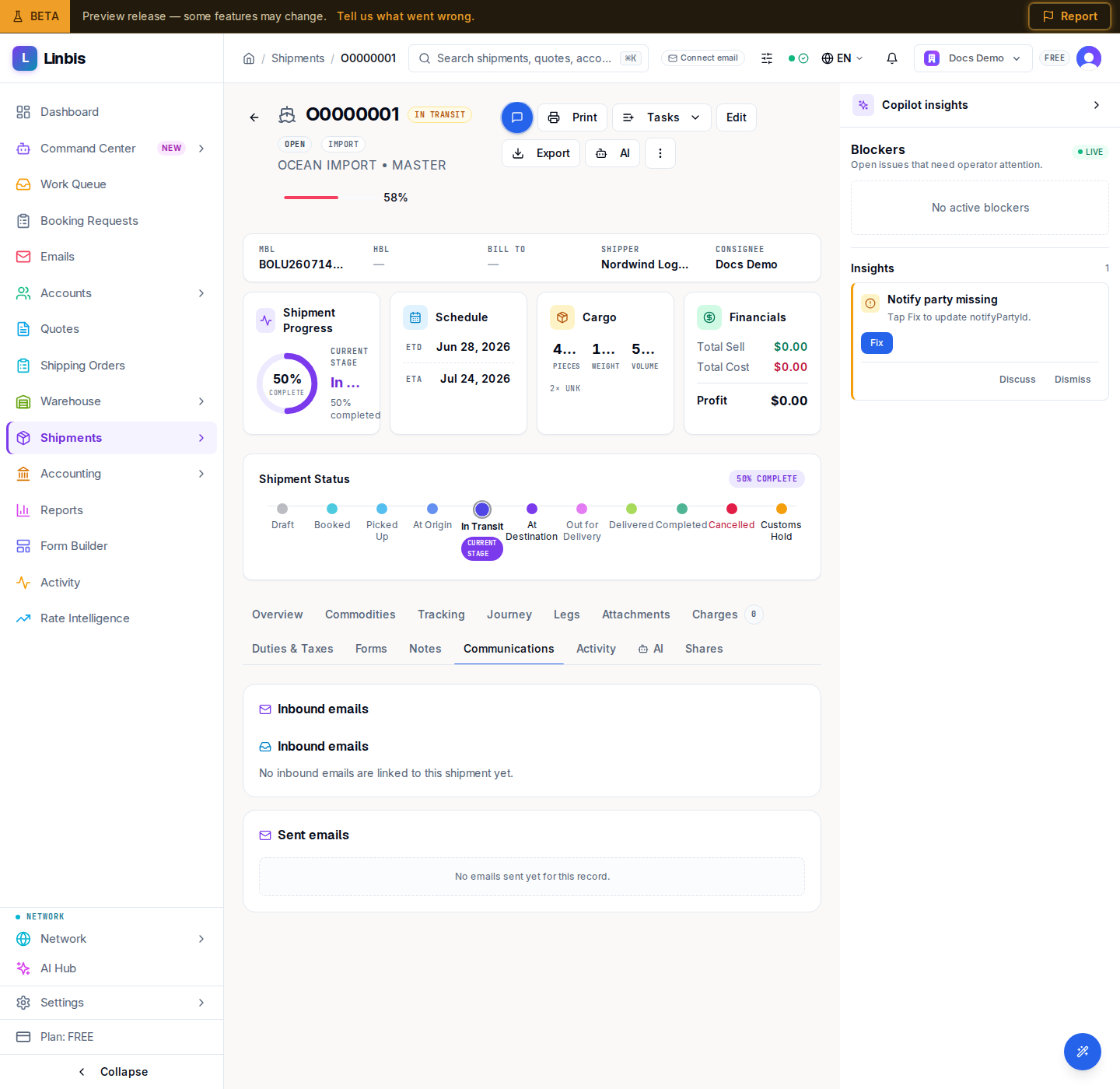
Every shipment keeps its own email trail: inbound mail the agent linked to the file and everything you sent. You can answer the customer directly from the shipment — no need to switch to your mail client.
Before you start
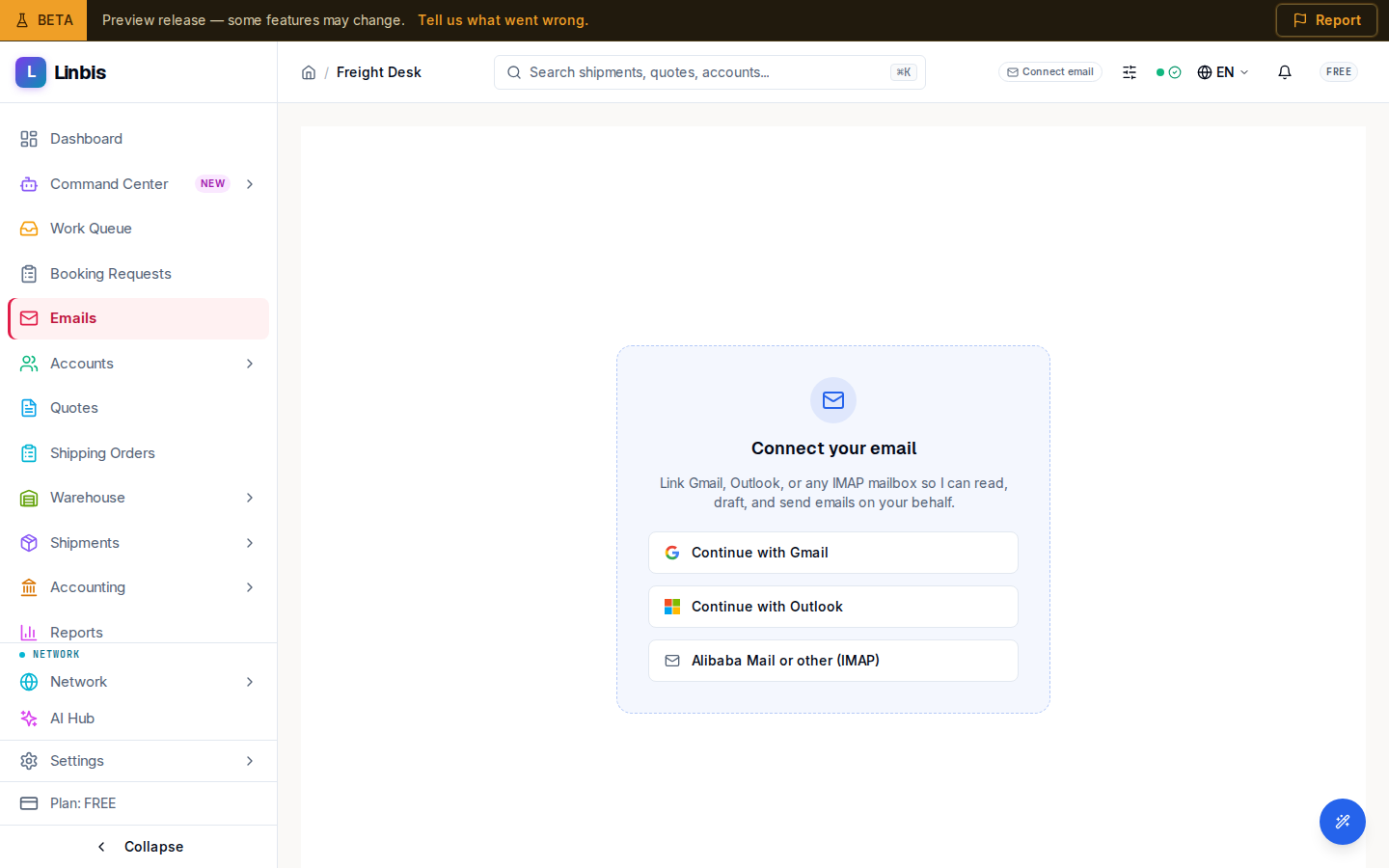
- An email connection (Gmail or Outlook) must be linked under Settings → Integrations → Email connections. Without one, the send dialog offers Connect Gmail / Connect Outlook.
Steps
- Open the shipment and select the Communications tab. Inbound emails lists mail linked to this shipment from the Freight Desk; Sent emails is your outbound history.
- To send an update, open the shipment's header menu (⋯) and select Send Update. The Send Shipment Update dialog opens, prefilled with the shipment's recipients, subject, and message.
- Pick the Update type that matches what you are communicating — for example Booking Confirmation, Departure Notice / Pre-Alert, Arrival Notice, Customs Hold Update, Out for Delivery, or Proof of Delivery.
- Adjust To, Cc, Bcc (press Enter to add each address, up to 20), the Subject, and the Message.
- Under Attachments, tick the shipment documents to include — generated documents are offered here, and a proof-of-delivery update marks the POD as required.
- Select Send. Recipients outside your known contacts trigger a confirmation ("Recipient outside known contacts") before anything goes out.
Result
You get a "Shipment update sent" confirmation, and the message appears in Email history on the Communications tab with its date, recipients, subject, and attachments.
Answer the customer from the shipment file
Open the inbound mail the agent linked to a shipment, reply from the Freight Desk, and let the assistant draft the answer from the shipment's own context — then send, all without a mail client.
Tips
- To reply inside an inbound thread (quoting the customer's message), open the email in Emails (the Freight Desk) and use Reply — the composer supports an AI-drafted reply via "Help me write…".
- Advancing the shipment status can also draft a stage email for you to review and approve — see the status-flow settings in the Settings reference.