Quotes
Create a quote and convert it to a shipment
Price a move for a customer, send it, and turn the accepted quote into a live shipment.
A quote prices a move for a customer. Once the customer agrees, you convert it — the shipment is created with the quote's commodities moved over and its charges copied, so nothing is retyped.
Before you start
- The customer must exist as an account (Accounts → Add Account) — the quote form requires a customer.
Create the quote
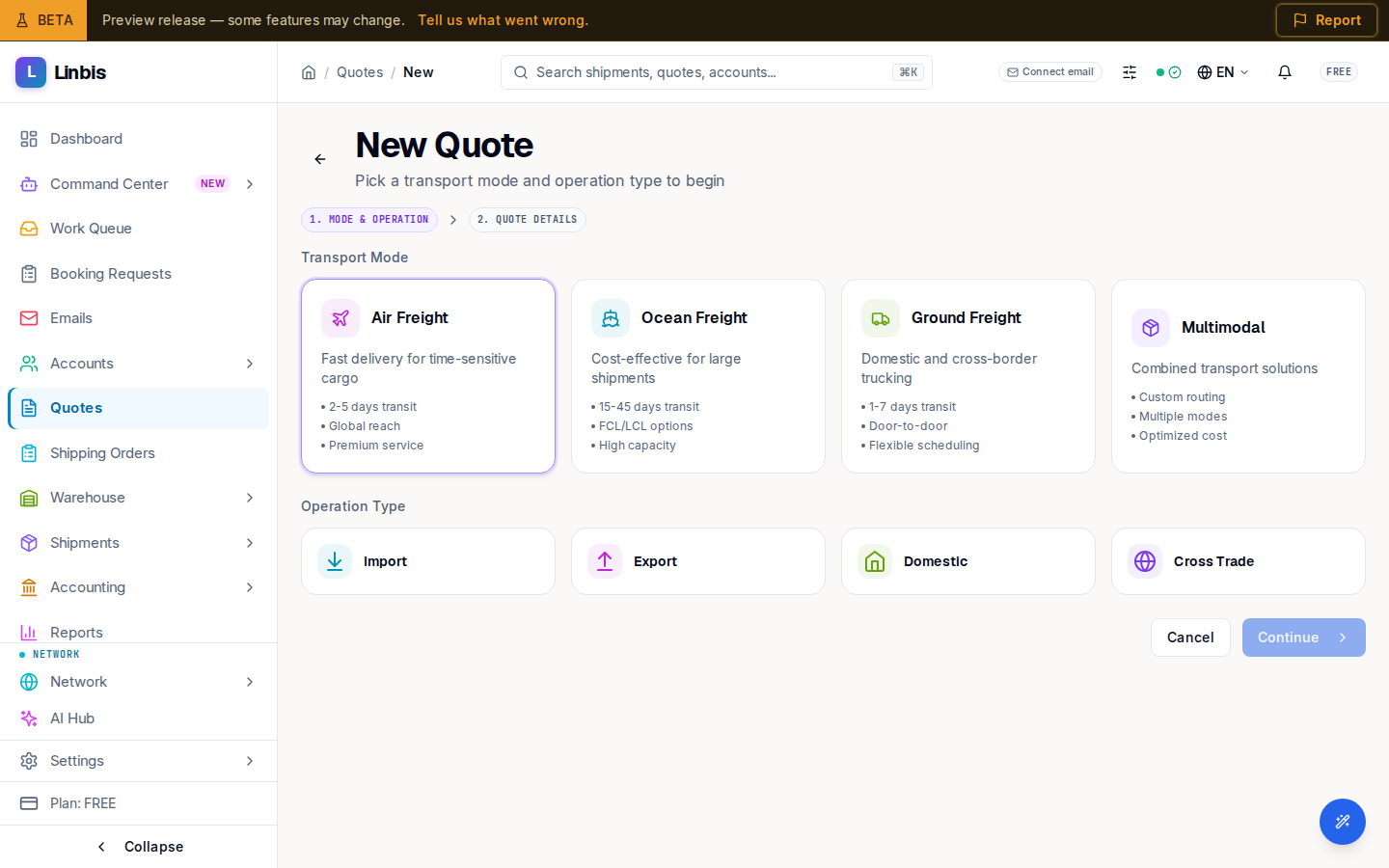
- Open Quotes in the sidebar and select New Quote.
- Step 1 — Mode & Operation: pick the Transport Mode (Air, Ocean, Ground, Multimodal) and the Operation Type (Import, Export, Domestic, Cross Trade), then Continue.
- Step 2 — Quote Details: complete the form. Required fields are the mode and operation (set in step 1), the Customer, the Origin, and the Destination. The other cards — Classification, Parties (Shipper, Consignee, Carrier, Incoterm), Routing (Departure, Arrival, Transit Days), Cargo (Description of Goods), Pricing & Validity (Currency, Valid From, Valid To), and Notes — can be completed now or later. Nothing is saved until you select Create Quote.
- Select Create Quote. The quote is created as Draft and the remaining tabs unlock.
- Add the cargo on the Commodities tab. Pieces, gross weight, volume and chargeable weight are totalled from the commodity lines — they are shown on the quote but are not typed in, so a quote and its cargo can never disagree. A quote with no commodity lines prices no weight-based charges; the quote page flags it and tells you to add one.
- Add pricing on the Charges tab, then select Send to Customer. Linbis checks the quote for send blockers (missing total, ports, customer, or Incoterm), renders the PDF, and opens the send dialog with it attached. The status changes to Sent.
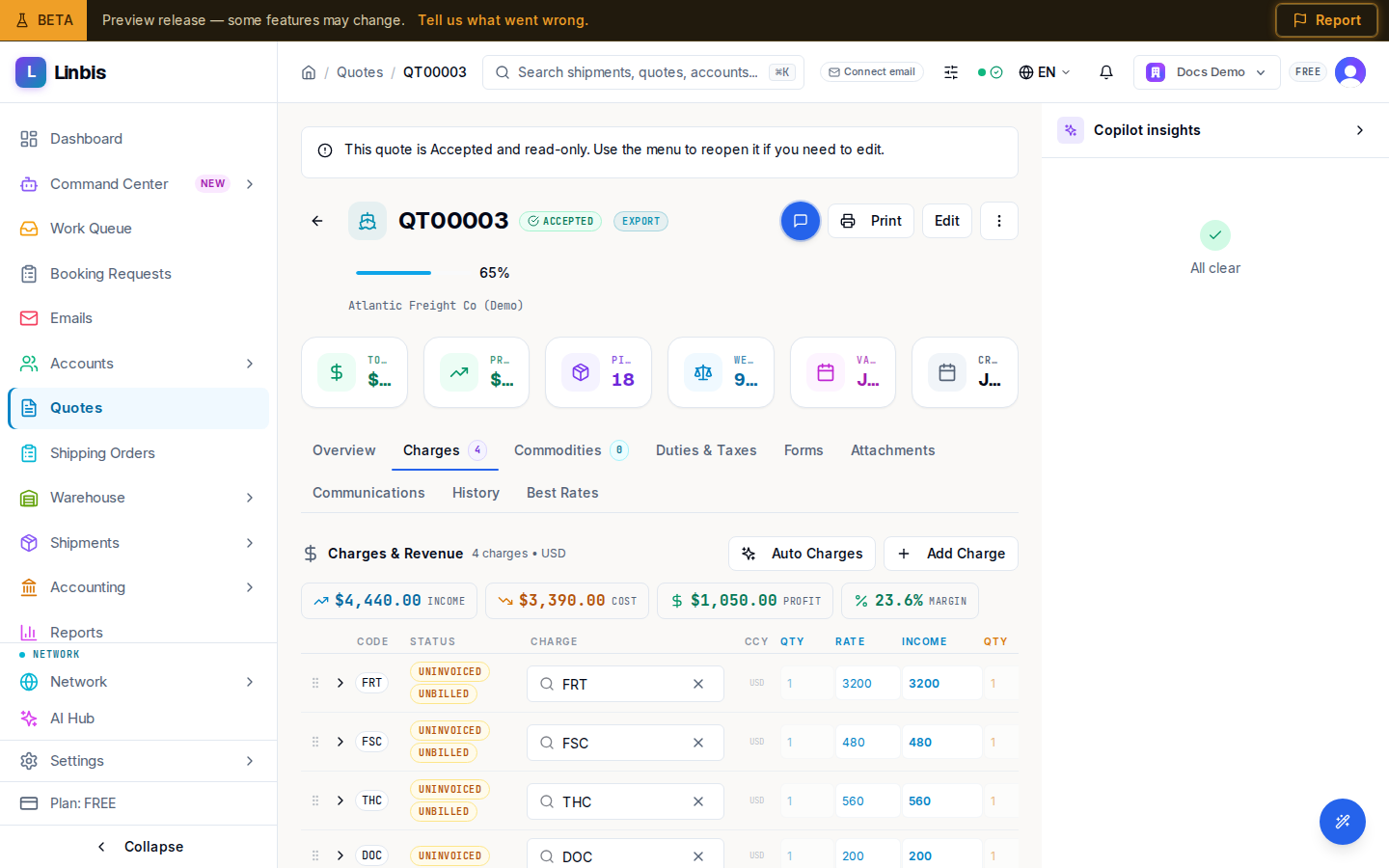
Convert it to a shipment
- When the customer confirms, select Accept Quote (status becomes Accepted).
- Open the header menu (⋯) and select Convert to Shipment.
- In the conversion dialog, Shipment is preselected as the target. Choose the Transport Mode and the Shipment Type — Direct, or Consolidation with a Master or House class.
- Select Create. Commodities move to the new shipment with full history, charges are copied, and the quote is locked with status Converted. Follow the View link to open the shipment.
Turn an accepted quote into a shipment
Convert an accepted quote from its header menu: Linbis validates readiness first and lists any blockers, then the conversion dialog creates the shipment with commodities moved and charges copied.
Result
The shipment is live under Shipments, back-linked to its source quote, ready for documents and invoicing.
Tips
- A quote can be converted from any status except Converted — acceptance first is the normal flow, not a technical requirement. Conversion blockers can be overridden explicitly.
- The same menu also converts a quote to a Shipping Order or a Warehouse Receipt — see the Quotes reference.
- Preview as customer shows the quote exactly as the customer will see it.
- Duplicate Quote is the fast way to re-quote a lane; converted quotes can only be duplicated.