Form Builder screen reference
The Form Templates gallery and the drag-and-drop designer — fork Linbis system templates or build your own documents, then publish them.
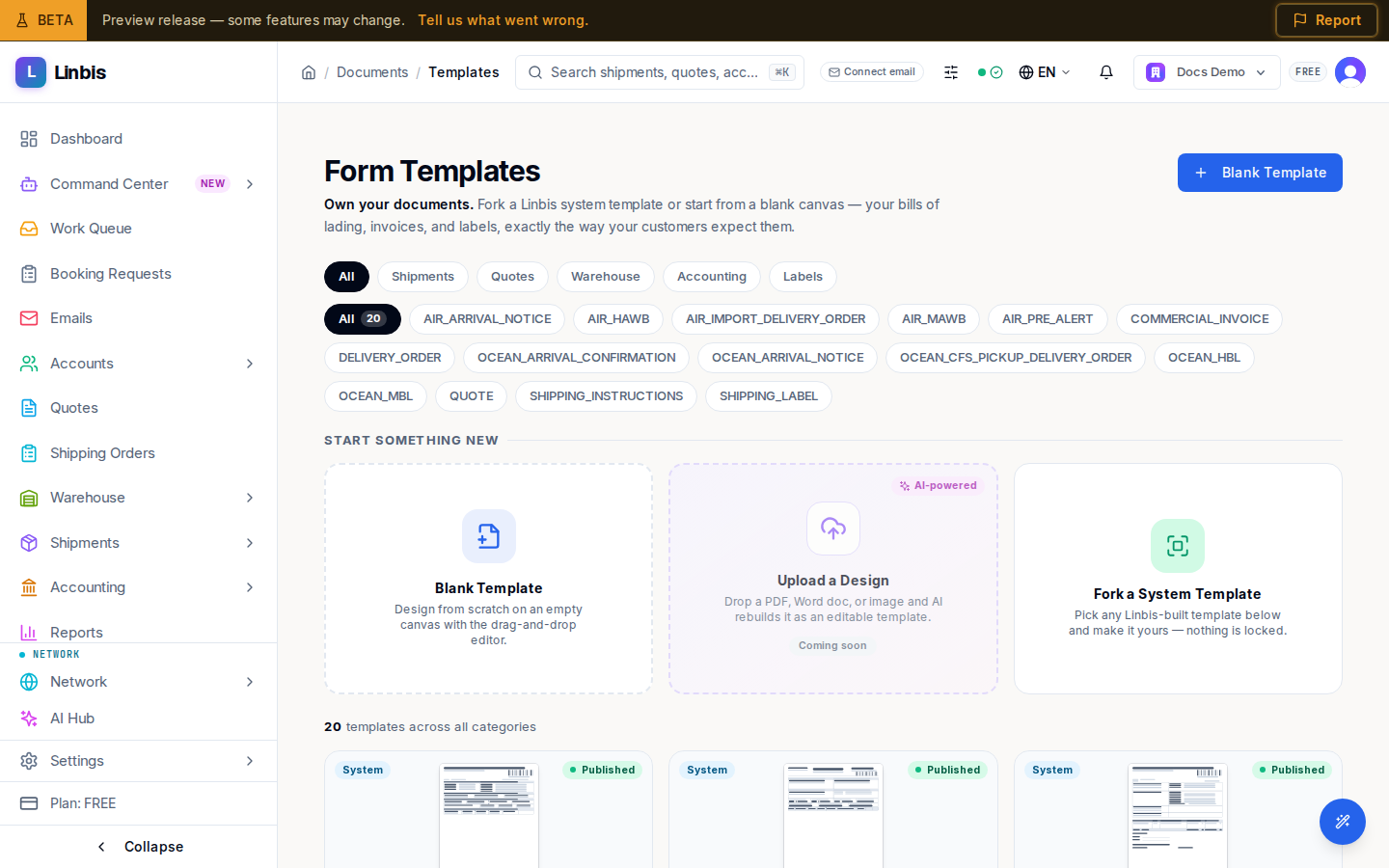
Form Builder (the page calls itself Form Templates) is where you take ownership of your paperwork — the tagline says it: "Own your documents." Fork a Linbis system template or start from a blank canvas — "your bills of lading, invoices, and labels, exactly the way your customers expect them."
The feature rolls out gradually: if your workspace is not enabled yet, the page shows "Forms Studio isn't enabled for this workspace" — "Ask your administrator to enable Forms Studio, or contact Linbis support."
The gallery
- Filter chips by module — All, Shipments, Quotes, Warehouse, Accounting, Labels — and by category; a counter totals the "templates across all categories".
- Start something new: Blank Template (design from scratch), Upload a Design (AI-powered — drop a PDF, Word doc, or image and AI rebuilds it as an editable template; shows Coming soon where not yet enabled), and the fork explainer — "Pick any Linbis-built template below and make it yours — nothing is locked."
- Template cards carry an ownership badge (System or Custom) and a status pill (Published, Draft, or Reverted). Hovering reveals the actions: Fork on system templates, Edit and Delete on your custom ones. Deleting asks "Delete this template?".
The designer
Opening a template (or Create & open designer from the blank/fork dialogs) lands in the designer:
- Header — the template name with its badges, the live save state (Saving…, Unsaved changes, All changes saved), and the Save and Publish buttons.
- Tabs — Design, Preview, Settings, History.
- Canvas toolbar — undo/redo, zoom, a Grid toggle, the Data source selector (Sample data, Empty, Max rows), and Insert for the element palette: Text, Image, Table, Line, Rectangle, Checkbox, Barcode.
- Right panel — Fields (bind dynamic tokens to elements), Properties, Rules, and Table (active when a table element is selected).
- Settings — page size and orientation (Portrait / Landscape), margins, and the template's module, transport mode, and direction (what records it applies to).
- History — every published version with Published by, Approved by, the Current marker, and Roll back.
Publishing
Publish freezes an immutable version and makes it the active template. The dialog asks for Jurisdiction, Incoterm, and — on compliance templates — an Approver (separation of duties), so the person publishing is not the one approving. Published templates surface on matching records' Forms tab.
If someone else edited meanwhile, the conflict dialog — "This template changed while you were editing" — offers Keep editing, Overwrite, or Reload their version.
Typical flow: make a system template yours
- Filter the gallery (for example Shipments), hover the System card you want, select Fork → Fork & open designer.
- Adjust the layout on the Design tab; bind data in Fields; check Preview.
- Save as you go (autosave shows "All changes saved").
- Publish — your version now renders instead of the stock one.