Getting started
Your first ocean shipment, end to end
From a new customer to a delivered, invoiced ocean shipment — the whole Linbis flow in one walkthrough.
This tutorial takes one ocean export from nothing to done: quote it, convert it, paper it, charge it, invoice it, and track it to delivery. Plan on 20–30 minutes with the app open next to this page.
Import nuance, stated up front: on imports the origin agent usually issues the HBL and the forwarder issues the Arrival Notice — the app has both renderers; the tutorial teaches the mechanics either way.
Step 0 — create or select the customer (shipper/consignee)
Every file hangs off an account, so start there.
- Open Accounts in the sidebar. If your customer already exists, you are done — move to step 1.
- Otherwise select Add Account, choose type Customer, and fill in the company name and contact details. Create the shipper and consignee accounts the same way if they differ from the customer.
Step 1 — create the quote
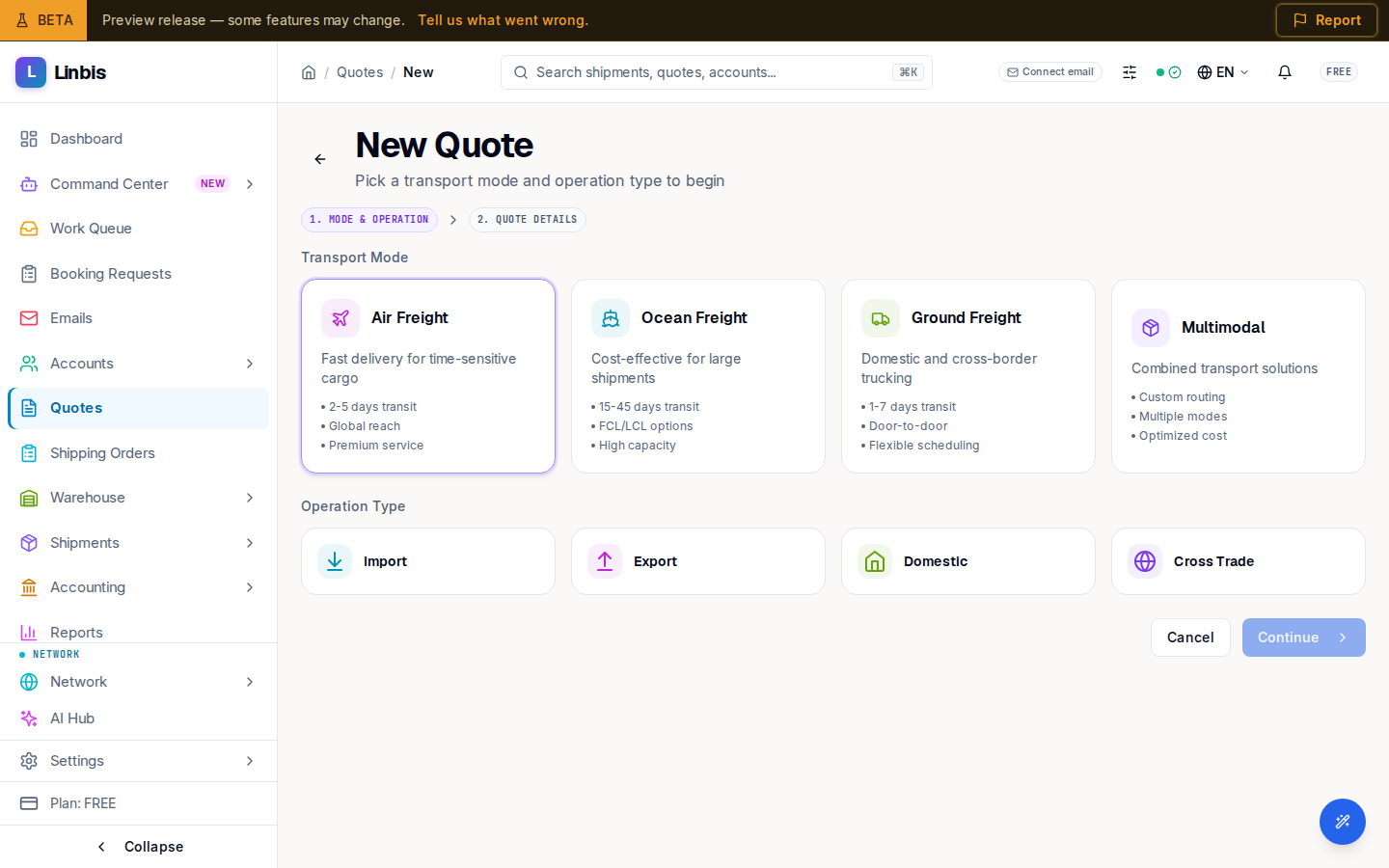
- Open Quotes and select New Quote.
- In 1. Mode & Operation, pick Ocean and Export, then Continue.
- In 2. Quote Details, set the Customer, Origin, and Destination (required), the Shipper and Consignee under Parties, and the cargo: Pieces, Gross Weight (kg), Volume (CBM). Notice the Chargeable Weight (kg) — for ocean it follows the W/M convention (see the concepts page).
- Select Create Quote, add your selling rates on the Charges tab, then Send to Customer. When the customer confirms, select Accept Quote.
Details: Create a quote and convert it to a shipment.
Step 2 — convert the quote to a shipment
- On the quote, open the header menu (⋯) and select Convert to Shipment.
- Keep Shipment as the target, mode Ocean Shipment, type Direct.
- Select Create. Commodities move over, charges are copied, the quote locks as Converted, and the View link opens your new shipment.
Step 3 — Documents: generate & send the HBL
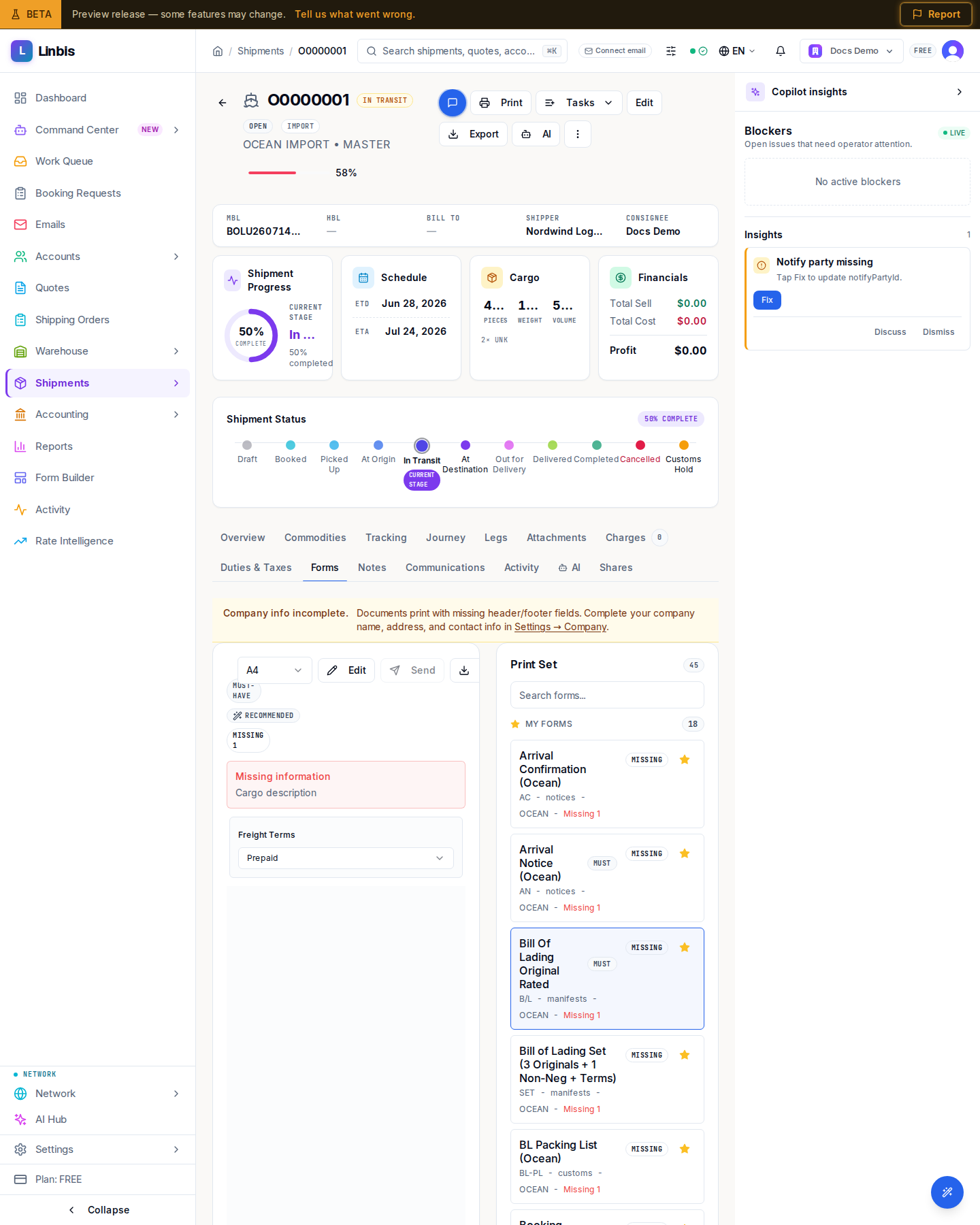
- On the shipment, open the Forms tab.
- Under All Forms → Shipping, pick the Bill of Lading — the Bill of Lading Set (3 Originals + 1 Non-Neg + Terms) picks the house variant automatically for a house/direct file. Set Freight Terms (Prepaid or Collect).
- Check the live preview, then Download (or Print).
- Email it: header menu (⋯) → Send Update → pick an Update type (for example Departure Notice / Pre-Alert), tick the generated document under Attachments, and Send.
Details: Generate and send shipment documents.
Step 4 — record charges
- Open the shipment's Charges tab.
- Add each charge line in the grid — code OFT (Ocean Freight) plus surcharges like THC (Terminal Handling) — with the income side (what you bill the customer) and the expense side (what the carrier bills you). The Profit column tracks the spread live.
Step 5 — invoice the customer
- Still on the Charges tab, select Generate Invoice.
- Confirm customer, payment terms, and dates; tick the charges; select Create Draft Invoice.
- Open Accounting → Receivables → Invoices and Post Invoice. It is now Open and ready to Send to Customer.
Details: Issue an invoice from charges.
Step 6 — track it to Delivered
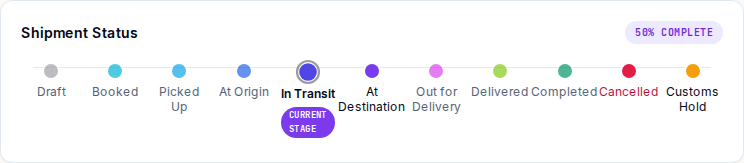
- On the shipment, use the Shipment Status timeline: advance through Booked, Picked Up, At Origin, In Transit, At Destination, Out for Delivery as the move progresses — each click updates the status (skipping ahead asks for confirmation).
- The Tracking tab follows the containers; Journey shows the past → now → future view.
- When the cargo arrives, select Delivered. Done — quoted, shipped, papered, invoiced, delivered.
Where to go next
- Navigating Linbis — the 10-minute tour of everything you just used.
- Consolidate house shipments under a master — when one container carries several customers.
- Approve AI actions in the Work Queue — let the email agent do the typing next time.