Booking Requests
Review and convert a booking request
Turn a customer's portal booking request into a Direct, House, or Master shipment — or decline it with a reason.
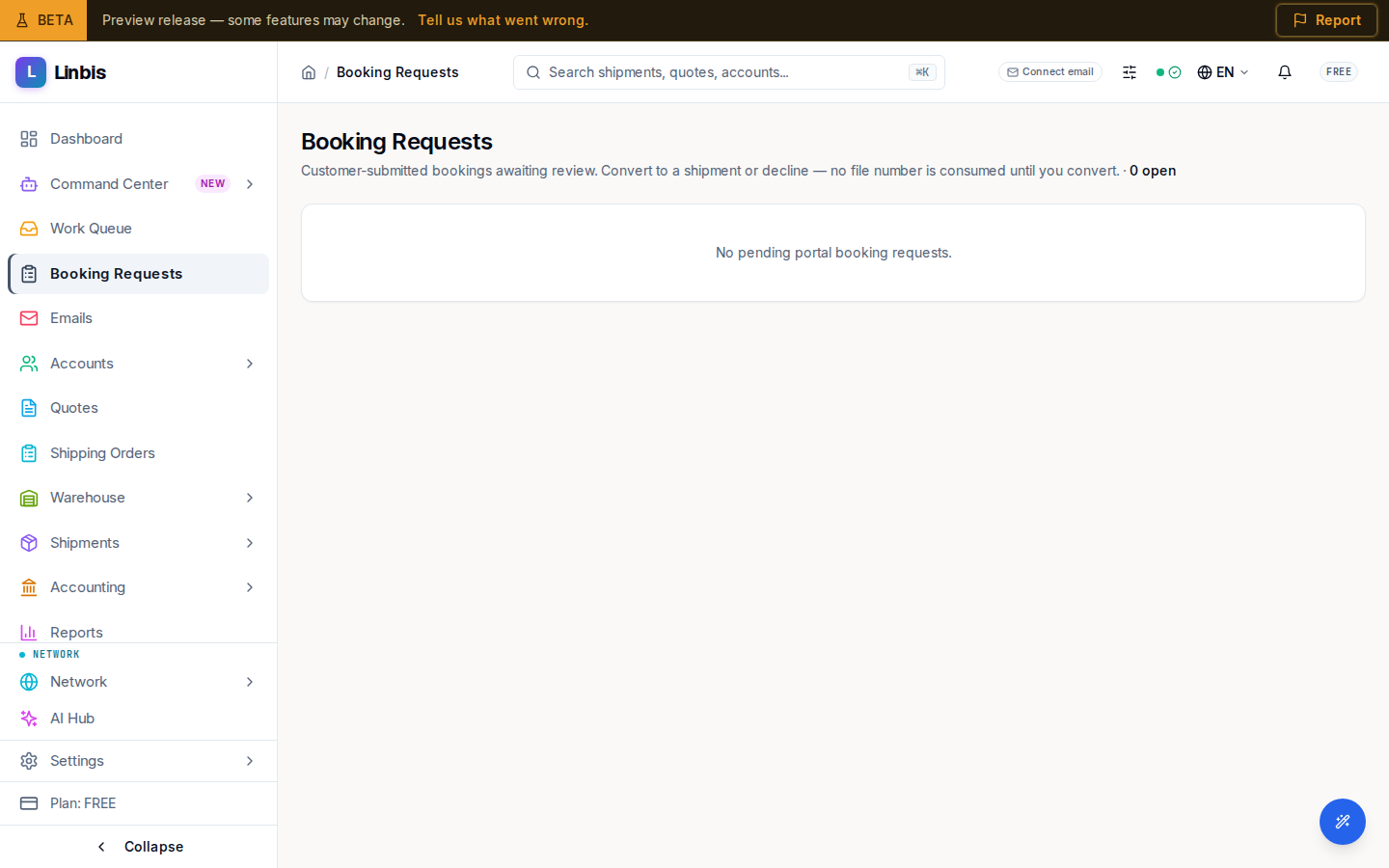
When a portal customer submits Request a shipment, the request lands in your Booking Requests queue as an open booking. Nothing is committed yet — no shipment number is consumed until you convert. Your job: review it, then convert it into a real shipment or decline it with a reason the customer will see.
Before you start
- Booking requests come from portal customers — if yours can't submit them yet, start with Invite a customer to the portal.
- Decide the shipment class up front: Direct (standalone file), House (to consolidate under a master later), or Master.
Steps
- Open Booking Requests in the sidebar. New submissions carry a New badge; customer edits since your last look show Updated.
- Review the card: order number, status (OPEN), the mode and operation (for example "OCEAN · IMPORT"), and the price line — Price pending means the customer left pricing to you.
- To accept: pick the type in the selector next to the button — Direct, House, or Master — and select Convert. The conversion runs immediately; a toast confirms "Converted to shipment" with the newly minted file number.
- To refuse: select Decline, type the Reason (required — "The customer will see this reason. No shipment number is consumed."), and confirm with Decline booking.
Result
A converted request becomes a shipment of the chosen class, and the card's badge flips to CONVERTED. The customer's portal shows Converted to shipment with a link to track it; a declined request shows Declined plus your reason. Open the new file under Shipments to book it, paper it, and rate it as usual.
Tips
- Converting as House leaves the shipment unconsolidated — the queue header warns "unconsolidated house(s)" until you assign it to a master.
- Requests created from a dropped document arrive pre-filled by the AI extraction — verify the parties and cargo before converting.