Shipments
Generate and send shipment documents (BL/AWB)
Produce the shipment's paperwork — bills of lading, air waybills, arrival notices — from the Forms tab and email it out.
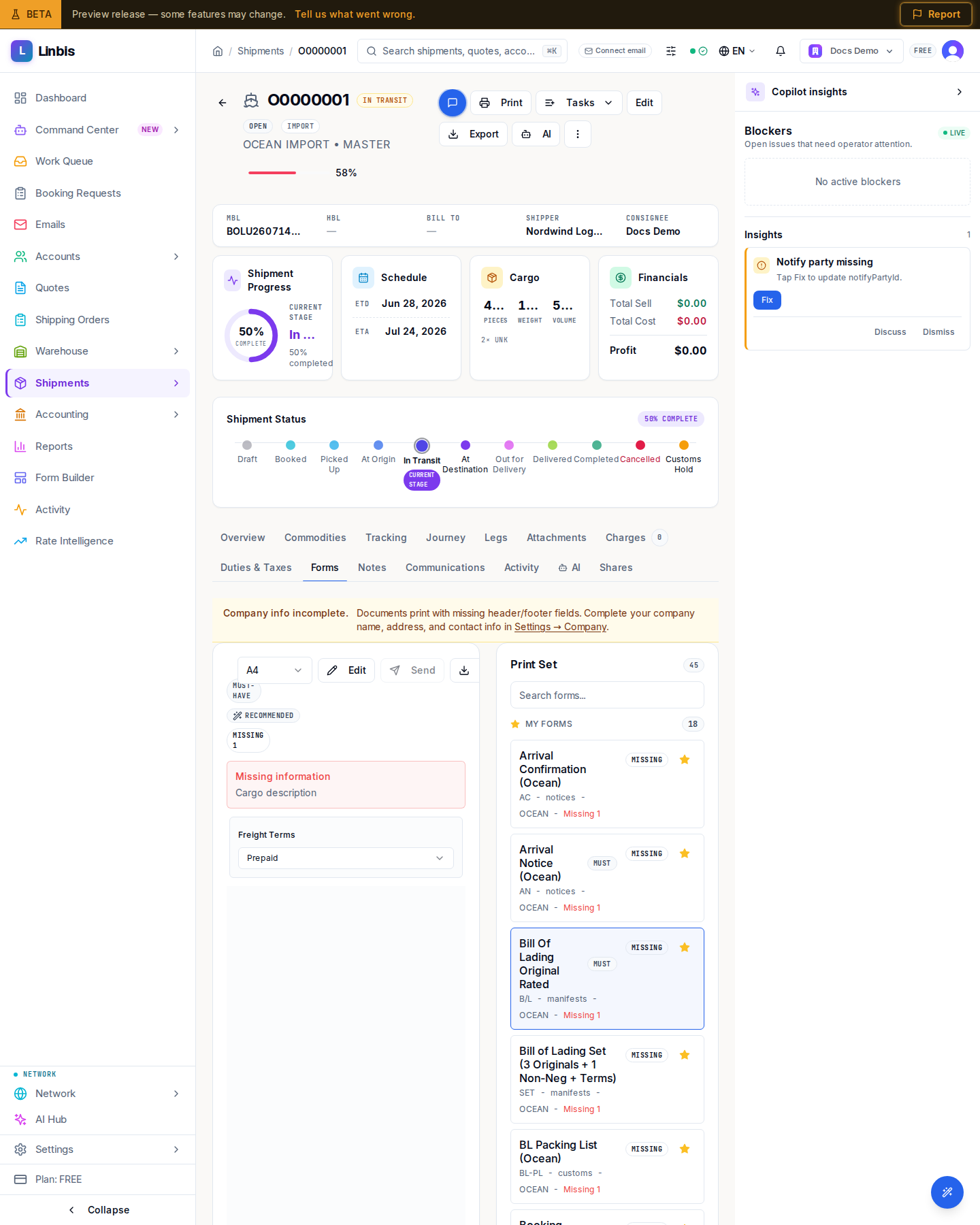
Every shipment carries a document center on its Forms tab: bills of lading, air waybills, manifests, arrival notices, commercial documents, and more — rendered from the shipment's own data, previewed live, and sent by email with the shipment update flow.
Before you start
- The shipment's key fields should be complete — each form shows a readiness pill (Ready, or Missing with a count of absent fields).
- To email documents, an email connection must be linked (Settings → Integrations).
Generate the document
- Open the shipment and select the Forms tab (the header Print button also lands here).
- Pick the form in the right-hand panel. My Forms holds your starred favorites; All Forms
groups everything by category — Booking, Compliance, Labels, Notices, Shipping, Manifests,
Commercial, Customs, Warehouse. Search with "Search forms...".
- Air shipments default to the Master Air Waybill (MAWB); also available: the MAWB Set (IATA 600a, 12-copy), House Air Waybill (HAWB), Air Cargo Manifest, Arrival Notice (Air), Booking Confirmation (Air), and more.
- Ocean shipments default to the Bill Of Lading Original Rated; the Bill of Lading Set (3 Originals + 1 Non-Neg + Terms) switches automatically between the master and house variant based on the shipment's class. Also available: Sea Waybill, Ocean Cargo Manifest, Arrival Notice (Ocean), Delivery Order (Ocean), Dock Receipt, Certificate of Origin (Ocean), and more.
- Cross-mode: Commercial Invoice, Packing List, Delivery Order, Pickup Order.
- Set the variant options where offered: air waybills have a Charge Display (All Charges, As Agreed, Due Agent, Due Carrier, Due Agent & Carrier, Freight Only) and a Print Type (Final/Draft); ocean bills have Freight Terms (Prepaid/Collect); commercial documents take the Incoterm.
- Check the live preview (page size A4 or Letter). Use Edit to adjust preview fields before rendering.
- Select Download for the PDF, or Print.
Send it by email
- Open the shipment header menu (⋯) and select Send Update.
- In the Send Shipment Update dialog, pick the matching Update type (for example Arrival Notice or Departure Notice / Pre-Alert), tick the generated document under Attachments, review recipients and message, and select Send.
Result
The document is rendered from live shipment data and delivered; the email appears under the Communications tab's Email history with its attachments.
Tips
- Star the forms you use daily to pin them under My Forms.
- On imports the origin agent usually issues the HBL and the forwarder issues the Arrival Notice — the app has both renderers, for air and ocean alike.
- Advancing the shipment status can auto-draft a stage email with the right document attached for your review ("Review & send").