Accounting
Issue an invoice from charges
Turn a shipment's uninvoiced charges into a posted customer invoice.
Charges recorded on shipments become revenue when you invoice them. Linbis offers two paths to the same outcome: batch-invoice from Uninvoiced Charges, or invoice straight from one shipment's Charges tab. Either way you get a draft AR invoice to review and post.
Before you start
- The charges must exist on the shipment's Charges tab with an income side.
- An open accounting period is required to post (the Accounting overview shows the Current Period).
Path A — batch from Uninvoiced Charges
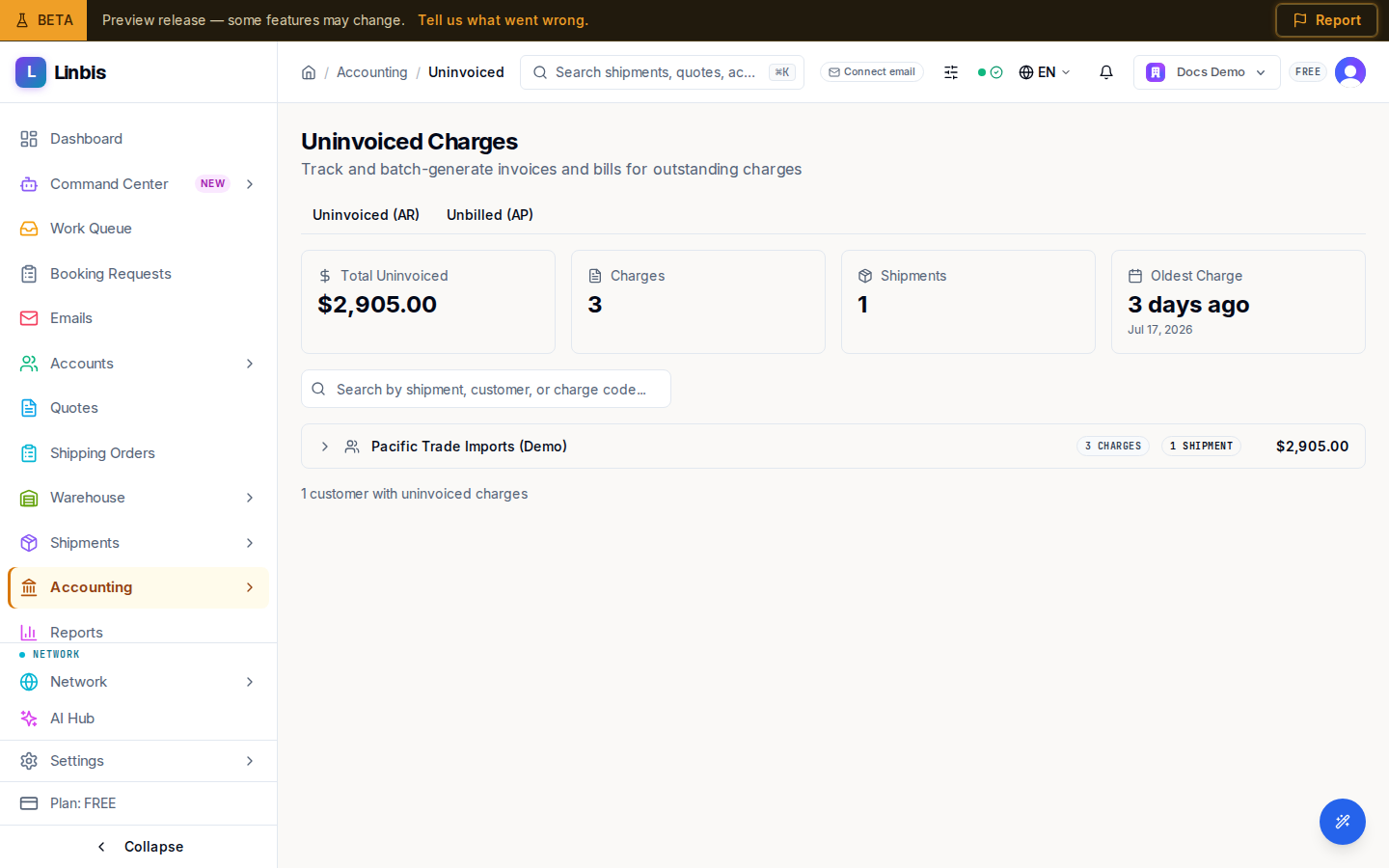
- Open Accounting → Receivables → Uninvoiced Charges (the Generate Invoices button on the Accounting overview lands here too).
- Stay on the Uninvoiced (AR) tab. Charges are grouped by customer; the tiles show Total Uninvoiced, Charges, Shipments, and Oldest Charge.
- Expand a customer group and tick the charges to invoice (columns: Shipment, Code, Description, Amount). All selected charges must belong to the same customer.
- Select Generate Invoice. In the confirmation, set the Invoice Date and Due Date (defaults: today and +30 days), then select Create Draft Invoice.
Path B — from the shipment
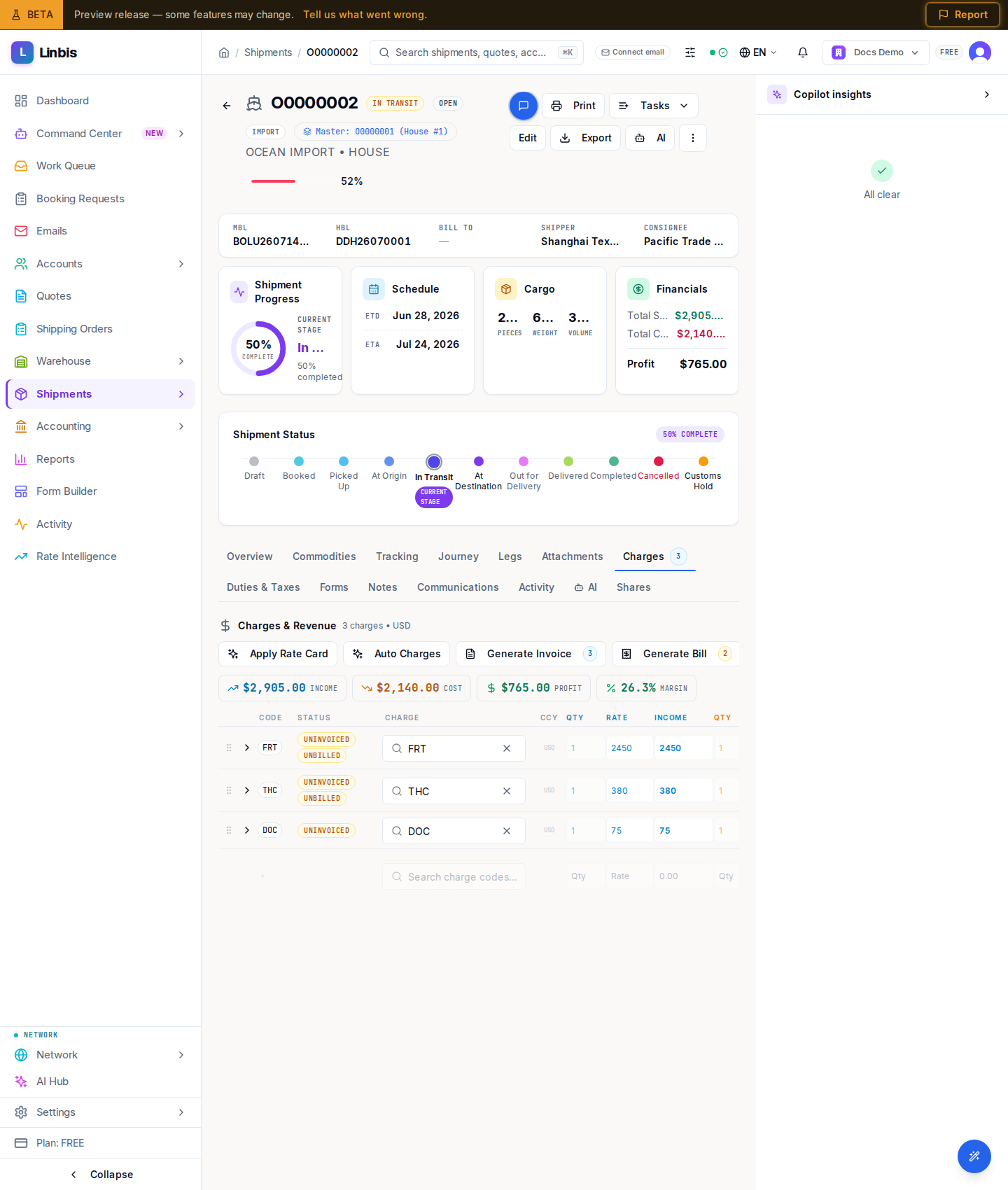
- On the shipment's Charges tab, select Generate Invoice (its badge counts the uninvoiced charges).
- In Generate Invoice from Charges, confirm the Customer, Payment Terms (Net 30, Net 60, Due on Receipt), Currency, Invoice Date, and Due Date.
- Tick the charges to include (Select All available; freight-collect charges are excluded). The banner tells you whether revenue posts immediately (shipment delivered) or is deferred until delivery.
- Optionally tick "Send invoice email to customer after posting", then select Create Draft Invoice and confirm.
Post the invoice
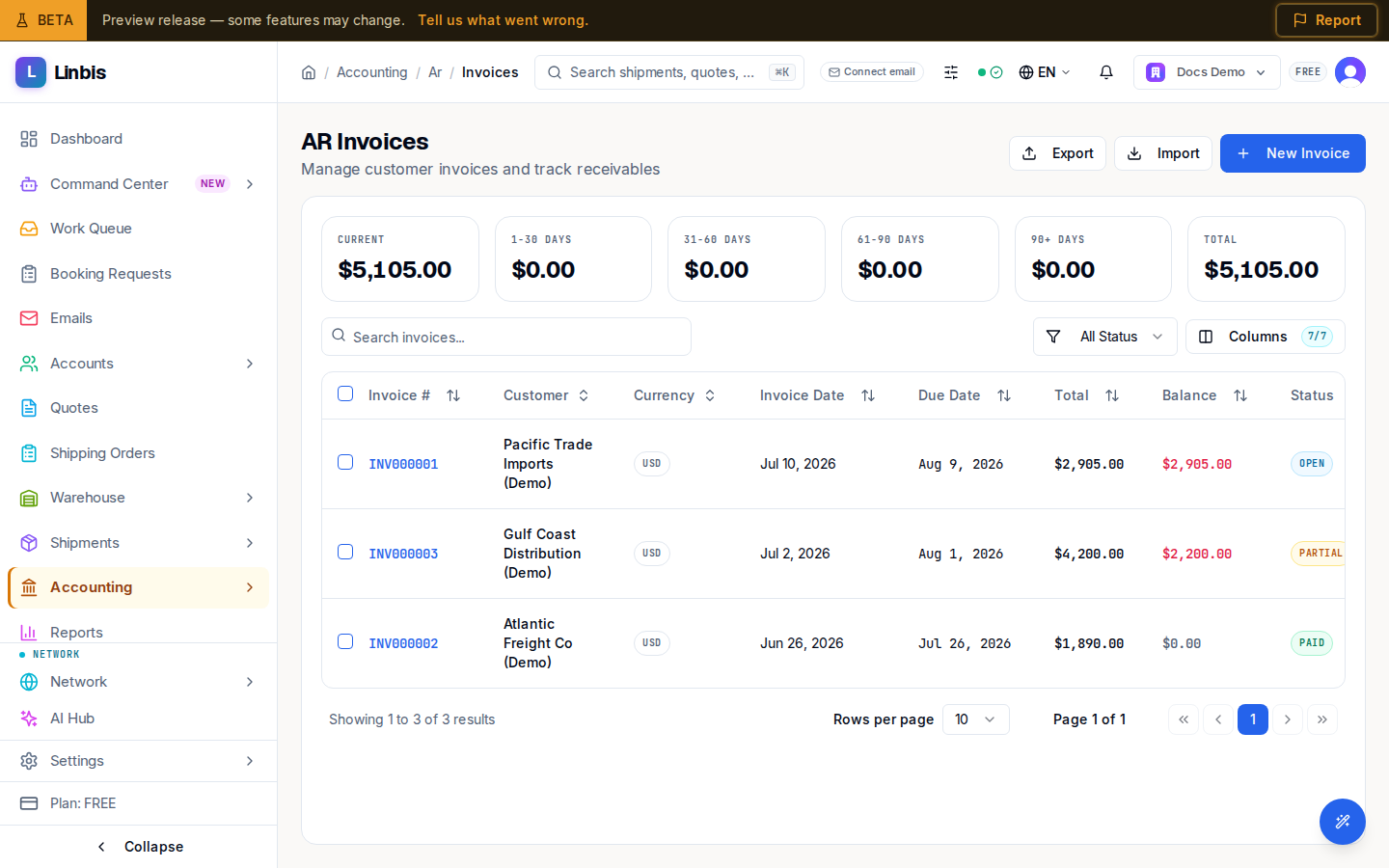
- Open Accounting → Receivables → Invoices. The new invoice is in Draft.
- Review it, then select Post Invoice (row menu or the invoice's detail page). Posting creates the journal entries and cannot be undone; the status becomes Open.
- From the invoice detail you can now Send to Customer, Print / PDF, or Create Payment Link.
Result
The invoice tracks its Balance until paid: record customer payments via Receive Payment (Payments page), where amounts are applied to open invoices — manually or Auto-apply (FIFO) — moving the invoice to Partial and then Paid.
Tips
- Duplicate protection: generating twice from the same selection reports "Invoice already exists (duplicate request prevented)" instead of double-billing.
- Voiding a posted invoice requires a reason and reverses any applied payment allocations.
- The AP mirror of this flow lives on the Unbilled (AP) tab — Generate Bill for vendor charges.