Invite a customer to the portal
Give a customer self-service access — tracking, documents, quotes, and booking requests — from their account page.
The customer portal lets your customers track their shipments, download documents, view invoices, request quotes, and submit booking requests — without emailing you for every update. Access is granted per account, from the account's own page.
Before you start
- The customer must exist under Accounts (type Customer).
- You need the contact's email address.
Steps
- Open Accounts in the sidebar and select the customer account.
- In the account header, select Invite to portal.
- Fill in the dialog:
- Customer email — where the invitation is sent.
- Portal role — what the portal shows them: Customer (shipments as shipper/consignee/bill-to), Shipper, Consignee, Notify party, or Agent.
- Select Send invitation.
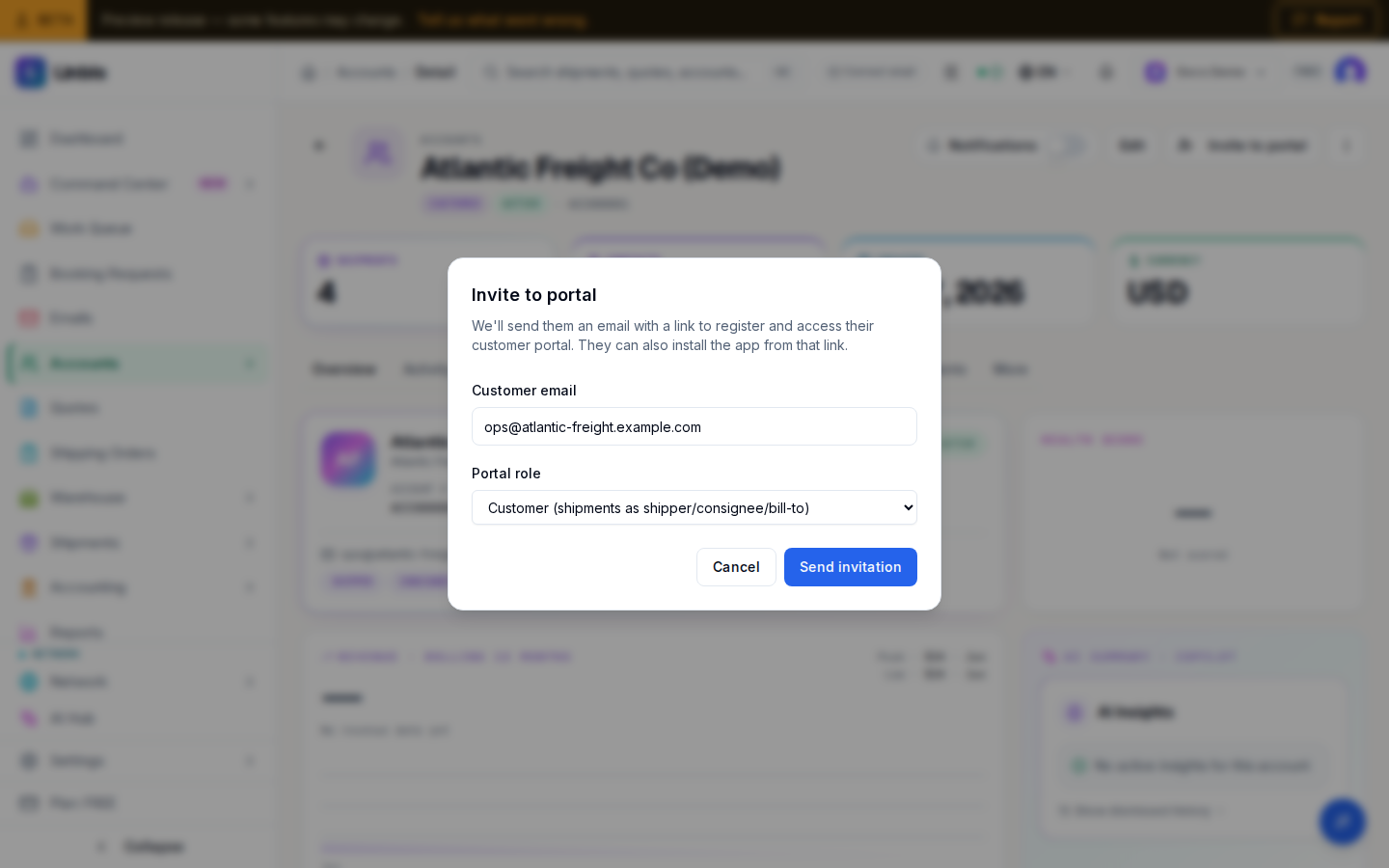
Result
The contact receives an email with a link to register and access their customer portal (they can also install the app from that link). The account header now shows the pending invitation; once accepted, it switches to an active-portal badge with the user's email. If the email already belonged to a user, access is granted immediately — no email round-trip.
In the portal, the customer can track shipments, view and download documents, see invoices,
approve pre-approvals, schedule deliveries, request quotes, and request shipments. Invited
customers' booking requests arrive in /booking-requests for review/conversion — open
Booking Requests in the sidebar, pick the request's type (Direct, House, or Master), and
select Convert to turn it into a shipment, or Decline with a reason. No file number is
consumed until you convert.
Tips
- Revoke access anytime from the same header control ("Revocar acceso" on an active binding, or revoke a pending invitation before it is accepted).
- Portal quote requests land in your Quotes queue, ready to price and send back.
Related
Campaign detail and results
The campaign detail page — status lifecycle, delivery results, the email template preview, and cancelling or deleting a campaign.
What a freight agent sees in the portal
Give an agent portal access and they see the files they are a party to — plus the files of the customers they manage.