Emails screen reference
The Freight Desk inbox — folders, classification chips, the reading pane, Copilot proposals, and keyboard shortcuts.
The Emails entry in the sidebar opens the Freight Desk — a copilot inbox where every incoming email is classified, linked to files, and turned into proposed actions.
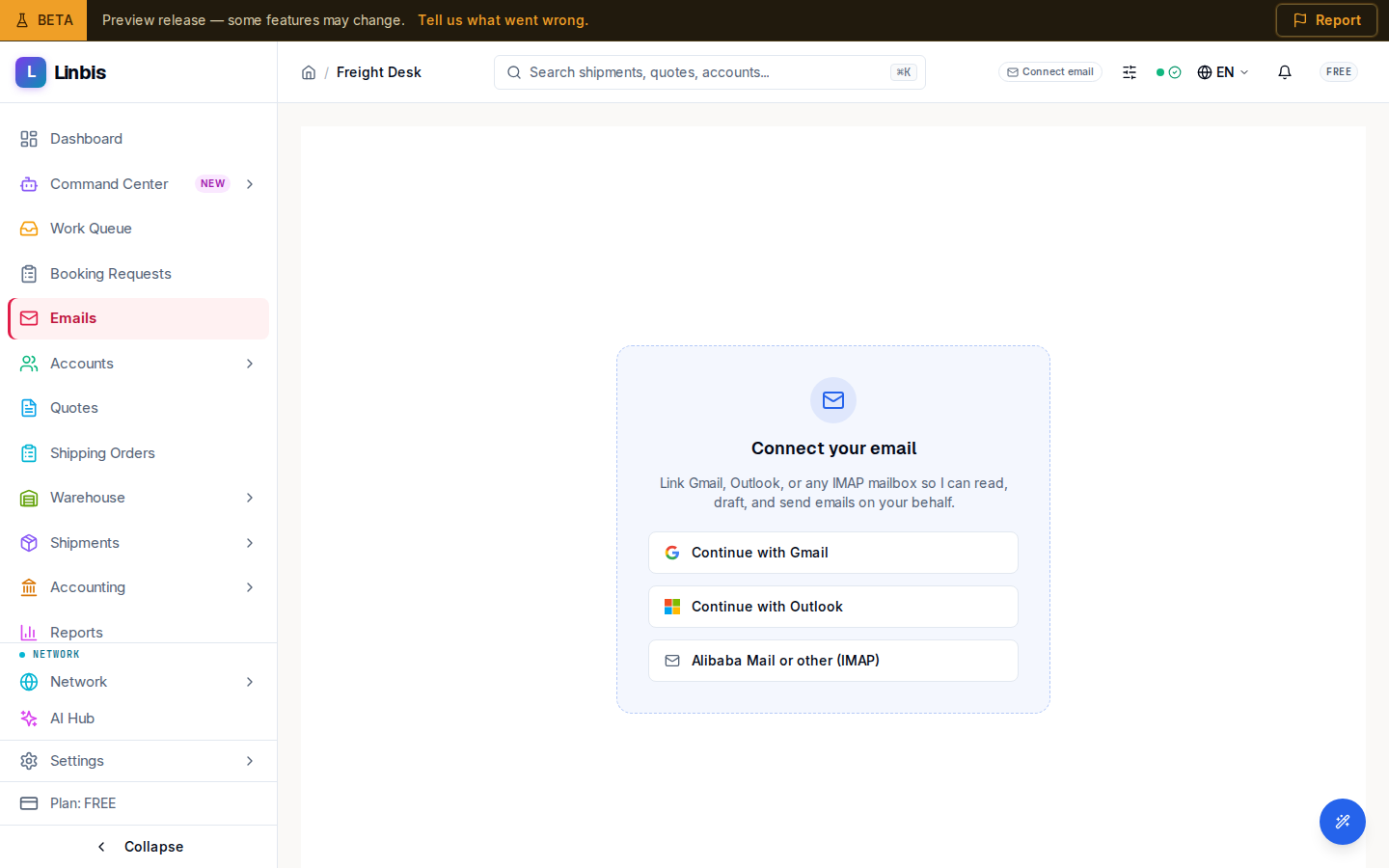
Layout
Four panes: the folder tree, the email list, the reading pane, and a right rail where Copilot explains and proposes. On mobile, Folders and Inbox toggle.
Folders, filters, and views
- Classified by Copilot folders: All, Booking requests, Vendor bills, Exceptions, Payments, Pre-alerts, Customs, Sent.
- Filter: Starred, Has attachment, Unread, Needs action.
- Views: All conversations, Assigned to me, Unassigned, @ Mentions, Snoozed, Done.
- Mailboxes: switch between connected mailboxes or All mailboxes.
Email list
Each row shows the sender, subject, snippet, timestamp, unread state, an attachment indicator, and a classification chip with the agent's confidence — for example Booking request, Quote request, Quote response, Arrival notice, Customs hold, Vendor bill, Payment notice, Pre-alert, Booking confirmation. Unclassified mail shows Needs classification or Unclassified.
A summary banner reports what Copilot did with new arrivals — how many emails it classified, how many it extracted data from, and how many actions it proposed — with auto-apply all and Dismiss.
Reading pane
Action bar: Reply, Reply all, Forward, Draft reply (AI-drafted), and Open full workspace. All four open the inline composer with To/Cc/Bcc, Subject, an AI "Help me write…" helper, and attachments. Below sit the Email body and Attachments sections.
Right rail — Copilot
- How I classified this explains the classification.
- Copilot parsed this shows the extracted fields.
- Copilot proposes offers the primary action (for example "+ Create booking", "+ Create quote", "+ Approve and create") plus secondary actions: Link to shipment, Ask for fields, Compare rates, Escalate, Mark skipped, Retry extraction.
- Tabs: Copilot, Comments (internal notes with @-mentions — never sent to the customer; post with ⌘↵), Activity. Snooze, Done, Reopen, and Unread controls live here too.
Link to an existing shipment opens a search across shipment number, MBL/MAWB/HBL/HAWB, shipper, consignee, and container; linking an email makes it appear on that shipment's Communications tab.
Keyboard shortcuts
j / k move through the list; Enter opens the conversation in the full workspace; ⌘↵ posts a
comment.