Navigating Linbis
A 10-minute orientation — the dashboard, the sidebar modules, global search, the Copilot, and where your settings live.
Ten minutes, one pass over the whole app. Open Linbis next to this page and follow along.
The Dashboard
You land on the Dashboard — the day's overview: Today's Briefing (what is Arriving Today, Pending Actions, Exceptions, In Transit), the stat tiles (Total Shipments, In Transit, Pending Quotes, Active Orders), Recent Shipments, and Quick Actions to jump straight into Create Shipment, New Quote, or Warehouse Receipt.
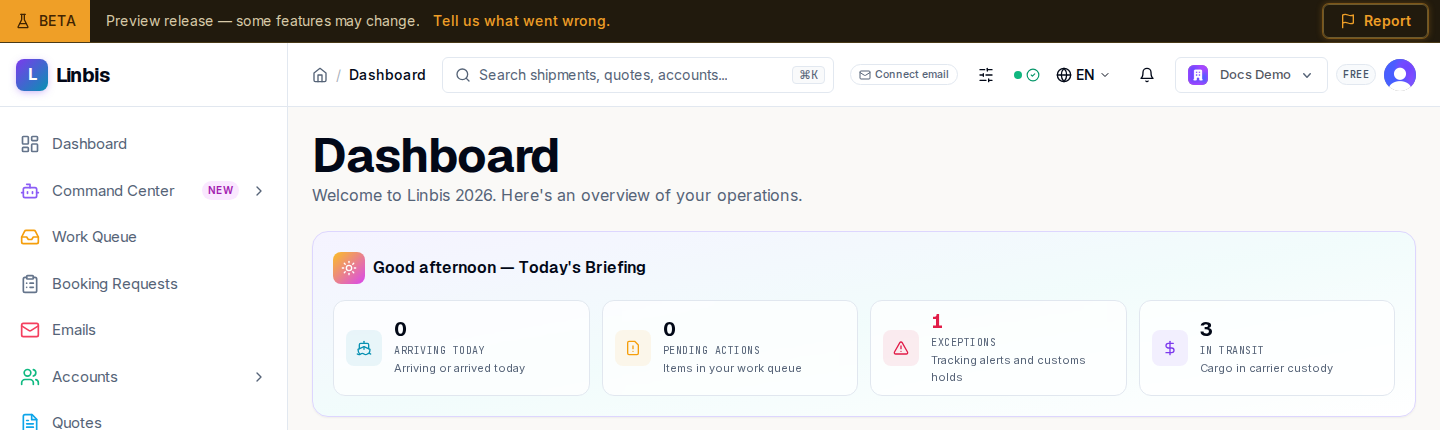
The sidebar, top to bottom
- Command Center — the AI operations hub: overview, activity, approvals, results, communications.
- Work Queue — AI-processed items waiting for your decision; the badge is the live pending count. See the Work Queue reference.
- Booking Requests — bookings your portal customers submitted, awaiting review or conversion.
- Emails — the Freight Desk inbox, where every email arrives classified. See the Emails reference.
- Accounts — customers, vendors, carriers, and the rest of your address book, with CRM (opportunities, tasks, campaigns).
- Quotes — pricing. See the Quotes reference.
- Shipping Orders — customer orders before they become shipments. See the Shipping Orders reference.
- Warehouse — receipts, releases, inventory, locations, and the Scan kiosk. See the Warehouse reference.
- Shipments — the operational core, filterable by Air Freight, Ocean Freight, Ground. See the Shipments reference.
- Accounting — receivables, payables, general ledger, treasury. See the Accounting reference.
- Below: Reports, Form Builder, Activity, Rate Intelligence, and the Network section.
- At the bottom: Settings. See the Settings reference.
The header
- Search — the box in the middle, or ⌘K (Ctrl+K), opens the command palette: shipments, quotes, accounts, documents, from anywhere.
- Notifications — the bell, with an unread counter.
- Display settings — density (Compact, Default, Comfortable) and the AI features toggle.
- Language — the globe selector switches the interface (English, Español, and more); also under Settings → Display, along with the theme (Light/Dark/System).
- The organization switcher and your profile menu sit on the right.
The Copilot
The round button at the bottom-right — or ⌘J (Ctrl+J) — opens the Copilot panel: ask it anything ("Ask Copilot anything..."), drop files on it, get your morning briefing, and preview what it builds (shipments, invoices, tables) before it happens. It is the same assistant that classifies your email; this page explains how much it may do on its own.
Three habits that pay off immediately
- Approve, don't type. Let the email agent draft records and clear the Work Queue daily.
- ⌘K everywhere. Search beats sidebar navigation once you know your file numbers.
- Fix your statuses early. Rename the pipeline to your team's vocabulary in Settings → Status Flow before habits form.
Next
Do the full loop once: Your first ocean shipment, end to end.