Shipments screen reference
The shipments list, master/house typing, the status pipeline, every detail tab, and the charges grid.
Shipments is the operational heart of Linbis: every air, ocean, and ground move, master or house, lives here. The sidebar sub-entries — All Shipments, Air Freight, Ocean Freight, Ground — are the same list pre-filtered by mode; Bulk Operations opens the Import Data Wizard and Tracking the fleet tracking board.
List page
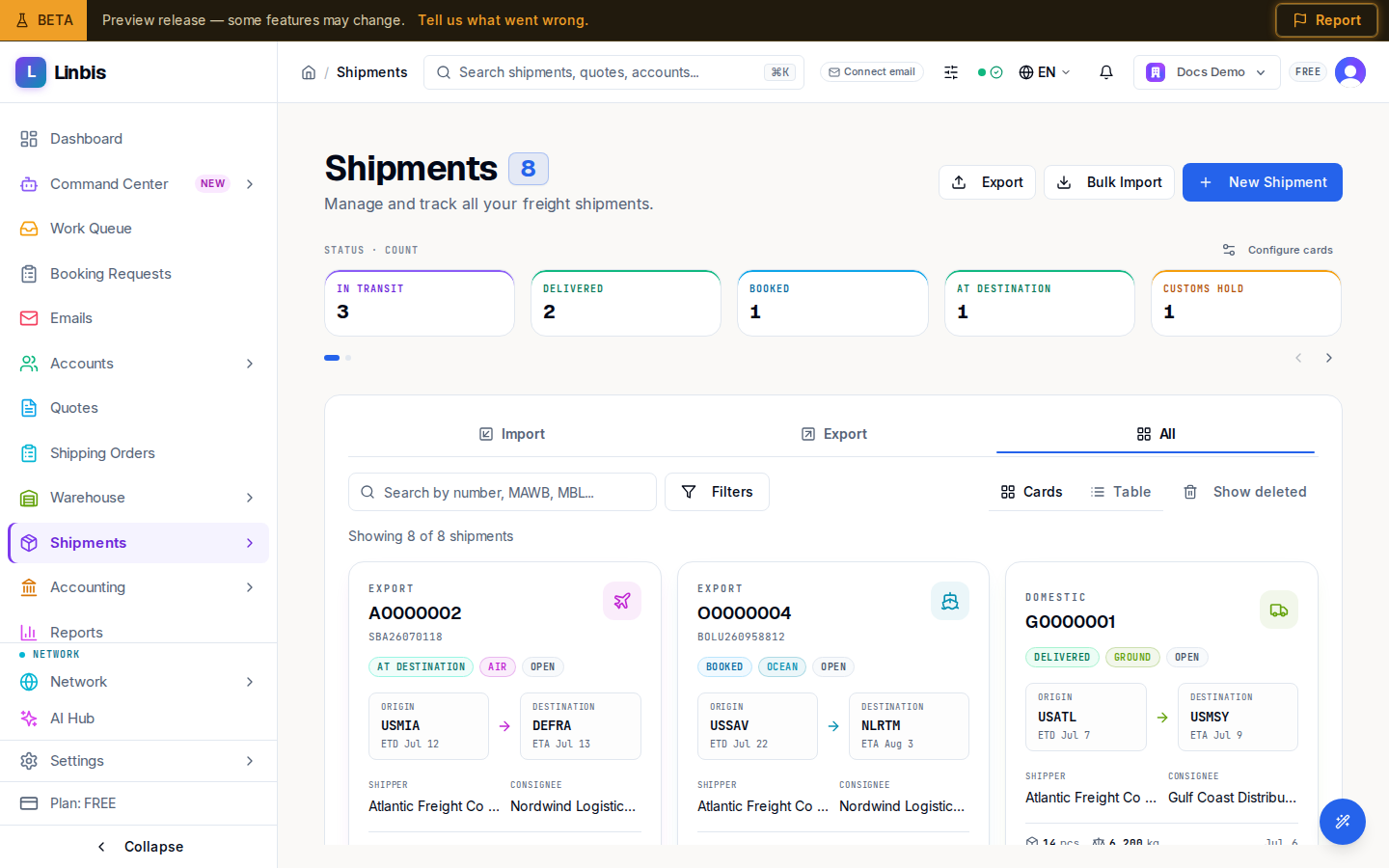
Header actions: Export, Bulk Import, New Shipment. Search: "Search by number, MAWB, MBL...". Direction tabs: Import, Export, All. Views: Cards, Table.
| Column | Meaning |
|---|---|
| Shipment # | Shipment number with a mode icon |
| MAWB / MBL | The master reference (MAWB air, MBL ocean, PRO ground) |
| Mode | Air, Ocean, Ground, Rail, or Multimodal |
| Type | Class pill Master or House, plus Consol or Direct |
| Master Shipment | For a house: link to its master |
| Status | The status pill (see pipeline below) |
| ETA Status | On-track indicator |
| Origin / Destination | The lane |
| Shipper / Consignee | The parties |
| ETD / ETA | Estimated departure and arrival |
| Pcs / Weight (kg) | Cargo totals |
| Cost / Profit | Financials |
Opt-in columns include Operation, Parent, Income, Expense, Currency, Place of Delivery, Flight, Created By, and Accounting. Presets: Default, Operations, Docs, Financial, Compact.
Selecting rows in the table opens the bulk bar: Export Selected, Assign to Master (houses only), Mark as In Transit, Mark as Delivered, Generate Tracking Links, Delete. Row menu: View Details, Edit, Duplicate, Documents, Delete. Clicking a row opens a side panel preview.
Owners and admins also get a Show deleted toggle: it switches the list to soft-deleted shipments (banner "Viewing deleted shipments"), where each row offers View and Restore. Back to active returns to the live list.
Status pipeline
Canonical statuses: Draft → Booked → Picked Up → At Origin → In Transit → At Destination → Out for Delivery → Delivered → Completed, with Customs Hold as a branch and Cancelled available from any state. Your company can rename stages and add its own per mode and operation in Settings → Status Flow — the pills then show your names.
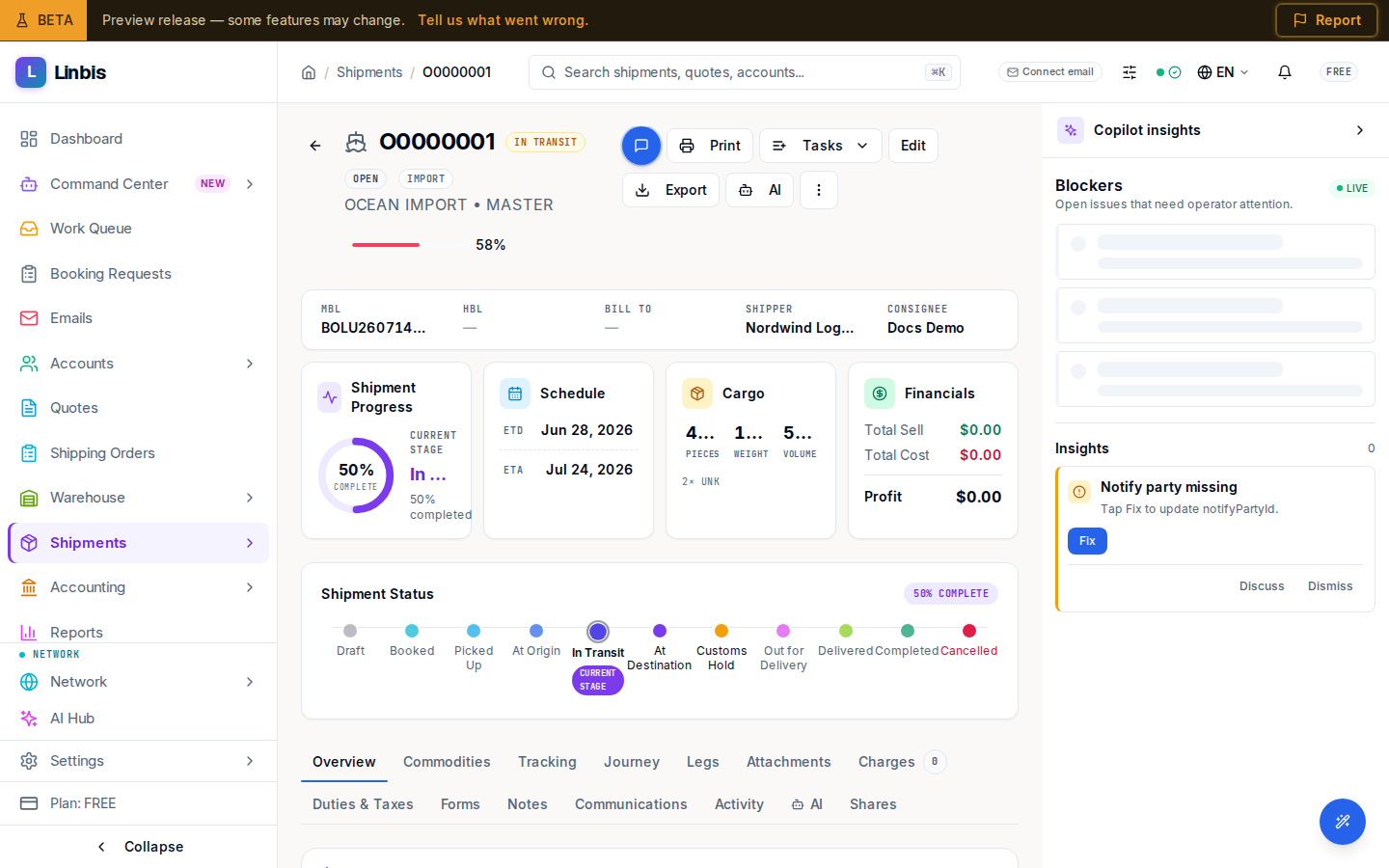
On the shipment page, the Shipment Status timeline card is where you advance status: select the next stage node to move forward ("Status updated successfully"). Skipping ahead or moving backward asks for confirmation, and Cancelled requires an explicit "Cancel Shipment?" confirmation. This is also how a shipment is marked Delivered.
Detail page
The header shows the shipment number, mode and operation, class, status pill, a link to the master (for houses) and to the source quote (for converted quotes), plus Print, Export (CSV/Excel/PDF), and the ⋯ menu (Duplicate Shipment, Send Update, Delete Shipment). The identifier strip carries the reference fields: MAWB/HAWB or MBL/HBL, ETD, ETA, ATD, ATA, pieces, weight, volume, Shipper, and Consignee.
The Tasks menu spawns warehouse work from the shipment — Create Load Task, Create Delivery Task, Create Receive Task, Create Release Task, and View tasks board (which opens the warehouse task board filtered to this shipment). If the shipment has been soft-deleted, a banner offers Restore Shipment (owners and admins).
Tabs, in order:
| Tab | Contents |
|---|---|
| Overview | Route, parties, KPIs, the House Shipments section (masters) |
| Commodities | Cargo lines with dims, weights, volume |
| Tracking | Map and live tracking — container events for ocean, flight tracking for air |
| Journey | Past → now → future stage timeline |
| Legs | Legs / containers — manage the journey legs |
| Attachments | Files on the shipment |
| Charges | The charges grid (below) |
| Duties & Taxes | Duty and tax lines |
| Forms | Document generation — see the documents how-to |
| Notes | Free-form notes |
| Communications | Inbound emails and sent email history |
| Activity | Audit trail |
| AI | Pending AI tasks for this shipment (when present) |
| Shares | Sharing with partners |
Charges grid
The Charges tab ("Charges & Revenue") records income and expense per charge line in one grid: Code (AFT Air Freight, OFT Ocean Freight, FSC Fuel Surcharge, THC Terminal Handling, and so on), Status, Charge description, Ccy, then quantity/rate/amount for the income side and the expense side, ending in Profit. Actions: Add Charge, Apply Rate Card, Auto Charges (suggests the standard charge lines for the shipment), Generate Invoice (badge counts uninvoiced charges), Generate Bill, and Manage Accounting. On ocean shipments with the company toggle enabled, Generate Ocean Freight rolls the commodity lines into a single Ocean Freight charge. The shipment's Chargeable Weight feeds rate calculations — see Master, house & chargeable weight.