Your first air shipment, end to end
From a new customer to a delivered, invoiced air shipment — quote it on chargeable weight, convert it, issue the air waybills, and track it.
This tutorial takes one air export from nothing to done — the same arc as the ocean tutorial, with the three things air changes: the paper (air waybills instead of bills of lading), the math (chargeable weight on the 1:6000 volumetric divisor), and the speed (days, not weeks).
The paper, stated up front: the MAWB (Master Air Waybill) is the airline's contract with you, the forwarder — it belongs on a master shipment. The HAWB (House Air Waybill) is the document you issue to your customer — it belongs on a house. A direct file for one customer still gets its house-level air waybill; a consolidation gets one MAWB for the flight and one HAWB per customer inside it.
Step 0 — create or select the customer
Same as ever: everything hangs off an account. Open Accounts, and if the customer, shipper, or consignee is missing, Add Account them first (see the Accounts reference).
Step 1 — create the quote (and watch the chargeable weight)
- Open Quotes and select New Quote.
- In the mode step, pick Air Freight ("Fast delivery for time-sensitive cargo") and Export, then continue.
- Fill the quote details: Customer, Origin, Destination, the parties, and the cargo — Pieces, Gross Weight (kg), Volume (CBM).
- Now the air math. The Chargeable Weight (kg) is not the scale weight: air divides the volume by the 1:6000 volumetric divisor (cm³ ÷ 6000 = volumetric kg, the same as 167 kg per CBM), takes the greater of gross and volumetric weight, and rounds up. A pallet of 120 × 100 × 100 cm weighing 150 kg is 1.2 CBM → 200 kg volumetric → 200 kg chargeable. Ocean would have rated the same pallet W/M (1 CBM vs 1,000 kg — 1.2 revenue tons). The full contrast lives in Master, house & chargeable weight.
- Select Create Quote, price it on the Charges tab — air freight is typically rated per kg on the chargeable weight — then Send to Customer and, on confirmation, Accept Quote.
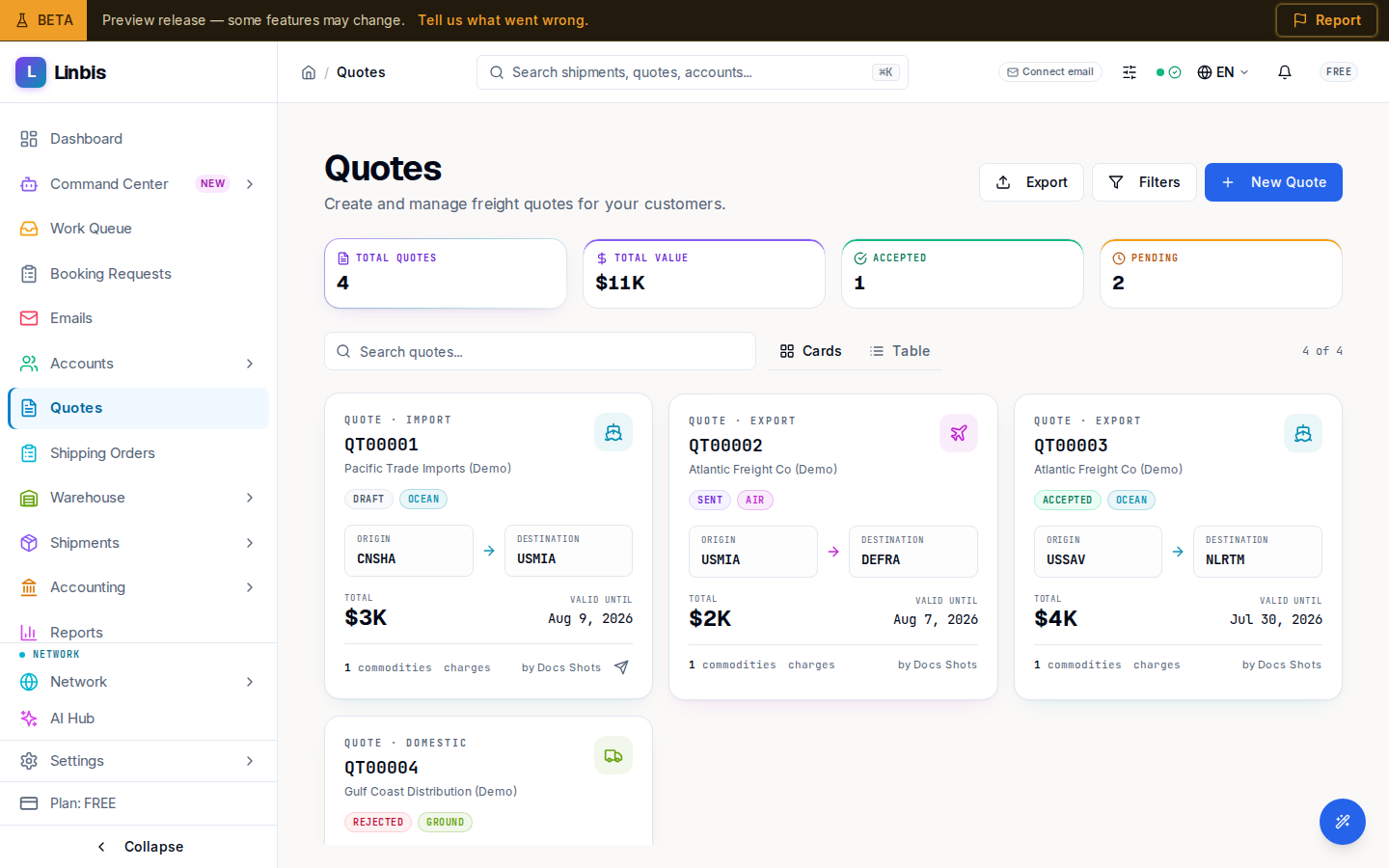
Step 2 — convert the quote to an air shipment
- On the quote, open the header menu (⋯) and select Convert to Shipment.
- Set Transport Mode to Air Shipment. Keep Shipment Type as Direct for a single customer; choose Consolidation and then the Shipment Class (Master or House) when building a consol.
- Select Create — commodities move over, charges are copied, and the quote locks as Converted.
Step 3 — references and documents: MAWB & HAWB
- On the shipment's Overview, the References section carries the air identifiers: MAWB, HAWB, and Flight (edit adds Aircraft Type and Airline Code). Enter the HAWB number for your house — and the MAWB number once the airline books the flight. Linbis enforces the split: a master air shipment requires its MAWB number, a house requires its HAWB, before leaving Draft.
- Open the Forms tab. The air paper lives here: Master Air Waybill (MAWB) (with the MAWB Set (IATA 600a, 12-copy) variant), House Air Waybill (HAWB), Air Cargo Manifest, Arrival Notice (Air), and the AWB label set for the pieces.
- Generate your house air waybill, check the live preview, Download or Print, and send it with Send Update as in Generate and send shipment documents.
Step 4 — charges and invoice
The Charges tab works exactly as on ocean: income side (what you bill) against expense side (what the airline bills you), profit tracked live — with air freight lines rated on the chargeable weight from step 1. Then Generate Invoice → Create Draft Invoice → Post Invoice, per Issue an invoice from charges.
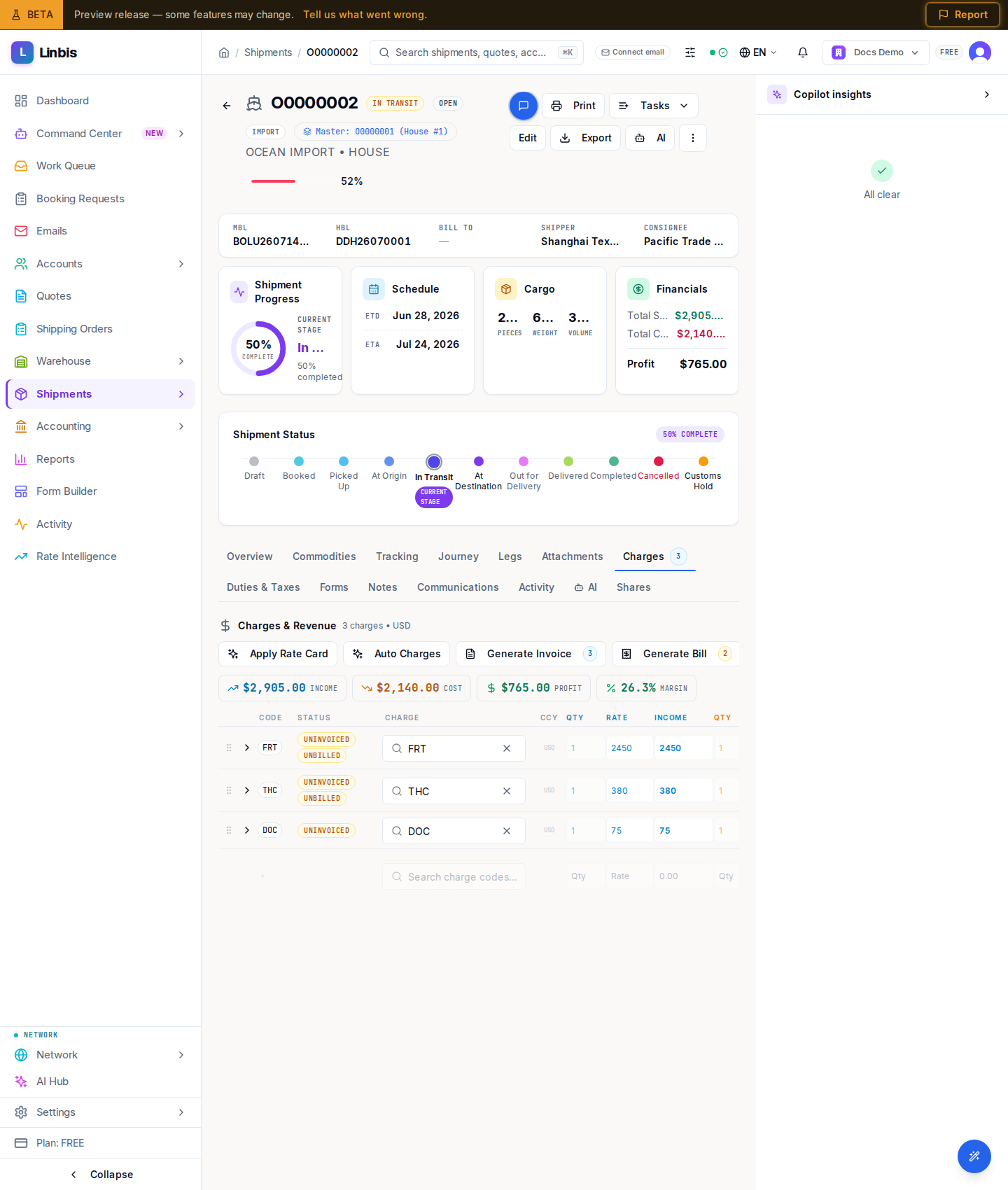
Step 5 — track it to Delivered
The status timeline is the same canonical flow — Booked, Picked Up, At Origin, In Transit, At Destination, Out for Delivery, Delivered — it just runs in days. The routing shows the Flight #; advance the status as the flight departs and lands, and close the file at Delivered.
Where to go next
- Master, house & chargeable weight — the 1:6000 and W/M math, side by side.
- Consolidate house shipments under a master — several HAWBs under one MAWB.
- Your first ocean shipment, end to end — the same flow at sea level.