Quotes screen reference
Every element of the Quotes module — list, filters, statuses, the detail tabs, and all three conversion targets.
Quotes is where you price moves and track them from draft to conversion.
List page
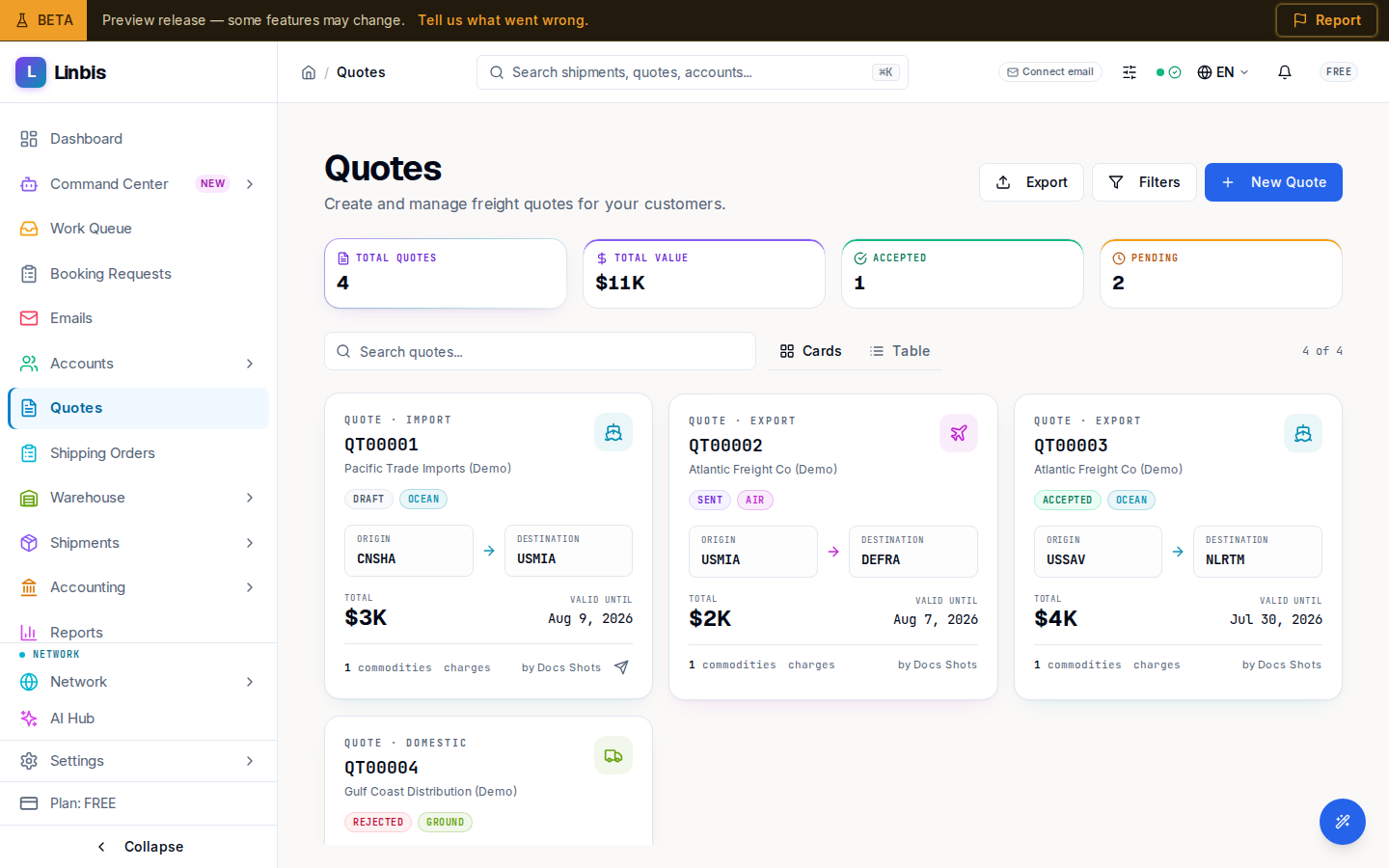
Stat tiles: Total Quotes, Total Value, Accepted, Pending. Toolbar: search ("Search quotes..."), Filters, Export, New Quote, and a Cards/Table view toggle.
| Column | Meaning |
|---|---|
| Quote # | Quote number, e.g. Q00001 |
| Customer | The account being quoted |
| Mode | Air, Ocean, Ground, or Multimodal |
| Origin / Destination | The quoted lane |
| Sales Rep | Owner of the quote |
| Status | See status list below |
| Amount / Currency | Quoted total |
| Valid Until | Expiration date |
| Created | Creation date |
Opt-in columns include Customer Ref, Transit Days, Carrier, Pieces, Gross Weight (kg), Volume (CBM), Income Total, Expense Total, and Profit. Column presets: Default, Financial, Compact.
Advanced Filters combine with AND logic: Quote Number, Created By, Status, Mode, Accounting state, Customer, Carrier, Sales Rep, Origin, Destination, Valid Until range, and Created On range.
Statuses
Draft → Sent → Accepted / Rejected / Expired, ending in Converted once turned into another record. Two additional states: Quoted and DG Hold (held for a dangerous-goods check). Terminal quotes are read-only — reopen them from the menu ("Reopen quote (revert to Sent)") or duplicate them.
Row actions
View Details, Edit, Duplicate, Send to Customer / Resend to Customer (Draft or Sent), Delete.
Detail page
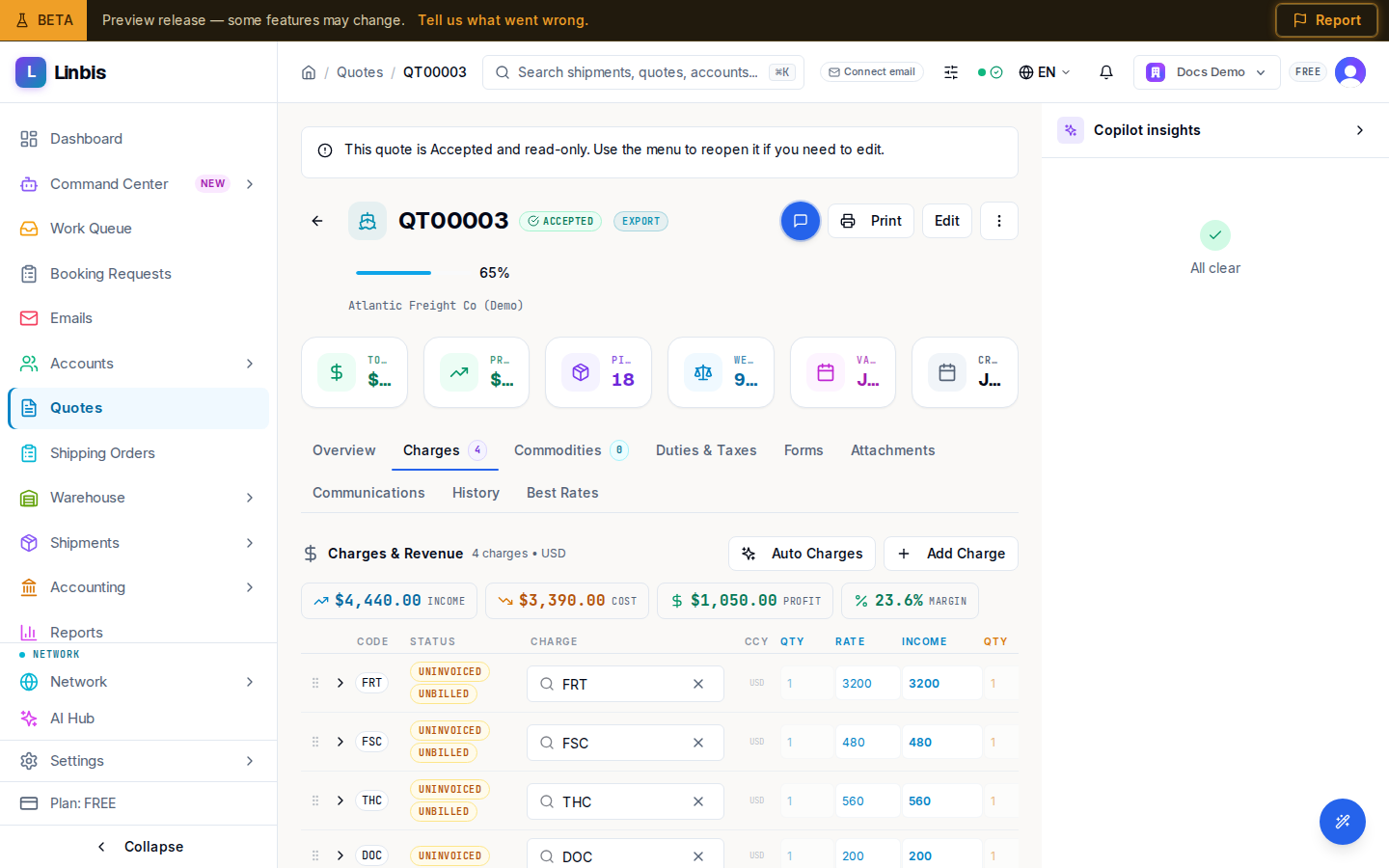
Tabs: Overview (route, parties, cargo KPIs, financials, carrier options, and the editable field cards), Charges (with count), Commodities, Duties & Taxes, Forms, Attachments, Communications, History, and Best Rates (enabled once origin and destination are set).
Header actions: Send to Customer / Resend to Customer, Accept Quote / Reject Quote (when Sent), Print, Preview as customer, and Edit.
The header menu (⋯) holds: Duplicate Quote, Download PDF, and the three conversions — a quote converts to a Shipment (Convert to Shipment) or to a Shipping Order (Convert to Shipping Order), and additionally to a Warehouse Receipt (Convert to Warehouse Receipt). All conversions open the same dialog:
- Shipment — pick Transport Mode and Shipment Type (Direct, or Consolidation as Master/House). Commodities move with full history; charges are copied.
- Order — creates a new Shipping Order from the quote data.
- Receipt — creates a new Warehouse Receipt in Received status.
- Duplicate — copies the quote itself, optionally with commodities and charges.
Every conversion locks the quote as Converted with a link to the created record.
Send-readiness checks
Send to Customer and Convert to Shipment run validation first. Blockers include a missing total, missing origin/destination port, no customer, an Incoterm invalid for the mode, and a dangerous-goods hold. Conversion blockers can be overridden explicitly; send blockers must be fixed.