Accounts screen reference
Every element of Accounts — list views, filters, the Add Account form tab by tab, the account detail page, and the Proposed, Opportunities, Tasks, and Campaigns sub-pages.
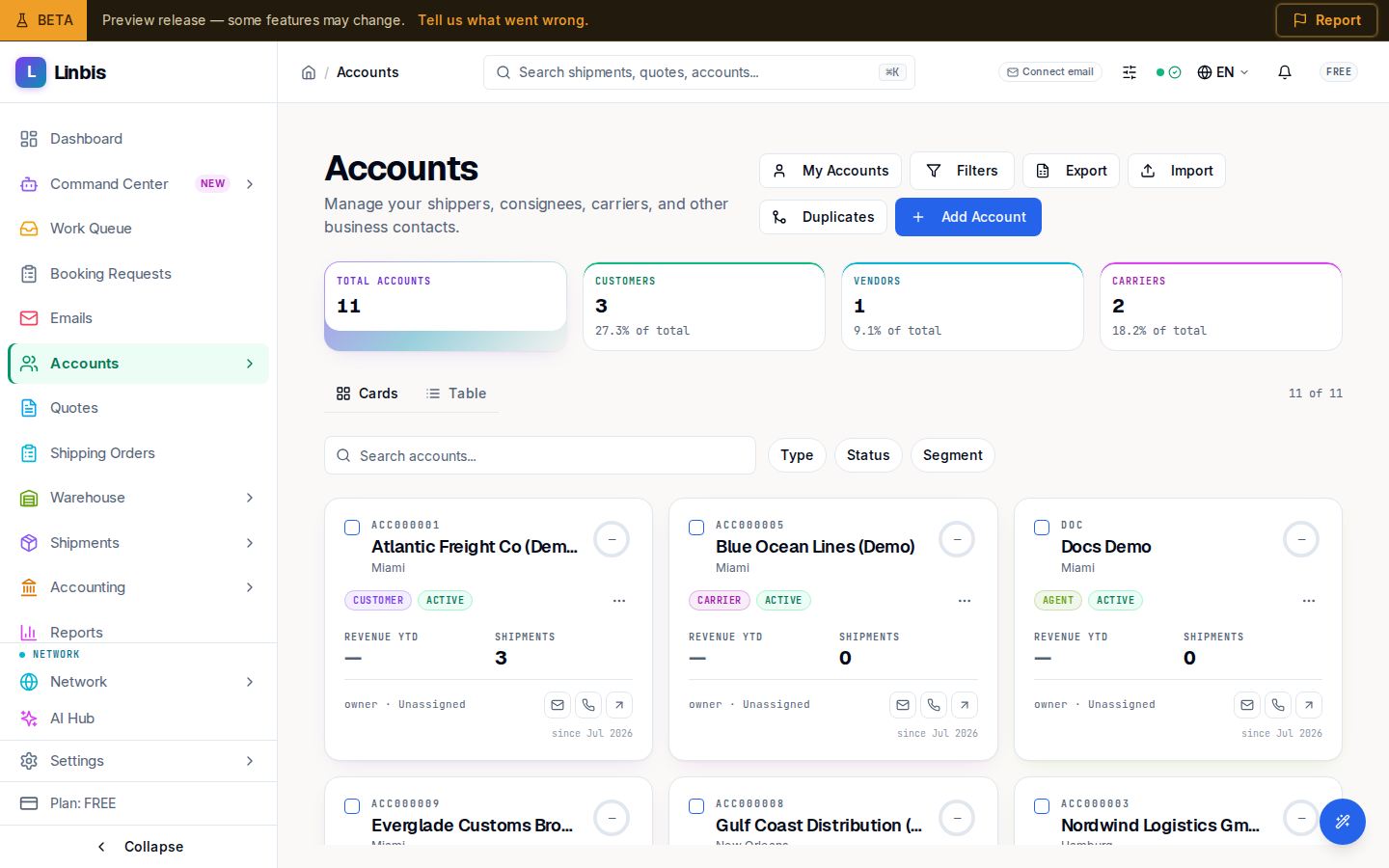
Accounts is the address book everything else hangs off: "Manage your shippers, consignees, carriers, and other business contacts." Every customer, vendor, carrier, and agent is an account; quotes, shipments, and invoices all point back here.
Header and stats
Header actions: My Accounts (only yours), Filters (the advanced modal), the export control, Import, Duplicates (merge candidates), and Add Account. Four stat cards count Total Accounts, Customers, Vendors, and Carriers.
Types, statuses, and segments
- Type — the primary relationship: Customer, Vendor, Carrier, Agent, Coloader, Broker, Trucker, Warehouse, Other. Additional capabilities (an account that is both customer and shipper, say) are added as roles on the form.
- Status — Active, Inactive, or Blocked (blocked accounts can't take new transactions).
- Segment — CRM classification: Key Account, Growing, Stable, At Risk, Dormant, New, Prospect, Low Value. Each account also carries a computed Health score ring.
Cards view and Table view
Toggle between Cards and Table. Both share the search box ("Search accounts...") and the Type / Status / Segment filter chips, plus Clear filters.
- Cards show Revenue YTD, Shipments, the owner (or Unassigned), the health ring, and hover actions Email, Call, Open.
- The table adds columns — Account, Type, Contact, Phone, City, Address, State, Postal Code, Country, Created, Updated, Shipments, Segment, Health Score, Revenue (12m), Owner, Status — with the presets Default, CRM, Compact. Clicking a row opens a slide-out panel; View opens the full page.
- Row actions: View, Edit, Delete. Bulk: Delete selected and Merge selected (select exactly two — the merge comparison picks the survivor).
- Advanced Filters combines everything with AND logic: type/status/role checkboxes, Country and City, Account Owner, and Created On / Updated On date ranges.
The Add Account form
Add Account opens New Account ("Add a new customer, vendor, carrier, or other account to the system") with four tabs:
- General — Account Name (required), Status (required), Legal Name, Parent Account; then the classification: Account Type (required), Carrier Type for carriers (Air Carrier, Ocean Carrier, Ground Carrier, Multimodal), and optional additional capabilities (Shipper, Consignee, Agent, Broker, Warehouse...).
- Contacts — the account's own Phone, Email, Website, plus the primary contact: First Name, Last Name, Title, Email, Phone, Mobile / WhatsApp.
- Addresses — repeatable addresses with Type (Main, Billing, Shipping, Warehouse), Line 1, Line 2, City, State / Region, Postal Code, Country. On create, only the first address saves — add the rest from the account page.
- Financial — Currency, Payment Terms, Credit Limit, Tax ID Type (EIN (US), VAT Number, GST Number, Tax ID, RUT (Chile), RFC (Mexico), ABN (Australia)), Tax ID; and Sales & Commission: Sales Representative, Commission Type (Income or Profit), Commission Rate (%).
A Notes card sits below the tabs. Finish with Create Account (or Create & Add Another). Possible duplicates warn without blocking.
The account detail page
The header shows the name with type, status, account number, segment badge, and health ring — plus Carrier Profile on carriers, a Notifications opt-in toggle, the portal access control (see Invite a customer to the portal), and a menu with Send Email, Generate Customer Portal Link, and Delete Account. Quick stats: Shipments, Contacts, Created, Currency. Accounts on credit hold banner it: "This account is on credit hold. New shipments and quotes are blocked until the hold is resolved."
The tabs:
| Tab | What it holds |
|---|---|
| Overview | Profile, health score (Revenue / Activity / Growth), revenue chart, contacts, financial summary, address, recent activity |
| Activity | AI insights, the activity history timeline, and quick logging |
| Sales | Nested Opportunities and Tasks for this account |
| Shipments | The account's shipments |
| Accounting | Two ledgers — "Income · Invoices" (what you invoiced them) and "Outcome · Bills" (what they billed you) |
| Score | CRM analytics behind the health score |
| Carrier | Carrier profile and air waybill stock (carriers only) |
| Emails | "Linked Emails" — mail auto- or manually linked to the account |
| Attachments | Files on the account |
| More | The full editable field cards (Profile, Addresses, Contacts, Roles, Commercial, Relationships, Notes) plus the account team |
Sub-pages in the sidebar group
- Proposed — "Unknown senders the agent surfaced from inbound emails." Filter Pending, Approved, Rejected, Superseded; each row shows name, email, type, and confidence, with Approve (creates the account) or Reject.
- Opportunities — the sales pipeline kanban: Lead, Qualified, Proposal, Negotiation, Won, Lost, Stale, with New Opportunity and summary tiles (open value, weighted, win rate).
- Tasks — My Tasks: "View and manage your assigned tasks across all accounts."
- Campaigns — email campaigns: KPI tiles (Total campaigns, Draft, Scheduled, Sent), a status filter, and New Campaign with template, subject/body (supports personalization placeholders), and recipient filters.