Shipments
Bulk Operations — the Import Data Wizard
Import shipments in bulk from a CSV — the seven-step wizard from file upload through field mapping to Create Shipments.
Shipments → Bulk Operations opens the Import Data Wizard: "Import shipment data from Excel or CSV files into the Linbis system." Rows group by shipment number — one shipment with many container lines — and the wizard resolves ports, parties, and carriers along the way. The wizard is desktop-only.
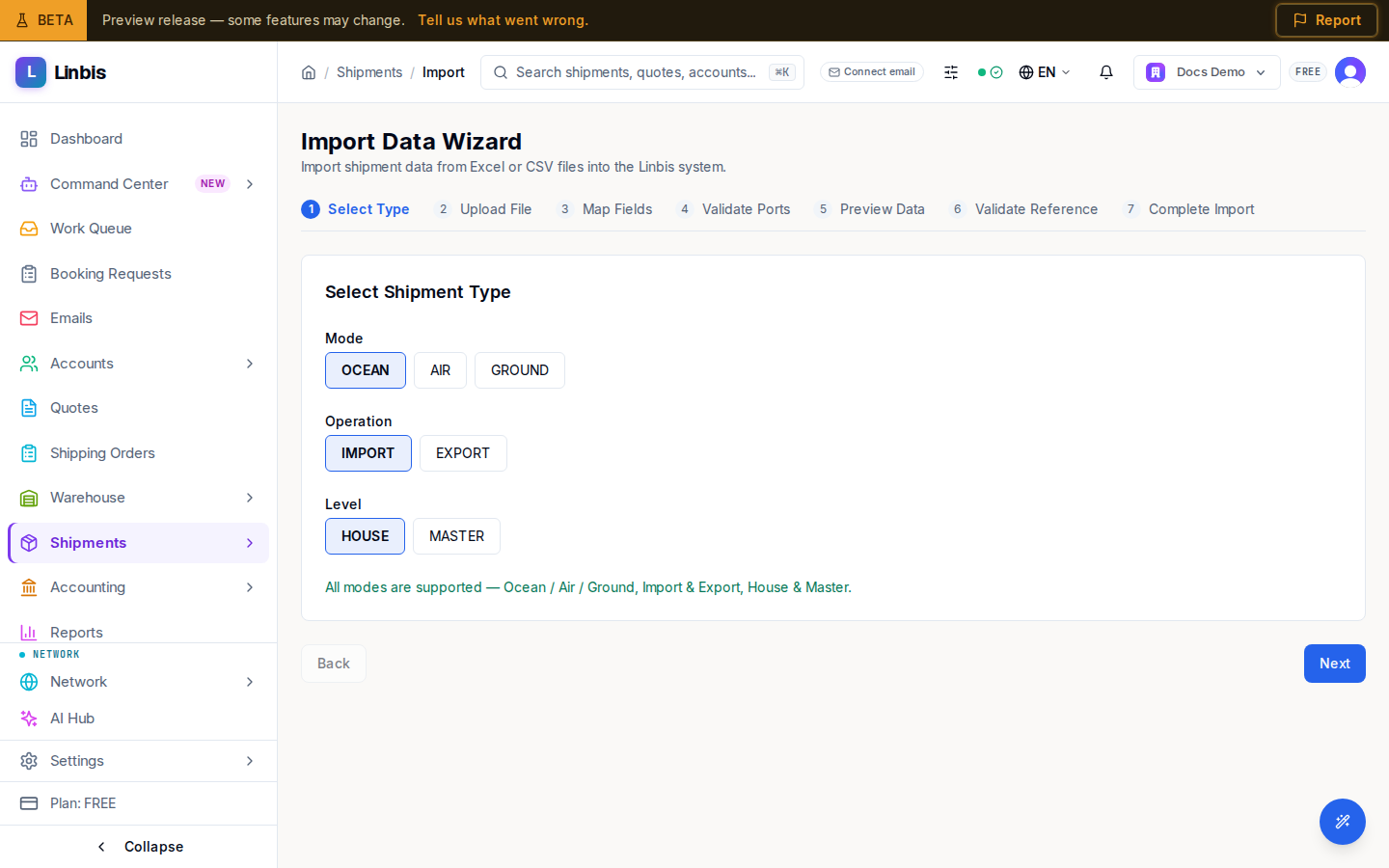
The seven steps
- Select Type — pick Mode (Ocean / Air / Ground), Operation (Import / Export), and Level (House / Master).
- Upload File — drag & drop a CSV ("Supported: CSV • Max 500 rows imported per batch"). The Download template button generates a CSV with the exact column names for your mode/operation/level plus one example row — fill it in and the columns auto-map.
- Map Fields — match CSV columns to shipment fields; Auto-map does the obvious ones, and required fields are flagged until all are mapped.
- Validate Ports — fix any port the system could not match ("Search port name or UN/LOCODE…"). Unresolved ports are never auto-created; by default shipments may save without one.
- Preview Data — a dry run: Unique shipments, Multi-container, Will create, Duplicates (skip), New accounts, Unresolved ports, and exactly what will be imported, expandable per shipment.
- Validate Reference — resolve parties and carriers; auto-creating new accounts is off by default. Finish with Create Shipments.
- Complete Import — the import runs as a background batch with live counts ("Status: COMPLETED · created … · skipped … · failed …") and a per-row results table, then View shipments.
Duplicate shipment numbers are skipped, and auto-creating missing masters is a remembered checkbox in step 3.
Related
- All Shipments — where the imported shipments land
- Consolidate house shipments under a master
- Shipments screen reference