Command Center screen reference
Every element of the Command Center — the agent workforce grid, activity feed, approvals queue, results dashboard, and communications log.
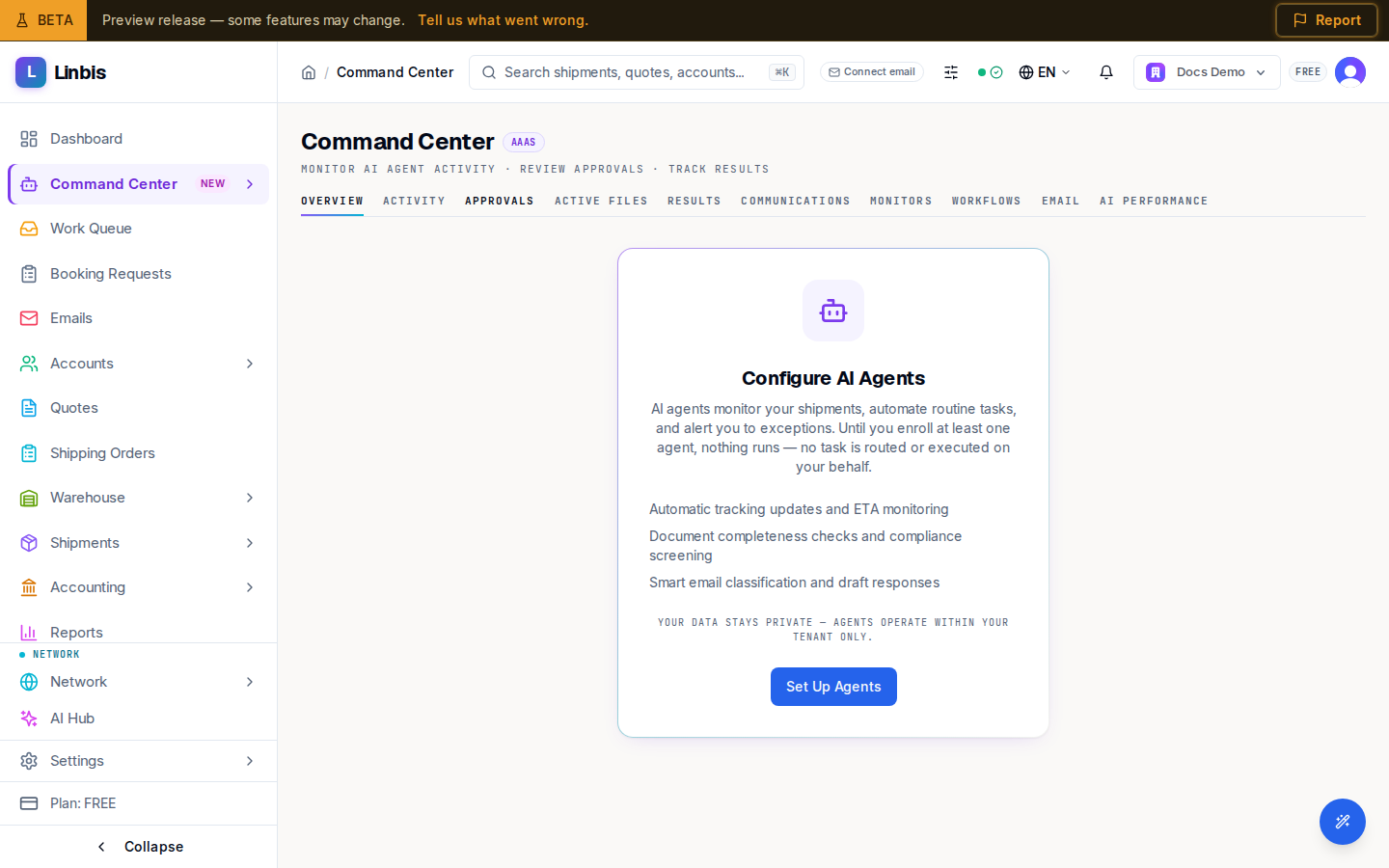
Command Center is the cockpit for the AI agent workforce (the header carries an AAAS badge): what agents are doing, what waits for your approval, and what the automation delivered. The subtitle sums it up: "Monitor AI agent activity · Review approvals · Track results".
The sidebar links five tabs — Overview, Activity, Approvals, Results, Communications — and the page's own tab bar adds Active Files, Monitors, Workflows, Email, and AI Performance.
Overview
Until you enroll at least one agent, the page shows Configure AI Agents ("Until you enroll at least one agent, nothing runs") with a Set Up Agents button that opens the agent settings. With agents enabled you get:
- AI Agent Workforce — one tile per agent: Operations, Visibility, Billing,
Documentation, Compliance, Carrier Relations, Commercial, Customer Service,
Warehouse, Dispatch, Classification, Communications, Leg Planner,
Analytics, Collections. Each tile shows a status (Active, Idle, Working,
Disabled, Not deployed) and the counters Tasks, Accuracy, Trust (autonomy
level, e.g.
L0), Pending, and Cost. - A live connection dot: Live, Connecting, Reconnecting, or Offline — plus a dismissible banner if processing is degraded.
- Four embedded panels mirroring the other tabs — AI Agent Activity, Action Queue, Results Dashboard, Communications Log — each with a View all link.
Activity
The full task feed. Filter by status (All, Completed, Processing, Pending, Failed) and by agent (All Agents plus the workforce list). Each row shows what the agent did ("Updated shipment status", "Creating invoice from charges", "Drafting email notification"...), how it decided (Rule, AI, or Fallback), and a status badge: Processing, Queued, Awaiting Approval, Completed, Failed, Skipped, Approved, Rejected, or Cancelled.
- Items awaiting sign-off carry a Review & Approve → link into the Approvals tab.
- Failed rows offer Retry (managers only, maximum 3 attempts) behind a confirmation dialog — Retry failed task? → Confirm Retry.
Approvals
The decision queue for agent actions that need a human. Status filters: PENDING (default), APPROVED, REJECTED, MODIFIED, EXPIRED; agent tabs: All, Emails, Operations, Compliance, Billing, Visibility, Documents.
Each pending item is a card with the proposing agent, a confidence bar, the trigger (for example New Email, Delay Detected, Payment Overdue), and collapsible Details and Impact sections. Actions per card:
- Approve — executes immediately, no confirmation dialog. For email drafts the button reads
Approve & Send; for notifications, Approve & Notify. Keyboard:
Enter. - Reject — one click, also immediate. Keyboard:
Shift+Enter. - Edit — opens the modify dialog to adjust parameters, then Submit Modified.
- Bulk: tick several cards and use Approve all / Reject all; a result line reports the approved/rejected/failed counts.
The empty state is a good sign: "All caught up! No approvals pending."
Results
The automation scorecard over Week, Month, or Quarter: Total Actions, Time Saved, Accuracy, and Auto-Executed (with how many needed approval), plus an Actions by Category breakdown — Status Updates, Invoices Created, Documents Generated, Emails Drafted, Compliance Screens, Tracking Updates, Doc Checks, HS Classifications.
Communications
Every agent-drafted message, filtered by channel (All Channels, EMAIL, WHATSAPP, SMS) and direction (All Directions, INBOUND, OUTBOUND). Rows carry an AI Drafted pill and a delivery status: sent, delivered, draft, failed, or pending.
Related
- Approve, modify, or reject an agent action
- Find files that need your attention (Active Files)
- Review and apply an agent's changes to a file
- Approve or reject an email action
- Create a monitoring rule
- AI Performance — accuracy, corrections & trust
- Workflow execution history
- Agent Task Board
- Approve AI actions in the Work Queue
- How the email agent classifies mail & autonomy levels