Command Center
Approve, modify, or reject an agent action
Work the Command Center approvals queue — approve, edit, or reject what the AI agents propose, one card or in bulk.
When an AI agent is not yet trusted to act alone, its proposed action lands in the Command Center approvals queue: an email reply drafted, charges to create, a shipment status to change. You decide — approve, adjust it first, or reject.
Before you start
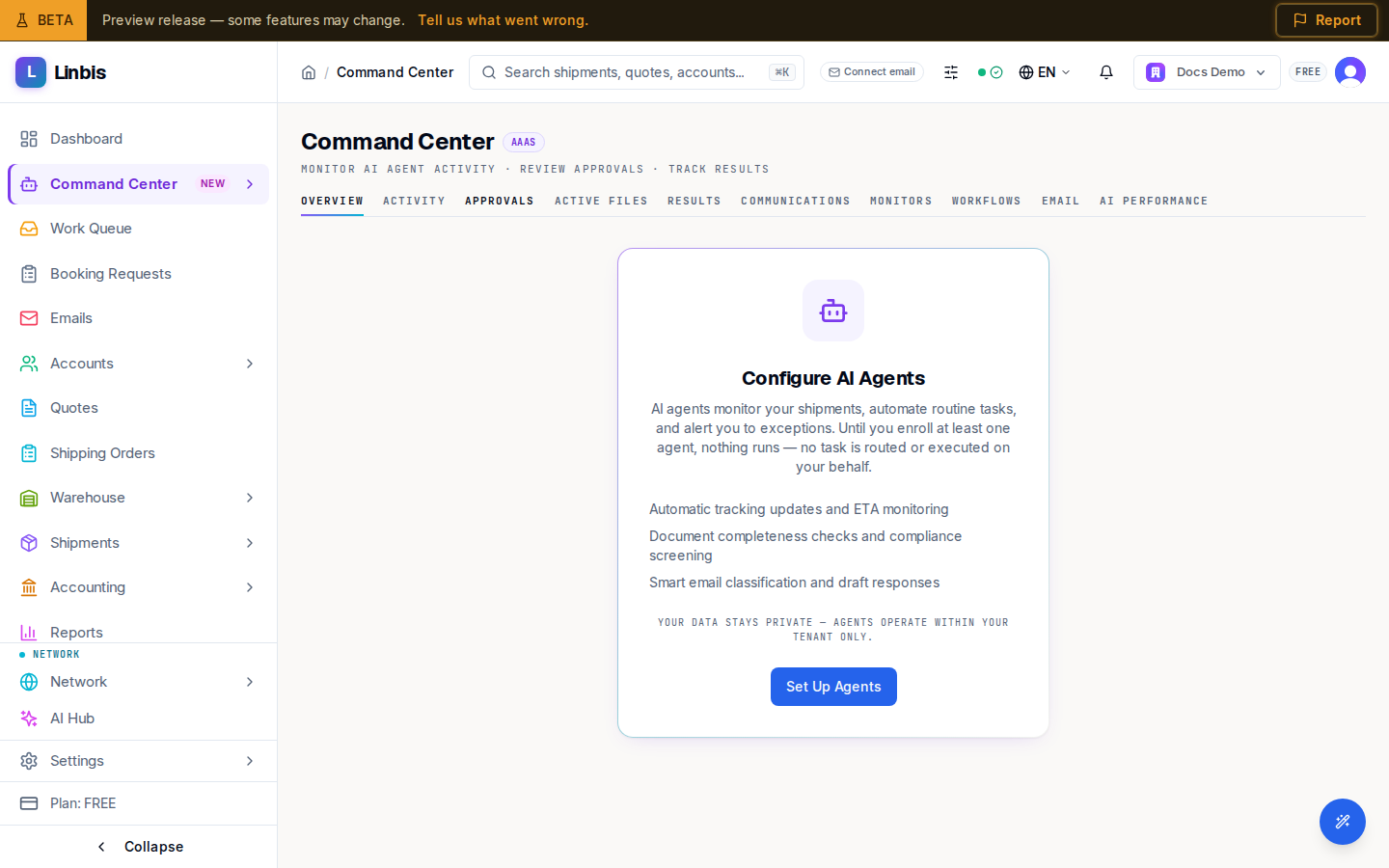
- At least one agent must be enabled (Command Center shows Set Up Agents if none is).
- Approving executes immediately — there is no confirmation dialog on Approve or Reject.
Steps
- Open Command Center in the sidebar and select the Approvals tab. (The Overview's Action Queue panel shows the same items — View all lands here too.)
- The PENDING filter is active by default. Narrow by agent with the tabs All, Emails, Operations, Compliance, Billing, Visibility, Documents.
- Read the card: the proposing agent, the confidence bar, the trigger, and the collapsible Details and Impact sections. Email actions show From, Subject, and Classified.
- Decide:
- Approve — the action executes right away. On email drafts the button reads
Approve & Send; on notifications, Approve & Notify. Keyboard:
Enter. - Edit — opens Modify to change the action's parameters; finish with Submit Modified.
- Reject — one click discards the proposal. Keyboard:
Shift+Enter.
- Approve — the action executes right away. On email drafts the button reads
Approve & Send; on notifications, Approve & Notify. Keyboard:
- For a batch: tick the checkbox on several cards, then use Approve all or Reject all in the selection bar. A result line reports the approved/rejected/failed counts.
Result
The card leaves the PENDING list. The executed action shows up under Activity (status Approved or Completed) and counts toward the Results dashboard — Auto-Executed tracks how much ran without you, and Time Saved what the automation earned you.
Tips
- Approvals expire: cards carry an SLA timer, and the EXPIRED filter shows what timed out before anyone decided.
- Email-type approvals also surface in the Work Queue — same decision, either surface.