Warehouse inventory
The Inventory screen — what is on hand, the On Hand, Inbound, Outbound tabs, and the Release Tool for acting on selected cargo.
Warehouse → Inventory lists what is physically in your warehouses. Cargo appears here when a receipt is marked Received, and leaves when a release reaches Released.
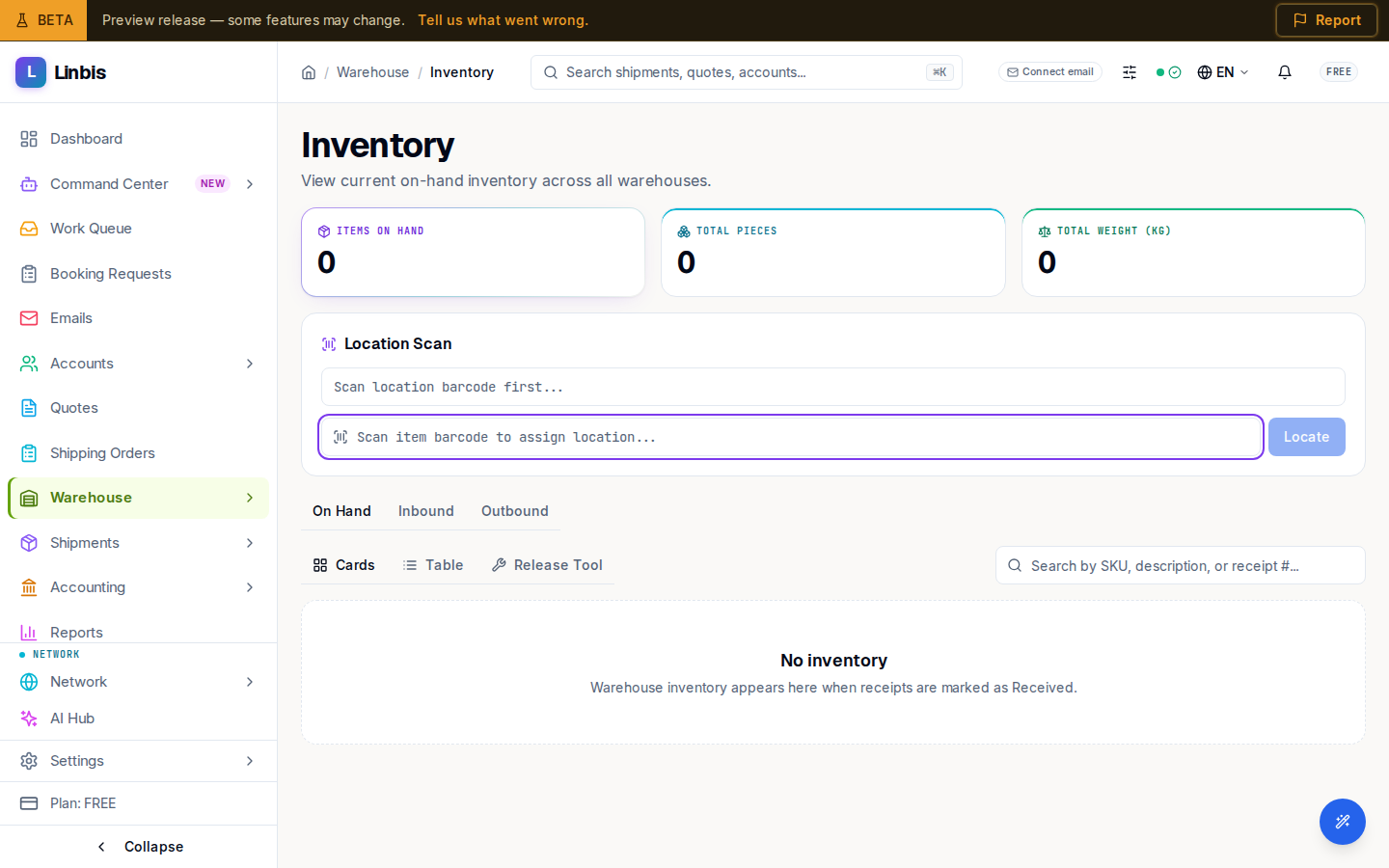
Tiles, tabs, and views
- Tiles: Items On Hand, Total Pieces, Total Weight (kg).
- Status tabs: On Hand, Inbound, Outbound.
- Views: Cards, Table, and the Release Tool.
Search by SKU, description, or receipt number. Each inventory card links back to its source receipt, so you can always trace a piece to the receipt that brought it in.
Table view actions
The Table view lists cargo lines with Line#, Barcode, Description, Pieces, Weight (kg), Volume (CBM), Location, and Status. Open a line's row menu (the ⋯ button), or tick rows to use the bulk bar, to act on cargo without opening a receipt:
- Change Status — move the line(s) to a new commodity status. Works on a whole selection.
- Place Hold — flag cargo (Customs, Damage, Quality, Legal, Recall, or Dispute) so it is not released by mistake.
- View History — the full event timeline for that line.
The step-by-step is in Change status, hold, split, and repack cargo.
Add, view, and edit an item
- Add manually — from Inventory → New Inventory Item, fill in the SKU, Item Name, Category, Warehouse, quantity, Unit, and cost, then select Create Item. The item is stored as a commodity on an inventory-entry receipt and starts on hand.
- View — selecting a line opens its Inventory Snapshot (type, barcode, location, pieces, released pieces, on hand, weight, days in warehouse, status), with Open Source Receipt to trace it back.
- Edit — select Edit on the item to change its details. The Commodity Type toggle — STANDARD, VEHICLE, or CONTAINER — reveals the matching fields (VIN/make/model for a vehicle; container and seal numbers for a container). Select Save Changes.
The Release Tool
The Release Tool view is where you act on inventory in bulk:
- Group the on-hand cargo by Customer, Receipt, Part #, or Serial #.
- Pick the order the pieces should be taken in — FIFO or LIFO.
- Select the cargo, then choose Create Release (hand it out through the release flow) or Create Shipment (load it straight onto a new shipment).
Good to know
- A receipt on Customs Hold stays visible in inventory but cannot be released until it returns to On Hand.
- Cancelling a receipt removes its unreleased cargo from inventory; cancelling a release returns the pieces.