Warehouse
Release cargo from the warehouse
Create a cargo release for on-hand inventory and take it through approval to delivery.
A cargo release moves goods out of the warehouse: you select on-hand cargo, say who it goes to, and the release travels through approval to delivery. Releasing is the other half of the receive-and-release loop that starts with a warehouse receipt.
Before you start
- The cargo must be on hand — received on a warehouse receipt and visible in Warehouse → Inventory on the On Hand tab.
- Cargo on Customs Hold cannot be released until its receipt returns to On Hand.
Steps
- In the sidebar, open Warehouse and select Releases, then select New Release. The New Cargo Release wizard opens with two steps.
- Step 1 — Select Cargo: pick the cargo to release from available inventory. You can group by Customer or Receipt, order picks FIFO or LIFO, and select whole lines or a partial piece count per line (Pieces to assign). The totals bar tracks Sel. Units, Sel. Pieces, Sel. Weight, and Sel. Volume. Select Next.
- Step 2 — Release Details: fill in the delivery information:
- Consignee (required) — who the cargo is released to.
- Deliver To — the delivery address.
- Reference Number and Requested Date.
- Delivery Instructions and any Special Handling Requirements.
- Review the Cargo Summary table (Receipt #, SKU, Description, Pieces) and select
Create Release. The release is created as Pending with a number like
WL000001, and the selected pieces are reserved in inventory. - Open the release and advance its status:
- Approved — a manager, admin, or owner approves the release.
- Released — the cargo leaves inventory.
- In Delivery — the cargo is out for delivery.
- Delivered — delivery is complete.
- While the release is In Delivery, record the Proof of Delivery on the Pickup & Delivery tab: Received By, Delivery Date & Time, and Signature / Notes, then select Save POD. Saving the POD marks the release Delivered.
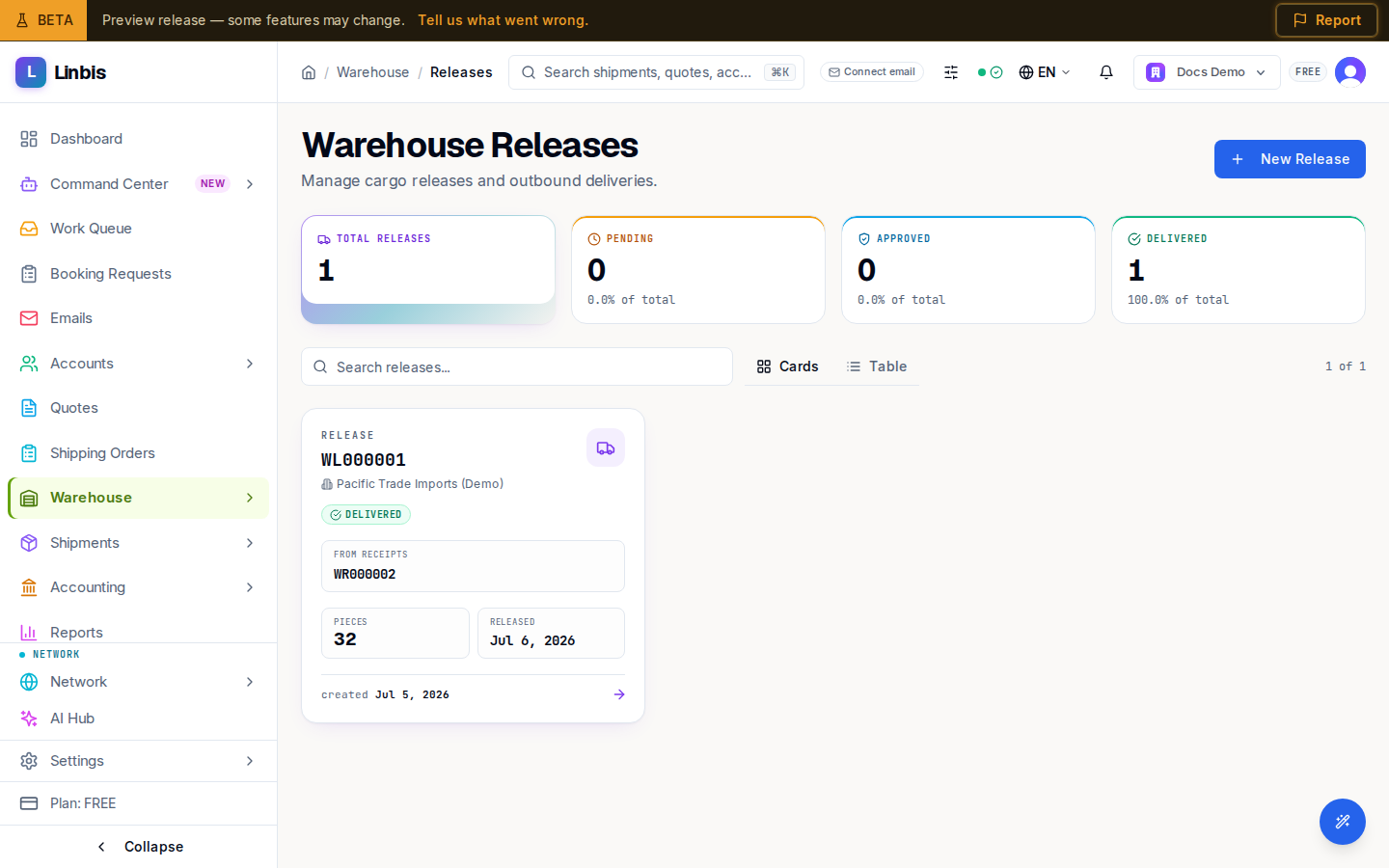
Result
The pieces are out of inventory and the release history shows the full status trail. Print the release document from the Forms tab (the PDF button in the header takes you there).
Tips
- Cancelling a release at any point before Delivered returns the pieces to warehouse inventory.
- You can also start a release from Warehouse → Inventory: switch to the Release Tool view, select cargo, and choose Create Release.
- Drivers can capture a drawn signature on delivery through the Scan kiosk's Deliver flow.