Warehouse receipts
The Receipts list and detail — columns, receipt statuses from Pending to Released, and the tabs on a receipt.
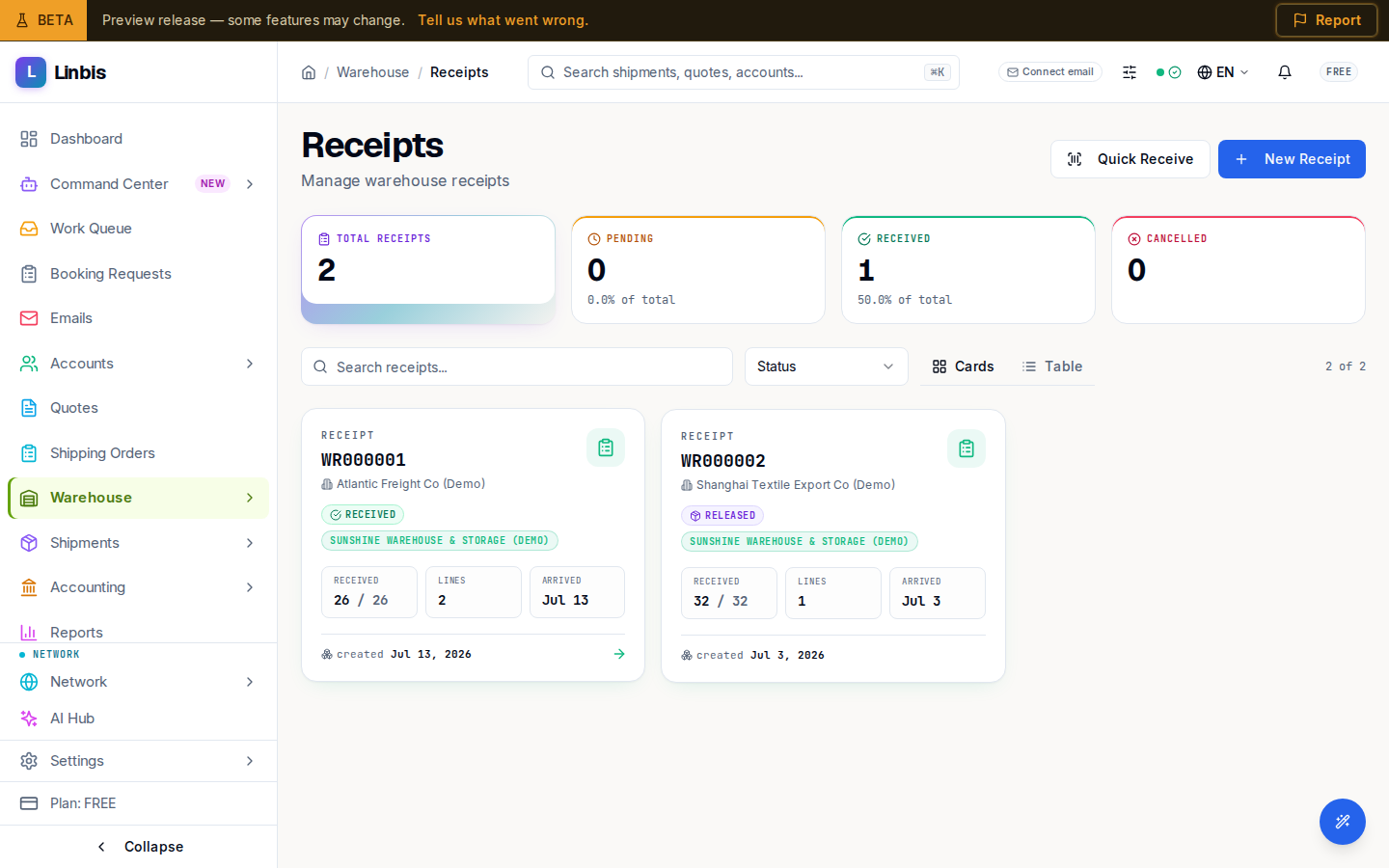
Warehouse → Receipts lists every warehouse receipt — the record you create when cargo arrives at your dock. The list has a search box, a status filter, a Cards/Table view toggle, and New Receipt plus Quick Receive in the header.
List columns
| Column | Meaning |
|---|---|
| Receipt # | The receipt number, e.g. WR000001 |
| Supplier | The shipper on the receipt |
| Status | Current receipt status (below) |
| Expected Date | When the cargo was expected |
| Pieces | Available / total pieces |
| Warehouse | Receiving warehouse |
| Last Updated | Most recent change |
Receipt statuses
Pending, Received, Partial, On Hand (stored), Customs Hold, Released, Cancelled. Marking a receipt Received stamps the received date and pushes its cargo into Inventory; getting cargo out again always goes through a release. Status names can be renamed per company in Settings → Status Flow.
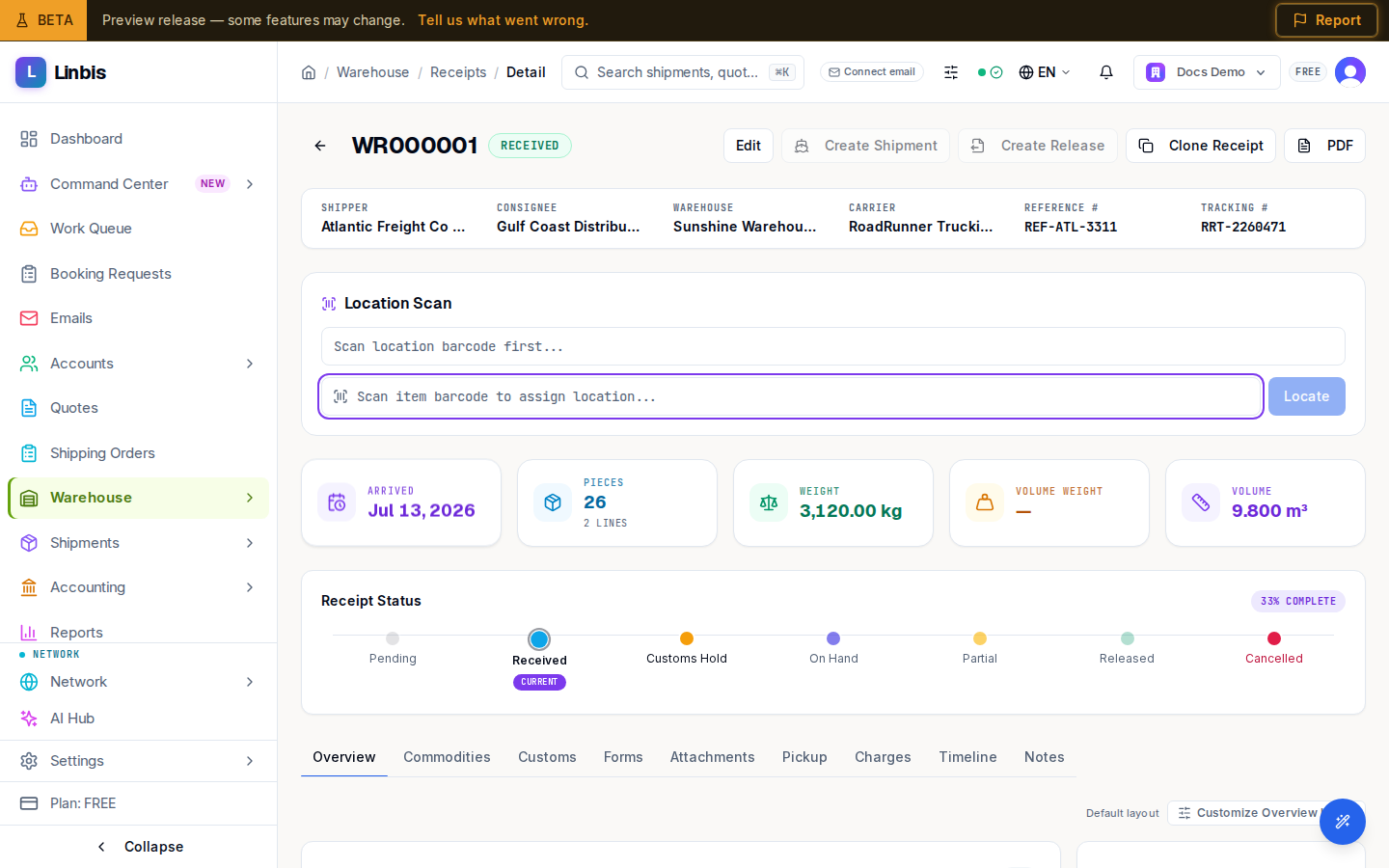
On the receipt, the Receipt Status timeline is where you advance status — select the next node to move forward (Received, then On Hand, Partial, or Customs Hold). Moving backward, placing a Customs Hold, or Cancelling asks you to confirm first. There is no direct step from Received to Released — releasing always goes through the release flow.
The receipt detail
Opening a receipt shows the parties, warehouse, reference and tracking numbers, and arrival data, with the tabs Overview, Commodities, Customs, Forms (printable receipt PDF), Attachments, Pickup, Charges, Timeline, and Notes.
The header also carries shortcut actions — Create Shipment, Create Release, and Clone Receipt — covered in Create a shipment or release from a receipt. Edit the receipt's fields inline from the Overview tab, or use the standalone Edit Receipt form (parties, dates, references, totals, dimensions, carrier, and notes); a Released or Cancelled receipt can no longer be edited.