Warehouse
Receive cargo in the warehouse
Create a warehouse receipt for incoming cargo and mark it as Received so it enters inventory.
When cargo arrives at your warehouse, you record it with a warehouse receipt. Once the receipt is marked Received, its pieces appear in Inventory and can later be released or loaded onto a shipment.
Before you start
- You need at least one warehouse configured for your company.
- Know who the Shipper (who sent the cargo) and Consignee (who it belongs to) are. If the account does not exist yet, create it first under Accounts.
Steps
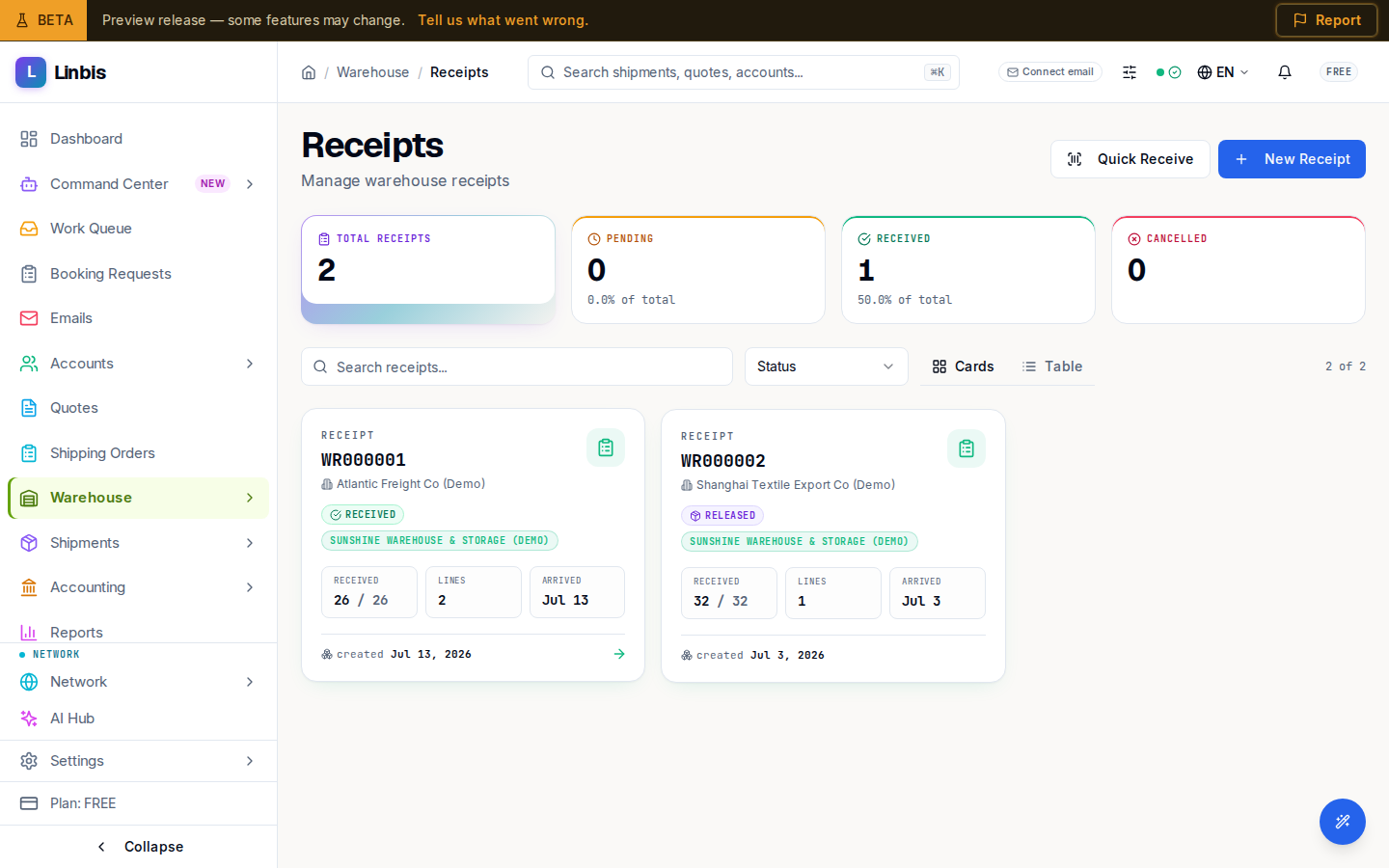
- In the sidebar, open Warehouse and select Receipts.
- Select New Receipt (top right). The New Warehouse Receipt form opens.
- In Receipt Details, fill in the parties and logistics data:
- Shipper and Consignee — search and select the accounts.
- Warehouse — where the cargo is being received.
- Expected Date and Received Date — the received date defaults to now.
- Reference Number (for example a PO number) and Tracking Number — the tracking number is used for barcode scanning and carrier tracking.
- Shipment Reference — optionally link the receipt to an existing shipment.
- Carrier, Supplier, and Driver Name if known.
- Total Pieces and Gross Weight (kg) for the header totals.
- In Commodities, add each item, vehicle, or container: description, SKU, pieces, gross weight, dimensions (length, width, height), volume, condition, package type, and the warehouse Location where it will be stored. Vehicles take VIN, year, make, model; containers take container number and seal number.
- Select Create Receipt. The receipt is created with status Pending and a receipt number
like
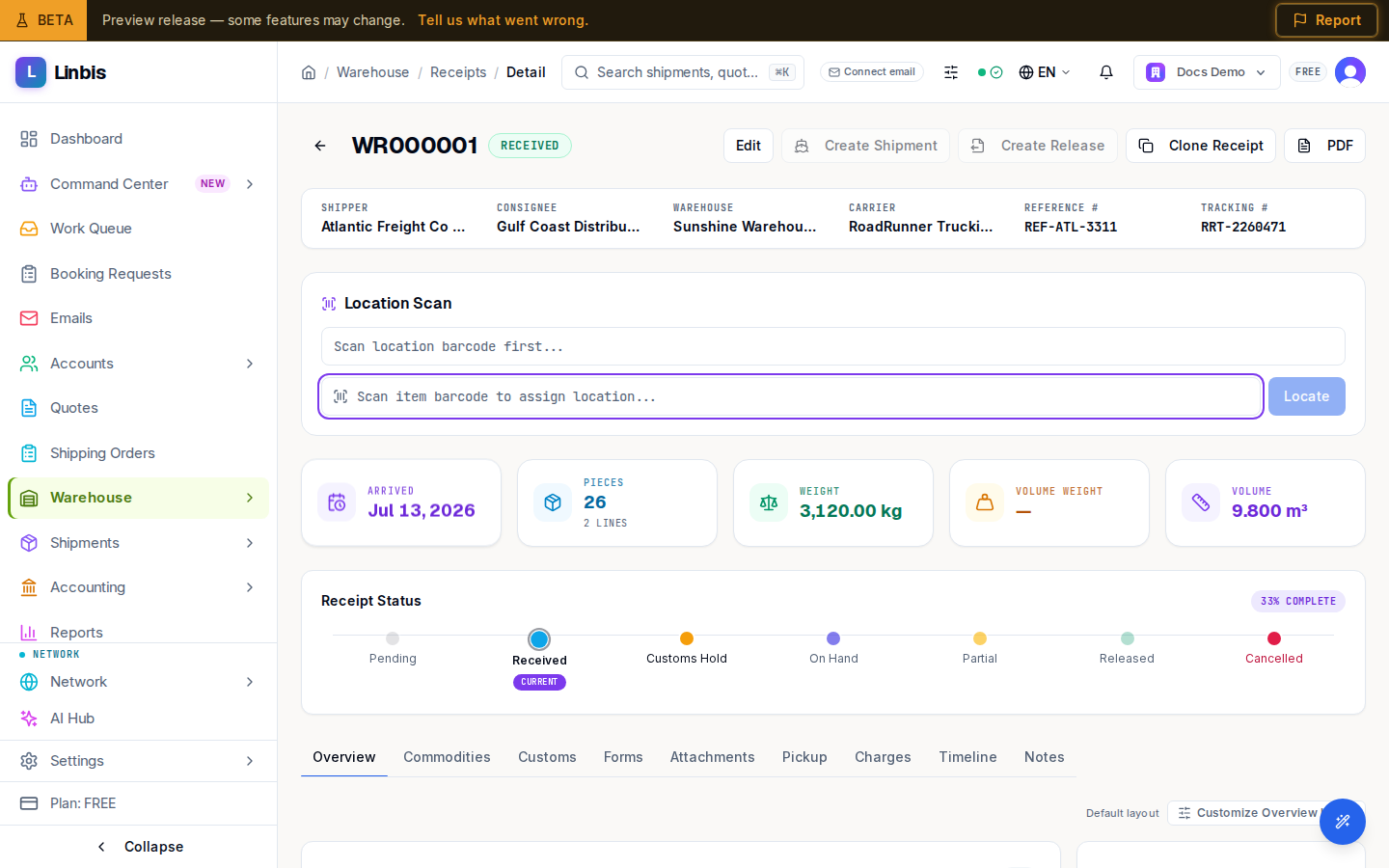
WR000001. - Open the receipt and set its status to Received when the cargo is physically checked in. This stamps the received date and pushes the cargo into inventory.
Result
The cargo is on hand: it shows in Warehouse → Inventory on the On Hand tab, counted in the Items On Hand and Total Pieces tiles. From the receipt detail page you can manage Commodities, Customs, Forms (printable receipt PDF), Attachments, Charges, and Notes.
Tips
- For fast dock-side intake, use Quick Receive (on the Receipts page header) or the Scan kiosk in the sidebar — scan tracking barcodes now, complete the details later.
- A receipt on Customs Hold stays in inventory but cannot be released until it returns to On Hand.
- Cancelling a receipt removes any unreleased cargo from inventory.