Warehouse screen reference
Every screen in the Warehouse module — Overview, Receipts, Releases, Inventory, Locations, and the Scan kiosk.
The Warehouse module covers the physical flow of cargo: receipts in, inventory on hand, releases out. The sidebar entries are Overview, Receipts, Releases, Inventory, Locations, and Scan.
Overview
The landing page (Warehouse) shows four stat tiles — Total Receipts, Pending, Inventory Items, Total Pieces — a Recent Activity feed of the latest warehouse operations, and Quick Actions (Create Receipt, Quick Receive, New Release, Inventory, Location Management). Module cards link to Warehouse Receipts, Cargo Releases, Inventory Management, and Location Management.
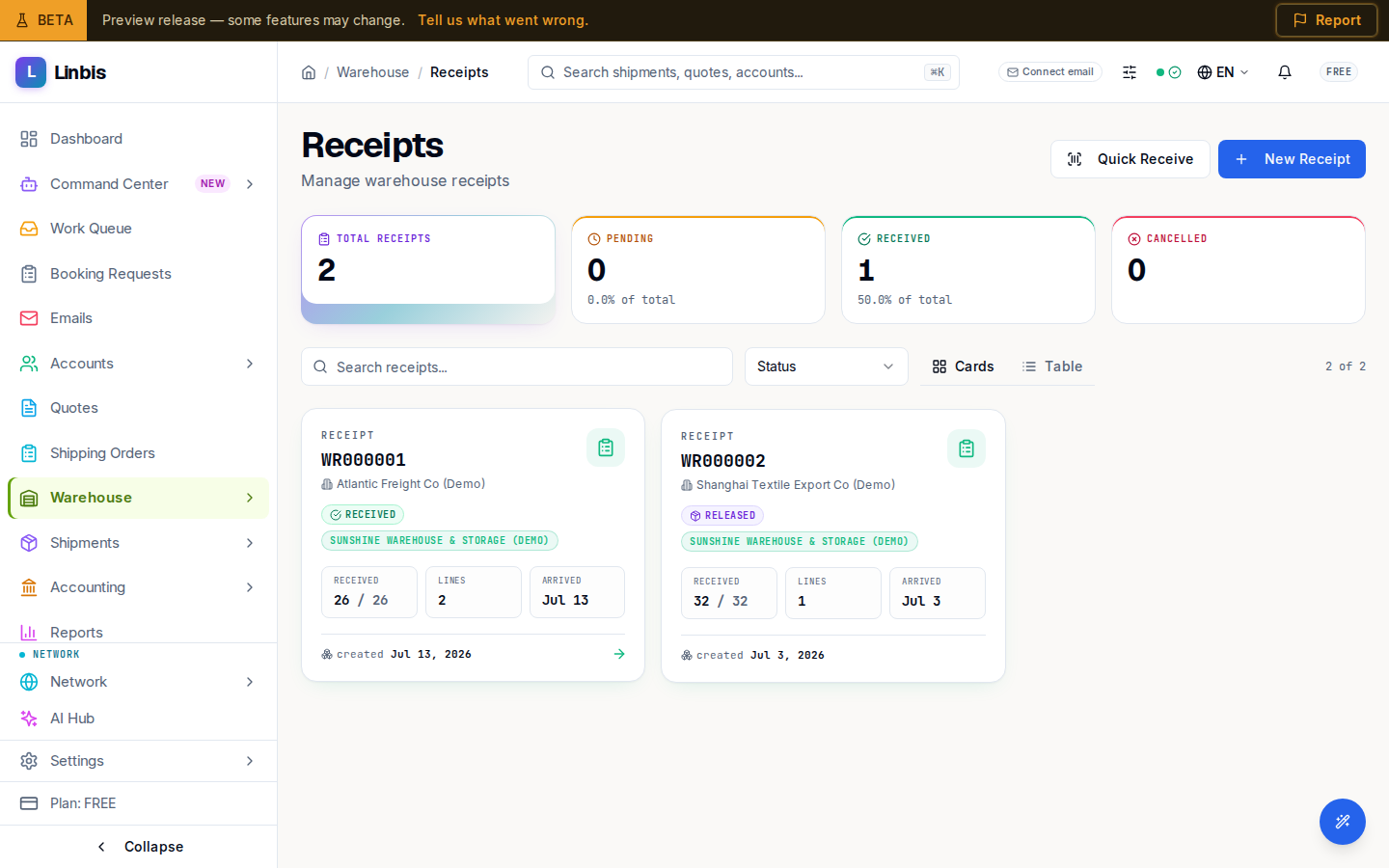
Receipts
The receipts list has a search box, a status filter, and a Cards/Table view toggle.
| Column | Meaning |
|---|---|
| Receipt # | The receipt number, e.g. WR000001 |
| Supplier | The shipper on the receipt |
| Status | Current receipt status (see below) |
| Expected Date | When the cargo was expected |
| Pieces | Available / total pieces |
| Warehouse | Receiving warehouse |
| Last Updated | Most recent change |
Receipt statuses: Pending, Received, Partial, On Hand (stored), Customs Hold, Released, Cancelled. Marking a receipt Received stamps the received date and pushes its cargo into inventory; releasing always goes through the Release flow. Status names can be renamed per company in Settings → Status Flow.
A receipt's detail page has the tabs Overview, Commodities, Customs, Forms (printable receipt PDF), Attachments, Pickup, Charges, Timeline, and Notes.
Releases
The releases list shows Total Releases, Pending, Approved, and Delivered tiles, with the same search and Cards/Table toggle.
| Column | Meaning |
|---|---|
| Release # | The release number, e.g. WL000001 |
| Status | Current release status (see below) |
| Consignee | Who the cargo is released to |
| Receipt Refs | Source receipt numbers |
| Requested Date | When the release was requested |
| Released Date | When cargo left inventory |
| Pieces | Total pieces on the release |
Release statuses run strictly in order: Pending → Approved → Released → In Delivery → Delivered (any non-terminal status can be Cancelled, which returns pieces to inventory). Only owners, admins, and managers can approve. The release detail page has the tabs Overview, Commodities, Charges, Forms, Attachments, Pickup & Delivery (with the Proof of Delivery form), Timeline, and Notes.
Inventory
Inventory lists what is physically in your warehouses. Tiles: Items On Hand, Total Pieces, Total Weight (kg). Status tabs: On Hand, Inbound, Outbound. Views: Cards, Table, and the Release Tool.
- Search by SKU, description, or receipt number.
- Each inventory card links back to its source receipt.
- The Release Tool view lets you select cargo (group by Customer, Receipt, Part #, or Serial #; pick order FIFO/LIFO) and act on the selection with Create Release or Create Shipment.
Inventory appears here when receipts are marked as Received.
Locations
Zones & Locations manages the storage hierarchy per warehouse: Zones (for example
"Zone A", "Cold Storage") contain Locations (codes like A-01-01 or R1-S3-B2). Location
types: Storage, Receiving, Shipping, Quality Control, Mobile, Other. The
locations table shows Code, Type, Zone, Description, and Items. Zones and
locations with inventory in them cannot be deleted.
Scan kiosk
Scan is the touch-first kiosk for the warehouse floor: one lookup box resolves any cargo, shipment, receipt, or release barcode and offers the matching action — receive into a receipt, pack or load a task, verify an arrival, or capture a drawn-signature proof of delivery. It also lists My tasks, an Unassigned task pool, Pending details (fast receives awaiting capture), and a live Recent activity feed.