AI Settings
The AI tab of Settings — auto-processing master switch, global and per-type confidence thresholds, undo window, and AI performance.
AI Settings is the AI tab of Settings (/settings?tab=ai). It decides when the email
agent processes items on its own instead of parking them in the
Work Queue.
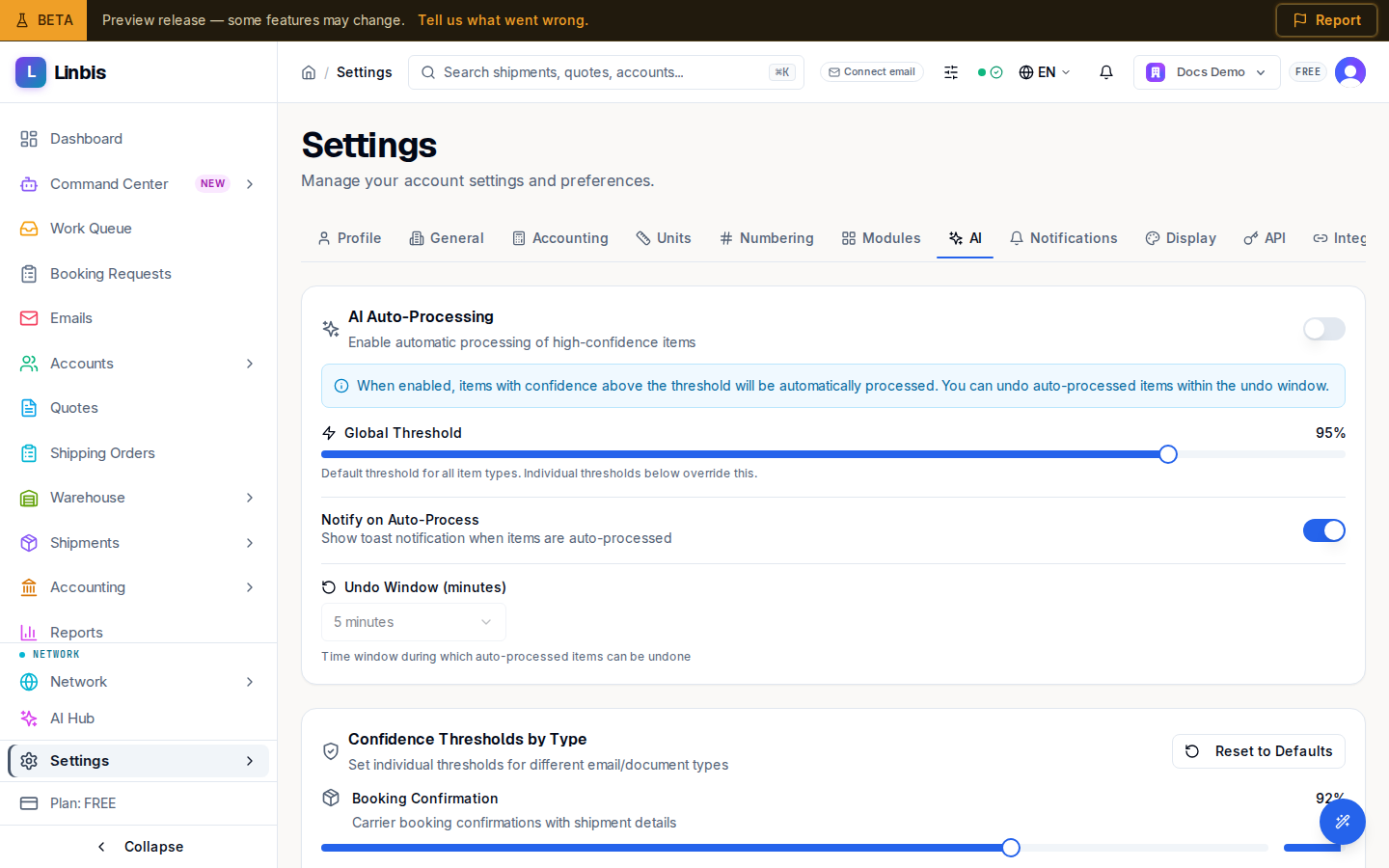
Auto-processing
AI Auto-Processing is the master switch — "Enable automatic processing of high-confidence items." The Global Threshold slider (70–100%) sets the default confidence bar: "Default threshold for all item types. Individual thresholds below override this." Notify on Auto-Process shows a toast when something is handled automatically, and the Undo Window (minutes) — 1, 2, 5, 10, 15, or 30 — is how long you have to undo an auto-processed item.
Thresholds by type
Confidence Thresholds by Type ("Set individual thresholds for different email/document types") overrides the global bar per document: Booking Confirmation, Pre-Alert, Arrival Notice, Status Update, Delivery Notice, Vendor Bill, and Rate Quote. Vendor Bill carries a warning — "Financial documents require manual review by default." Reset to Defaults restores them.
AI Performance
A summary card reports Accuracy Rate, Auto-Processed, Corrections Made, and Time Saved.