Accounting
Record a payment against an invoice
Receive a customer payment, allocate it to open invoices — auto-apply FIFO or line by line — and move them to Partial or Paid.
Posted invoices track their balance until money arrives. Recording that money is the Receive Payment flow: capture the payment, allocate it across the customer's open invoices, and the invoice statuses follow.
Before you start
- The invoice must be posted — status OPEN (or PARTIAL) — a DRAFT invoice can't take a payment.
- Know where the money goes: the Bank Account you deposit into.
Steps
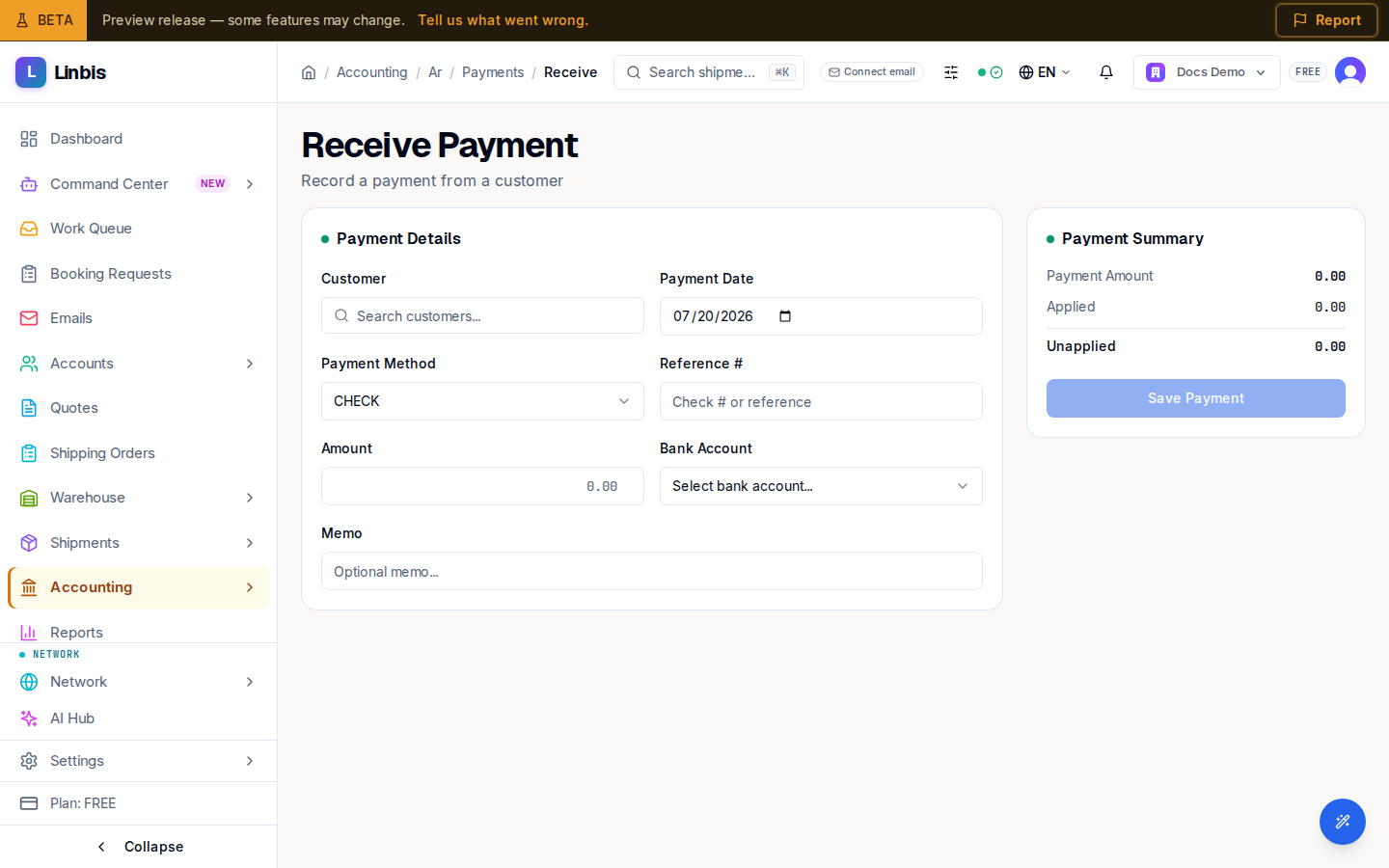
- Open Accounting → Receivables → AR Payments ("Manage accounts receivable payments") and select Receive Payment. (From a customer's account page, the accounting tab's Receive Payment link lands here with the customer pre-selected.)
- Fill Payment Details:
- Customer — picking one loads their open invoices below.
- Payment Date (defaults today) and Payment Method — CHECK, ACH, WIRE, CREDIT CARD, CASH, or OTHER.
- Reference # ("Check # or reference"), the Amount, the Bank Account, and an optional Memo.
- Allocate in Invoice Allocations: leave Auto-apply (FIFO) ticked to fill oldest invoices first, or untick it and type each Apply Amount yourself (columns: Invoice #, Customer, Balance, Apply Amount — capped at each balance). Partial amounts are fine.
- Watch the Payment Summary — Payment Amount, Applied, Unapplied — then select Save Payment.
- If the payment exceeds what you applied, the Overpayment Detected dialog asks how to handle the excess: Keep as credit on account or Recognize as miscellaneous income (with a Revenue Account). Confirm.
Result
A toast confirms the new payment ("Payment … created") and you land back on the AR Payments list, where the payment shows with its applied/unapplied split and status (RECEIVED, later DEPOSITED / CLEARED). Each allocated invoice moves to PARTIAL or, at full balance, PAID — and lists the payment on its own Payments tab.
Tips
- There is no receive-payment button on the invoice detail itself — start from AR Payments or from the customer's account page. The invoice's Create Payment Link action is the online-payment alternative (Linbis Pay).
- Applying more than the payment amount is blocked — an inline alert reads "Applied … exceeds payment amount …" and Save stays disabled.
- Saw "This payment was already submitted"? The payment went through once already — refresh instead of saving again.